
Introduction
When I used to tour the country lecturing on a variety of Excel topics, it often seemed that it was the simplest and most trivial of things that generated the most interest. I’d reveal the astounding capabilities of Power Query and , for the finale, show how to use it to fully automate the process of transforming a couple of columns of account numbers and values into a formatted set of accounts and, at the end of the lecture, someone would ask about how I’d used a keyboard shortcut to add the dollar sign in a cell reference early in the lecture.
F4
We’ll start with the dollar sign shortcut. The function key F4 cycles through the four different dollar placement options. We’ll assume that we start with a simple relative reference to cell A1. If we click in our formula, either in the formula bar or directly in the cell, immediately adjacent to our cell reference or within it, pressing F4 will cycle through the absolute/relative options as shown below:
- A1 – fully relative (neither column nor row is fixed)
- $A$1 – fully absolute (both column and row are fixed)
- A$1 – column relative, row fixed
- $A1 – column fixed, row relative
- A1 – fully relative again
This might seem simple but there are a couple of points to note. Firstly, if you select part of a formula, rather than just click in a single position, any cell references included in the selection, or adjacent to it, will be affected by pressing F4. Where the cell references start off with differing dollar sign placement, the first press of F4 will cycle as shown above but will also align subsequent references with the furthest left reference in the selection:

Press F4

Secondly, if you are entering a range of cells, such as A1:C1, then pressing F4 immediately after dragging across the range will cycle through both range start and range end references. If you type in the references manually, or subsequently position the cursor immediately after the end reference, F4 will just affect the end reference.
Control+Enter
This is even simpler than the F4 shortcut. If you want to enter the same content into multiple cells, select the range of cells, type in the formula or value, then, instead of pressing the enter key to enter the formula into just that one cell, hold down the keyboard Control key before pressing the enter key. This will enter the content into all the selected cells. This will also work with cells in non-adjacent ranges. You can select multiple ranges in Excel by holding down the Control key as you drag each area, this adds each new selection to the current selection, rather than replacing it. The Control+Enter keyboard shortcut will work in same way with these non-adjacent ranges.
Down and Right
Next, another Control shortcut. This time using Control +d to copy the contents of the top cell or cells in a selected range down to the other rows in the range, or Control+r to copy the contents of the left cell or cells in a selected range across to the other columns in the range. This might not seem to offer much of an advantage compared to just using the cell fill handle to copy the contents of a cell or cells across a range, but there are a couple of situations where it can save a bit of time and effort. If you copy a cell containing a date using the fill handle, Excel will default to creating an ascending series of dates. You can use the option button to change this to just creating a copy, but it’s a bit quicker just to select the cell, and the range you want to copy it to, and use Control+d or Control+r. Unlike using the fill handle, this defaults to creating a simple copy of the cell content.
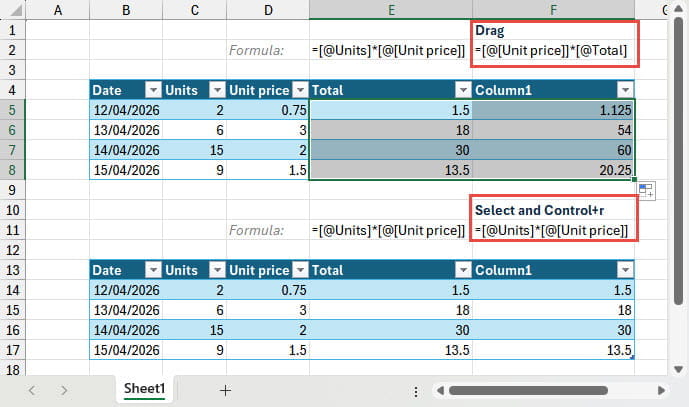
There is another case when using Control+r works very differently to dragging to the right. If you drag a formula column in an Excel Table to the right, the structured references will behave relatively. If you make the selection first and then use the Control+r shortcut, the structured references will be unchanged:
Conclusion
Simple shortcuts might not save vast amounts of time on each occasion they’re used, but they can seem deeply impressive to onlookers and dramatically increase your Excel guru status.
Additional resources
As well as the solution to many more complex Excel and office software problems, you can also find plenty of articles on simple shortcuts in the Power BI based ICAEW Excel archive portal:
The 'Open in full-screen mode' icon in the bottom right-hand corner of the embedded report should show the contents at a more readable size with the Escape key returning you to the post.
Archive and Knowledge Base
This archive of Excel Community content from the ION platform will allow you to read the content of the articles but the functionality on the pages is limited. The ION search box, tags and navigation buttons on the archived pages will not work. Pages will load more slowly than a live website. You may be able to follow links to other articles but if this does not work, please return to the archive search. You can also search our Knowledge Base for access to all articles, new and archived, organised by topic.