
SUMIFS is one of the most commonly used functions for finance professionals. But there are lots of scenarios where it just can’t do what we need. For example, SUMIFS handles AND logic beautifully, but the moment we introduce OR conditions, things start to fall apart.
The SUMIFS Problem
SUMIFS adds values in a range only where all the specified criteria are met.
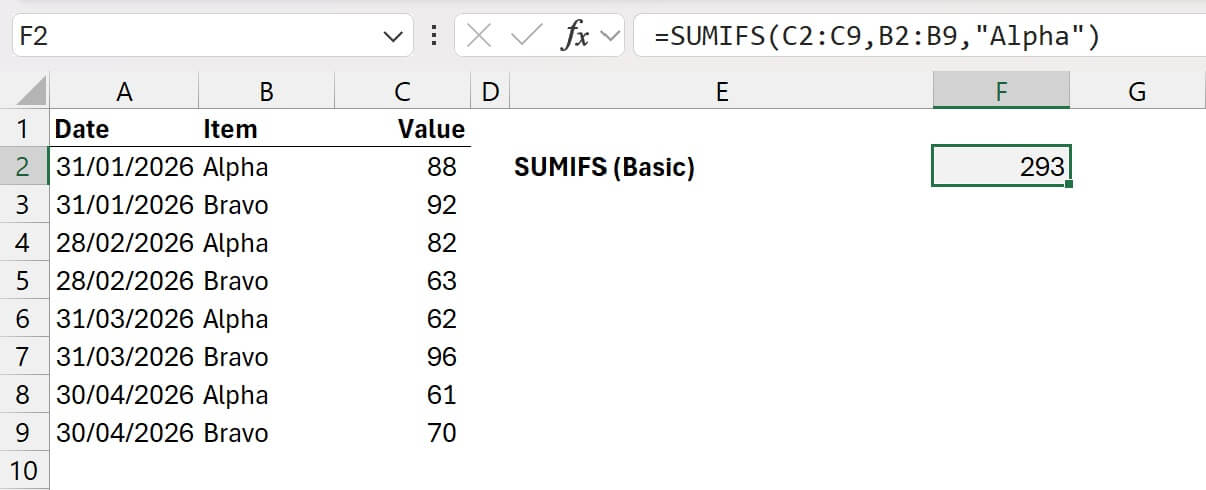
In the example above, the formula in cell F2 is:
=SUMIFS(C2:C9,B2:B9,"Alpha")
This adds the Values (cells C2:C9) where the corresponding Items (cells B2:B9) are equal to Alpha.
In this example, there is only a single condition. But SUMIFS can expand to include multiple conditions.
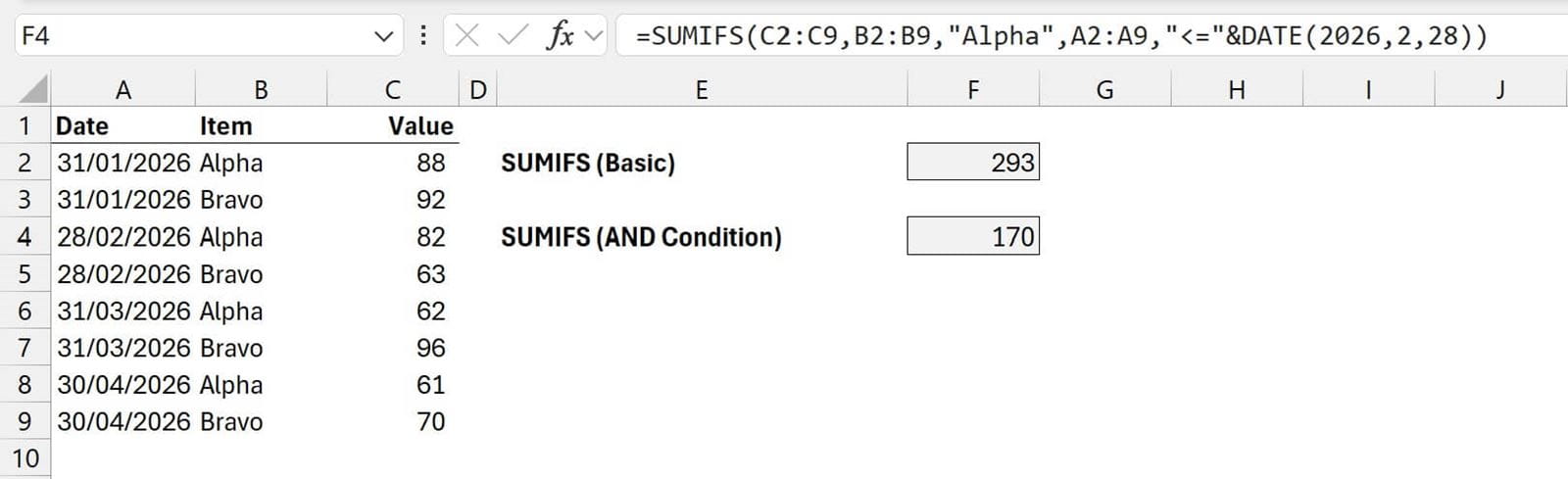
The formula in cell F4 is:
=SUMIFS(C2:C9,B2:B9,"Alpha",A2:A9,"<="&DATE(2026,2,28))
This adds the Values where the corresponding Items are equal to Alpha AND the Date (cells A2:A9) is on or before 28th February 2026.
We can keep adding as many pairs of columns and conditions as we need.
This is great for AND conditions, but what about OR conditions? SUMIFS can’t handle that.
For example, we can’t use SUMIFS to sum where the Item is equal to Alpha OR the date is on or before 28th February 2026.
Historically, these scenarios were solved using the SUMPRODUCT function, which we will look at next.
The SUMPRODUCT problem
SUMPRODUCT has long been used as a method to calculate with OR conditions.
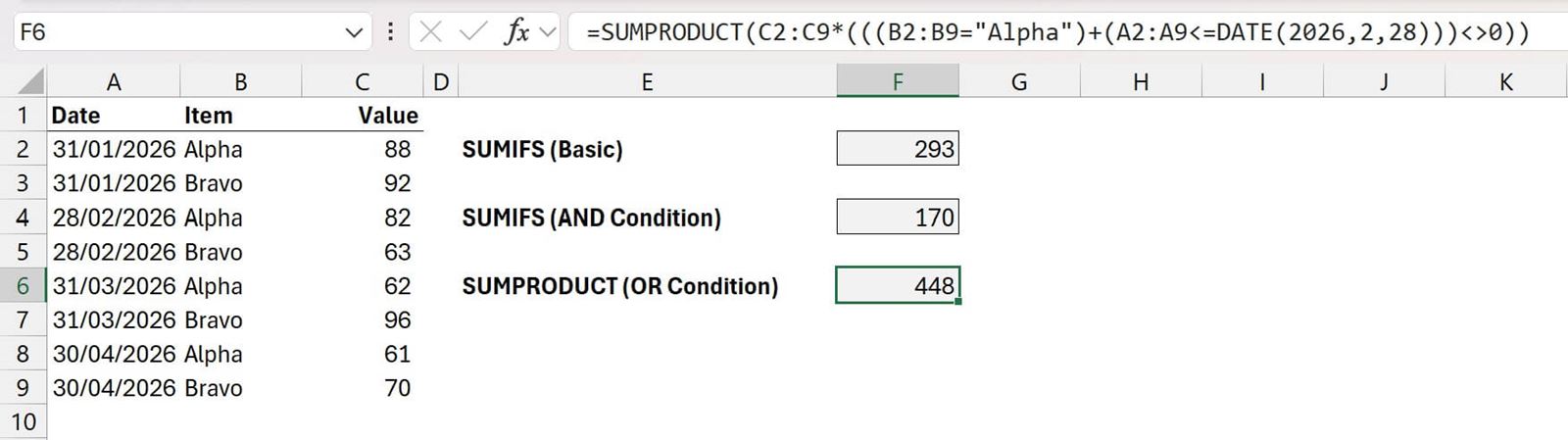
The formula in cell F6 is:
=SUMPRODUCT(C2:C9*(((B2:B9="Alpha")+(A2:A9<=DATE(2026,2,28)))<>0))
This uses TRUE/FALSE logic to calculate the value.
It calculates the TRUE/FALSE for each condition and then adds or multiplies those values.
From left to right, the calculation logic breaks down as follows.
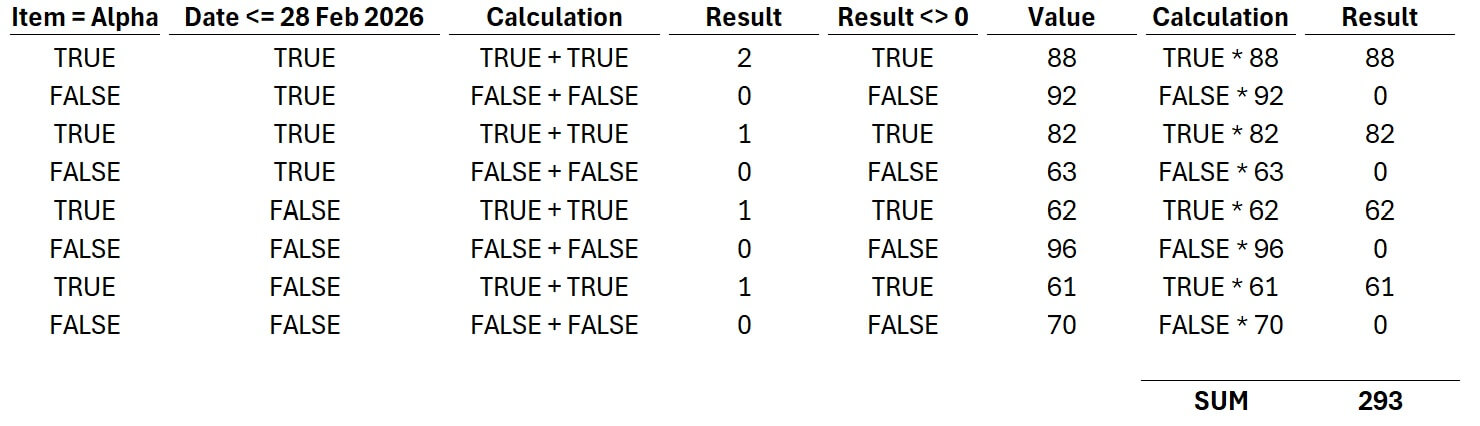
The items where the first two columns are both FALSE return zero, otherwise it returns the original value.
This logic creates the equivalent functionality of a SUMIFS calculation, but it can handle both AND and OR conditions.
Addition ( + ) represents OR logic, multiplication ( * ) represents AND logic.
In recent years, with the introduction of Dynamic Array calculations in Excel, SUMPRODUCT is now pretty much obsolete. We can achieve the same result by using just the SUM function.
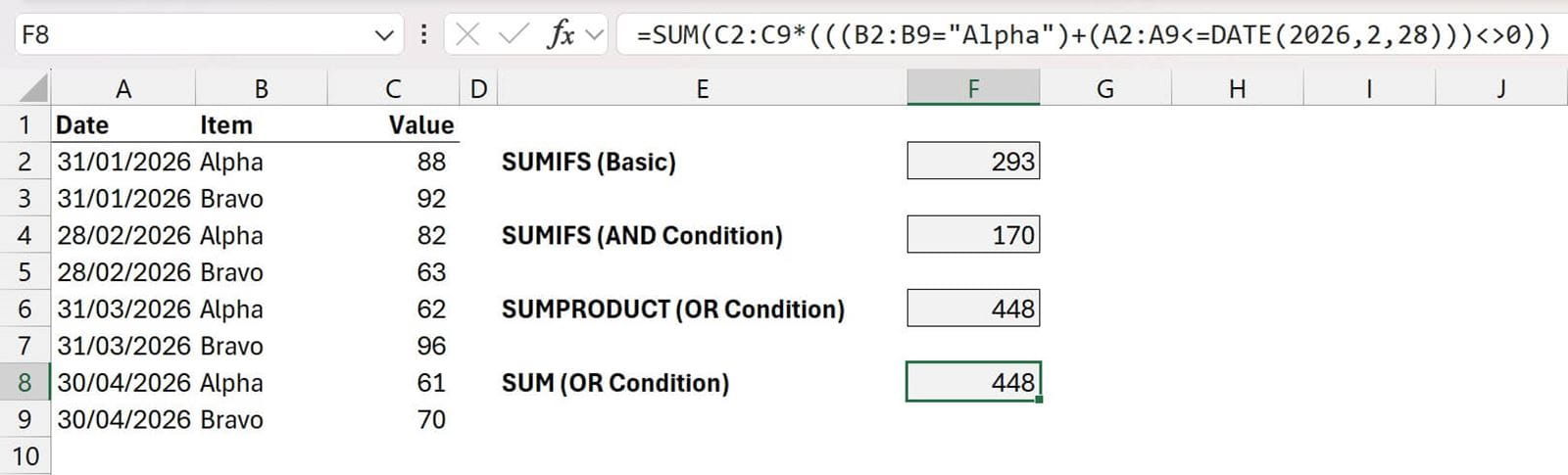
The formula in cell F8 is:
=SUM(C2:C9*(((B2:B9="Alpha")+(A2:A9<=DATE(2026,2,28)))<>0))
It uses the same logic as SUMPRODUCT and produces the same result but only uses the SUM function.
What if we want an AVERAGE, MEDIAN, MAX, or MIN based on OR conditions?
Let’s use MIN as an example.
There is a MINIFS function, which works the same as SUMIFS – it only works with AND conditions.
There is no MINPRODUCT function, and if we try using just MIN it will return the incorrect value.
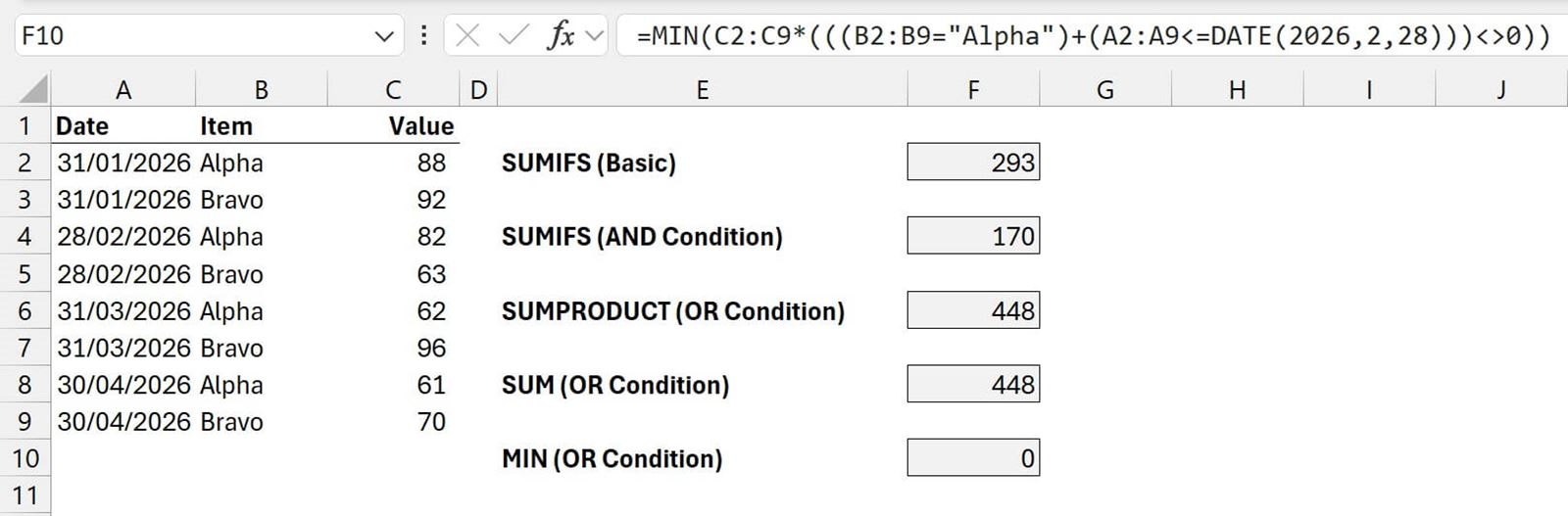
The formula in cell F10 is:
=MIN(C2:C9*(((B2:B9="Alpha")+(A2:A9<=DATE(2026,2,28)))<>0))
As noted earlier, the TRUE/FALSE logic returns 0 for anything that does not meet the conditions. This works fine for SUM where 0 doesn’t change the final value. But for MIN, in this example, it will treat the 0 as the minimum value. Which has to be the wrong result, because all our values are greater than 0.
Instead, wouldn’t it be nice to have a method that worked with AND or OR conditions, and worked with SUM, AVERAGE, MIN, MAX, MEDIAN, etc.?
To achieve that, we need a different thought process.
A different thought process
Currently, we are viewing the problem as:
Aggregate all the values where specific conditions are met.
But what if we changed that into a two-step process:
[1] Filter to the values where the conditions are met.
[2] Aggregate the values remaining after the filter
This is the essence of a SUMIFS function but approached from a different angle.
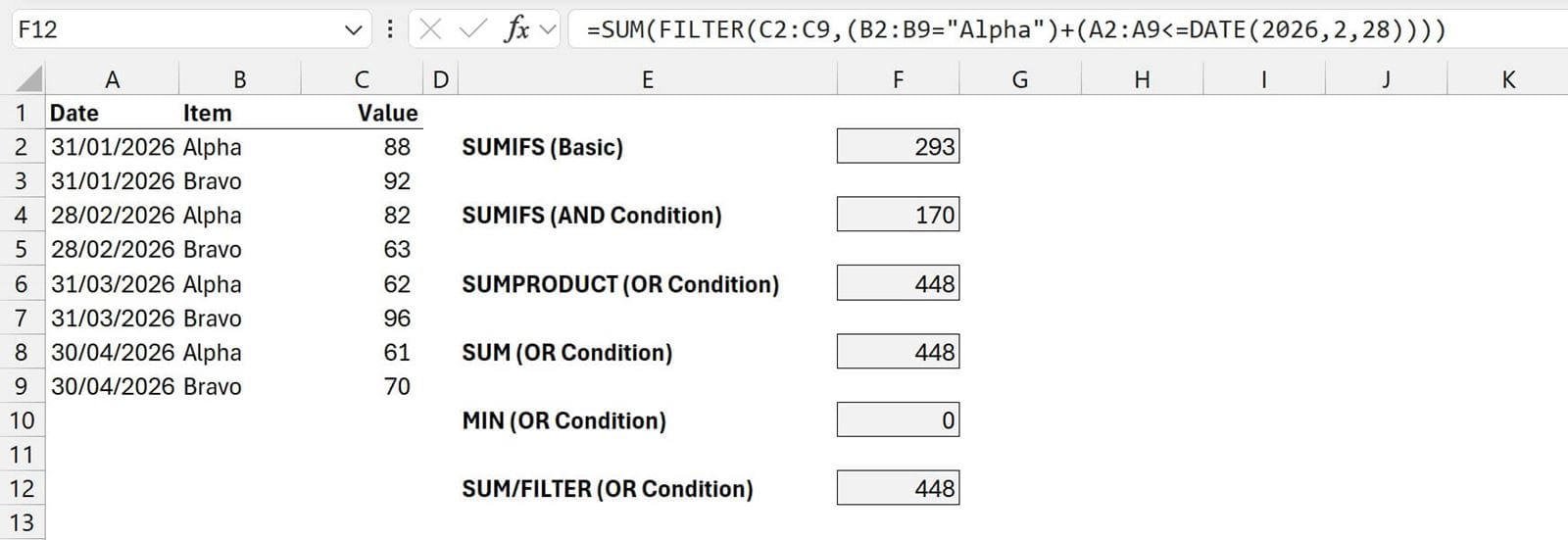
The formula in cell F12 is:
=SUM(FILTER(C2:C9,(B2:B9="Alpha")+(A2:A9<=DATE(2026,2,28))))
It starts by filtering the values in the Value column based on where Item is equal to Alpha or the Date is on or before 28th February 2026.
This returns the following (only the values where the corresponding conditions are TRUE):
{ 88; 92; 82; 63; 62; 61 }
We then apply an aggregation function, such as SUM, to those values.
FILTER uses similar TRUE/FALSE logic as SUMPRODUCT, therefore, it works with AND (multiplication) and OR (addition) conditions.
Using this approach, calculating the equivalent of MINIFS with an OR condition is also no problem.
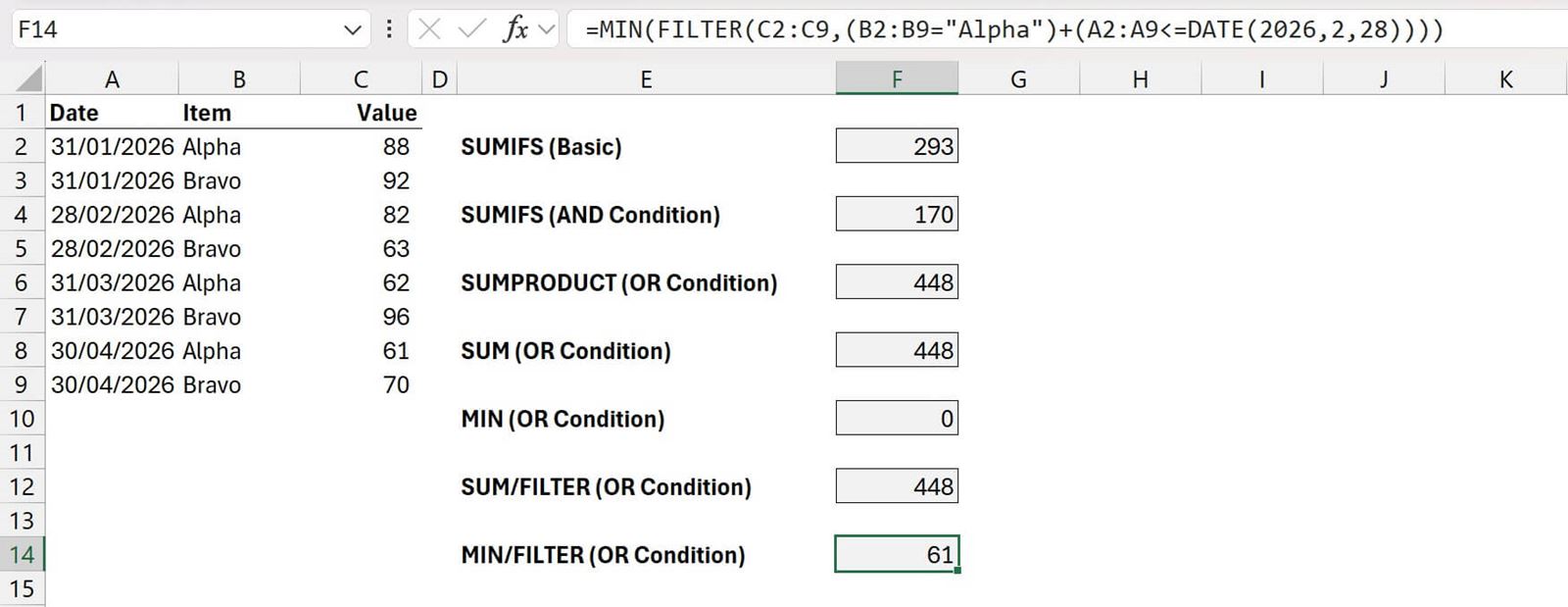
The formula in cell F14 is:
=MIN(FILTER(C2:C9,(B2:B9="Alpha")+(A2:A9<=DATE(2026,2,28))))
Once again, it filters to the relevant values and applies MIN as the aggregation function.
We can use any aggregation function we like. For example, we could even create the equivalent calculation of a MEDIANIFS (a function that does not exist in Excel)
=MEDIAN(FILTER(C2:C9,(B2:B9="Alpha")+(A2:A9<=DATE(2026,2,28))))
This two-stage approach is a universal solution for calculating with conditions; we can use AND or OR logic and any aggregation function we wish.
There is an important point to note. If there are no rows matching the FILTER conditions, it will return the #CALC! error. We can handle this by using either:
-
The if_empty argument inside the FILTER function to return
=MIN(FILTER(C2:C9,(B2:B9="Alpha")+(A2:A9<=DATE(2026,2,28)),0))
-
Using the IFERROR function to handle the error.
=IFERROR(MIN(FILTER(C2:C9,(B2:B9="Alpha")+(A2:A9<=DATE(2026,2,28)))),0)
When not to use this approach?
While this universal Filter & Aggregate approach is the most flexible, if working with a large dataset, it may cause slower calculation times than SUMIFS. Therefore, you will need to keep your knowledge of SUMIFS, AVERAGEIFS, MAXIFS, MINIFS, etc. for those scenarios.
Conclusion
Whenever we have an advanced calculation with multiple conditions, changing our mindset into a two-step process of (1) Filter, then (2) Aggregate gives us much more flexibility.
Once you start thinking in terms of filter and aggregate, many previously difficult calculations suddenly become easier.
Archive and Knowledge Base
This archive of Excel Community content from the ION platform will allow you to read the content of the articles but the functionality on the pages is limited. The ION search box, tags and navigation buttons on the archived pages will not work. Pages will load more slowly than a live website. You may be able to follow links to other articles but if this does not work, please return to the archive search. You can also search our Knowledge Base for access to all articles, new and archived, organised by topic.
