
Last year, Microsoft MVP Mark Proctor wrote an article for the Excel Community explaining the importance of understanding how Excel handles blanks. Embracing the philosophical challenge, ICAEW’s Head of Data Analytics and Tech, Ian Pay, has decided to take things a step further and look at the same concepts in Power BI.
This article is about nothing. No really, it is. Zero. Zilch. Nada. Pretty short article, right?
Before anyone offers their comments about how writing extensively about nothing is pretty normal by my standards, allow me to explain.
Back in November, an article for our Excel Community, penned by Microsoft MVP and ICAEW member Mark Proctor, looked at the treatment of blank cells in Excel. In Excel, there are basically two states that represent nothing: zero (0), and blank. The way Excel handles these – and blanks in particular – is at times quirky, but for the most part is predictable and, as Mark outlines in his article, easy to manage if you’re alert to the risks.
But in the world of data, and in Power BI, there’s a third state known as null. This third state is conceptually tricky, and before we get into how representations of nothing are handled in Power BI, it’s worth explaining what a null value actually is.
What is null?
To define ‘null’, we first need to define a blank value in the world of data. A blank is a valid data point, representing an empty field. Crucially, by being blank, we know that there is no value present. It is still a valid property for the field. In a table of data, blank would typically be useful for an optional column, to determine when it is intentionally unpopulated – for example, with invoices data, if some invoices aren’t supposed to have due dates, the ‘invoice due date’ column might have blanks for those records.
Null, on the other hand, is the explicit absence of known data. It can mean that no data exists, or that the data that exists is unknown for the type of column. The invoice due date might also have null values, because those invoices are supposed to have due dates but they haven’t been populated yet, perhaps because the invoice terms aren’t finalised.
The obvious question here is, if you have no data, why would that be null and not just a blank? The reason for this is complex and stems from database architecture. When data is captured for storage in a database, it is often necessary to distinguish between data which is definitively absent (blank) and data which is not yet populated (null).
Take the situation of a long, multi-part form where progress is saved. Mandatory questions cannot be left unanswered, but as the user hasn’t answered them yet, they would be null until populated. This is valid data, particularly for analysing incomplete forms. On the other hand, optional questions can be blank, to mean that they have been deliberately left unanswered.
Nulls in formulas and calculations
Before we get into how Power BI handles blanks and nulls, there are some general principles to understand in terms of how nulls are typically treated in formulas. In short – if you combine a null with any other value, you’ll usually get null as an output. For example:
- 5 + null = null
- null * 10 = null
- “Hello” & null & “World” returns null
Also, when joining datasets together or creating relationships between different tables, you can’t link the datasets based on nulls – the join will simply fail, or the related fields will all show as null.
This can be annoying, as nulls can very quickly breed more nulls, making calculations meaningless. However, there are ways to manage this behaviour, which we’ll come onto shortly.
How Power BI handles nothingness
There are two sides of the coin to consider in Power BI – the ‘front end’ or visualisation/report layer, and the ‘back end’ or data transformation layer, which utilises Power Query. Unhelpfully, Power Query and Power BI have different data type definitions, and different ways to handle blanks, zeros and nulls. And to add to the confusion, the behaviour of blanks and nulls in Power Query is impacted by how you’ve imported the data in the first place, and any initial steps that Power Query automatically applies.
Take the following example dataset:
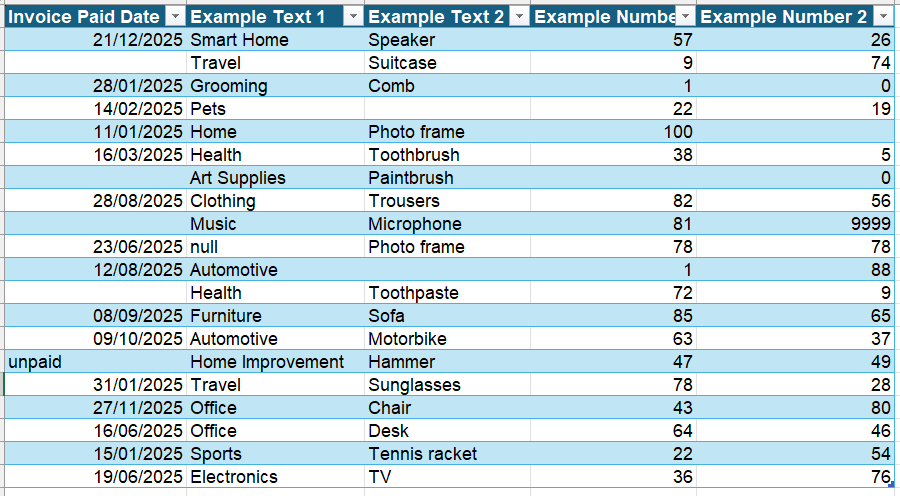
You’ll notice it has a few ‘quirks’ – blanks, some text in a column of dates, and even the word ‘null’ in one of the columns. If this data is saved and imported into Power BI as a CSV file, it’ll typically preserve the blanks:
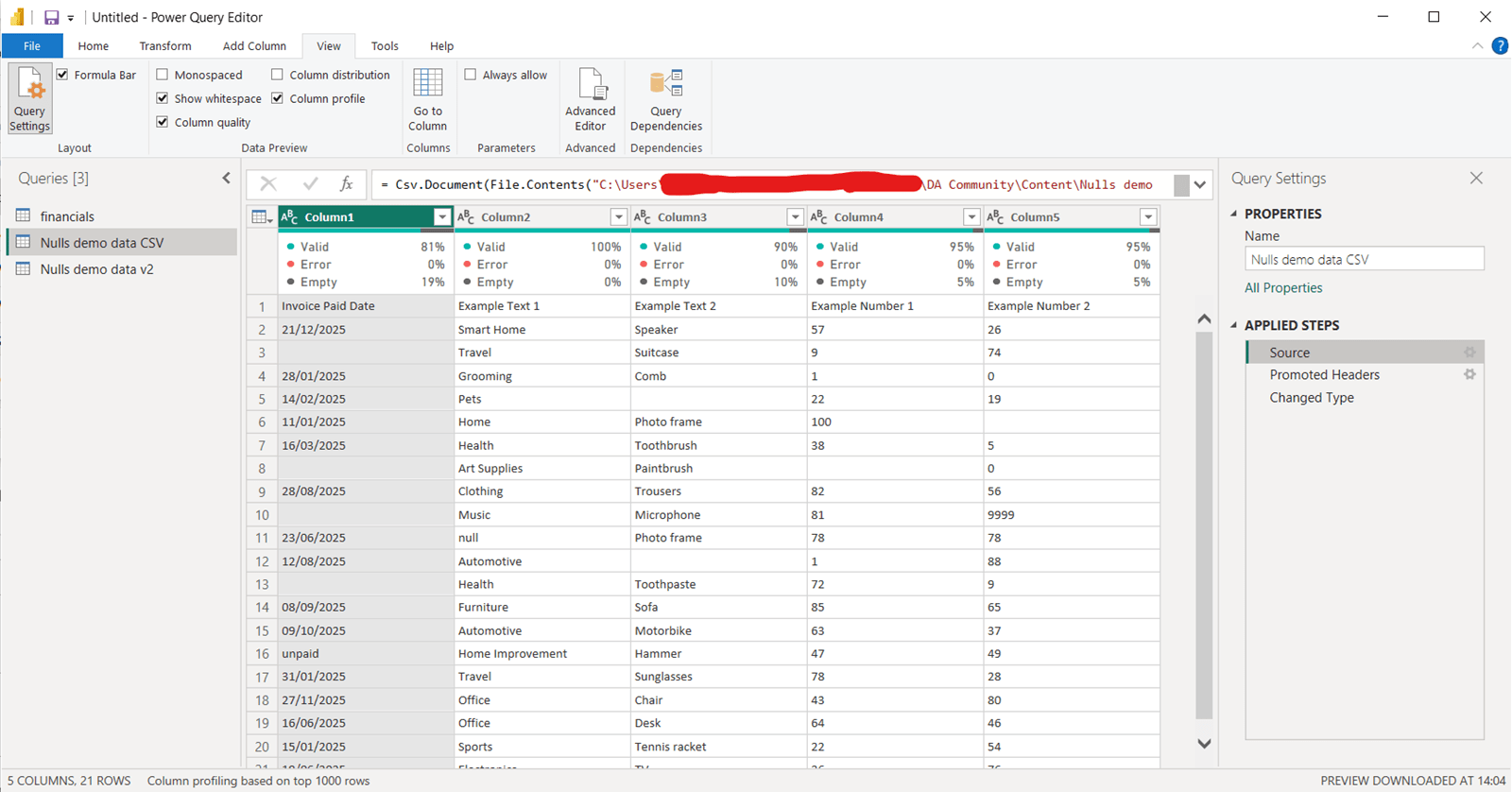
However, there is a problem: Power Query has performed some automatic transformation steps, and these steps actually change the behaviour of some of those blanks:
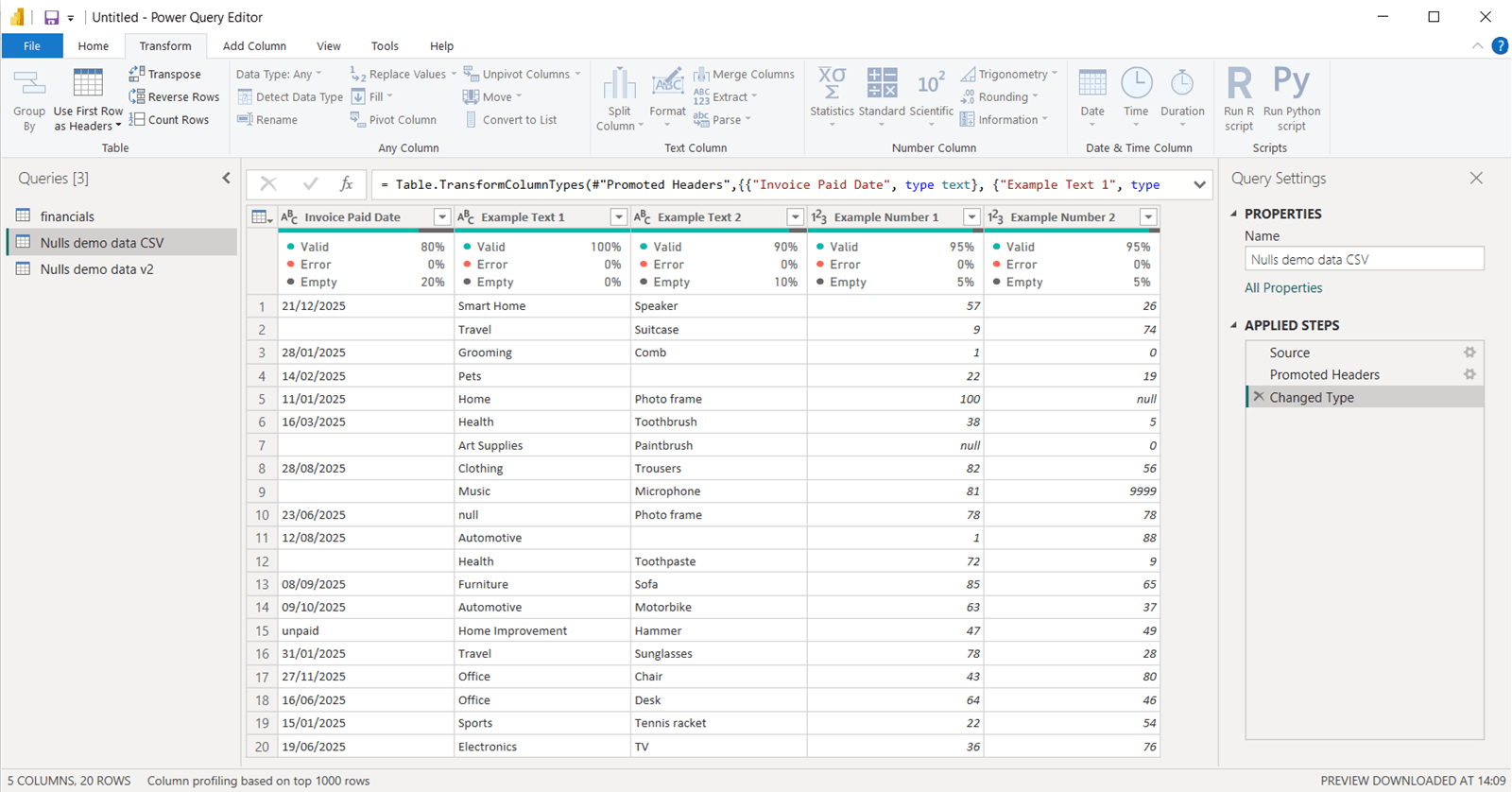
To summarise the key observations:
- Blanks in text fields stay as blanks
- Blanks in numeric fields are changed to nulls. This is because Power Query cannot accept blanks in numeric fields.
- The word ‘null’ in the text field is still just text, and not a null (the word ‘null’ is italicised when its actually representing a null value)
- Power Query considers both blanks and nulls to be ‘Empty’, as shown by the column profiling
You’ll also see that the date column hasn’t been converted to a date because of the text value in row 15. If we force this to convert to a date, we now see:
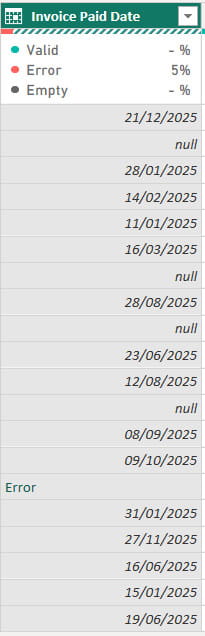
Again, blanks are nulls, but the erroneous text value has been handled as an error. In many systems this example would result in another null, but here invalid data is identified and isolated. If you were to continue importing it into Power BI, it would flag the error and omit the record from the report.
Importing from Excel, meanwhile, gives curiously different results:
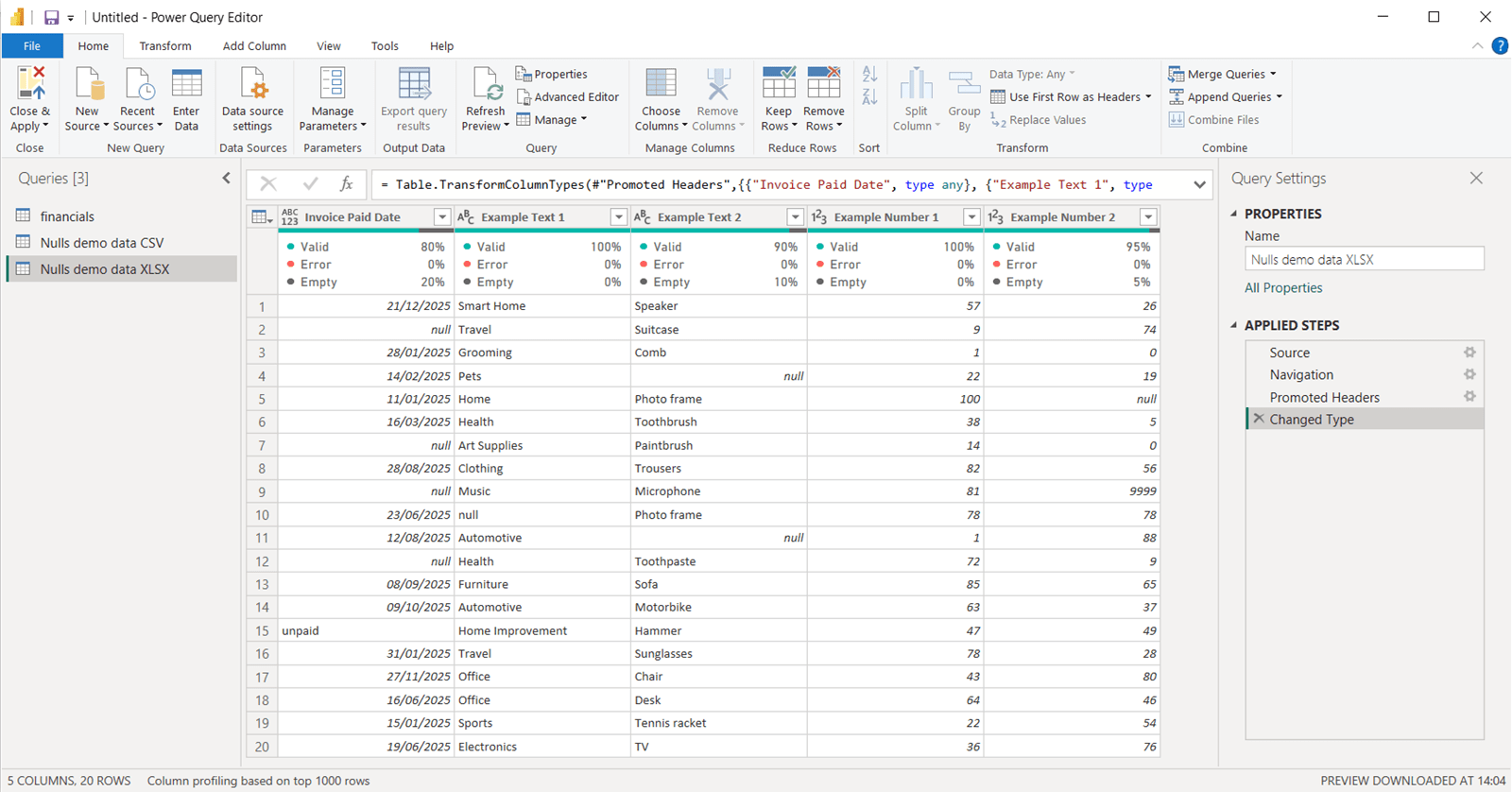
Here you can see that the blank values in the text fields are also showing as nulls – so for Excel imports, blanks are always converted to nulls. It’s not to say either of these approaches are wrong, but it’s important to understand how data is handled on import, as it will influence some of the downstream transformations that you perform.
There are of course many other import methods in Power BI – we touched on a few of them in our recent webinar Back to basics: getting started with data sources in Power BI. Database imports will generally represent nulls and blanks faithfully as they are in the database tables. APIs will also usually preserve formats, though this depends a little on the way the API provides the data – if it is CSV format, then it will behave the same as a standard CSV import, whereas JSON files can accommodate nulls and blanks.
Just when you think you’ve got your head around nulls in Power BI though – think again! Because those values that were nulls in Power Query, once brought into Power BI itself, now all appear on face value as blanks:
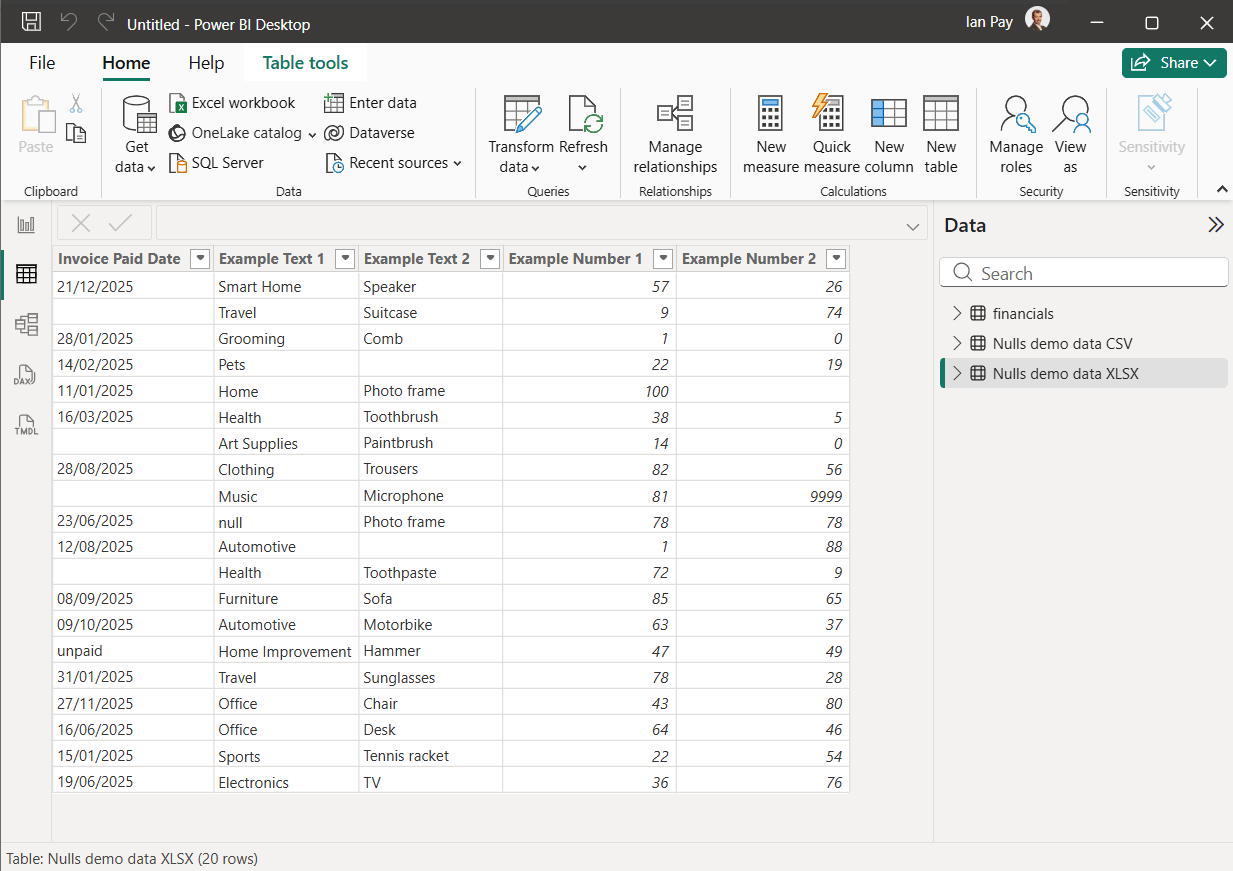
It gets more confusing though when you start to visualise the data, because here we see that there is still a difference between blanks and nulls:
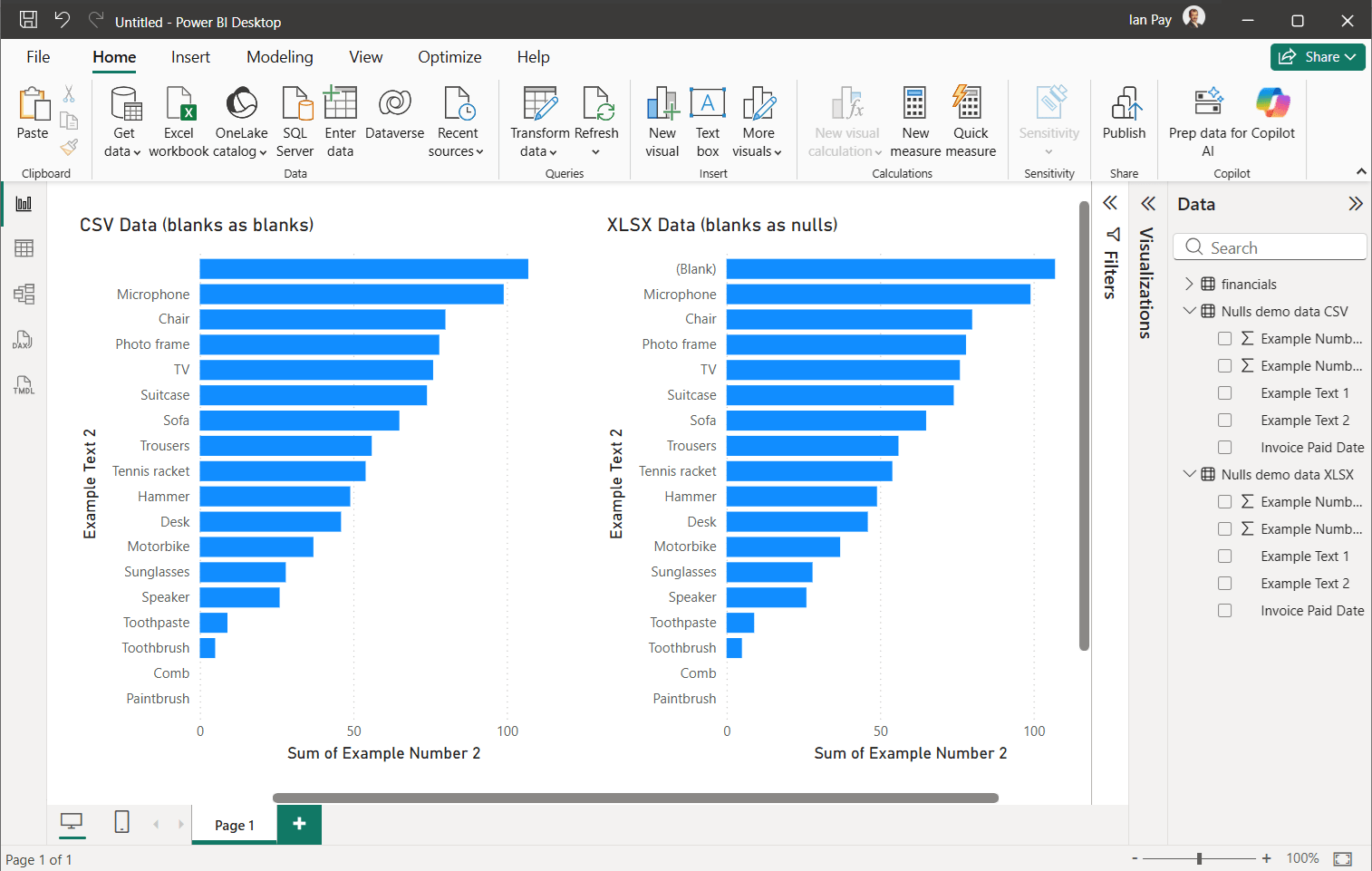
Blank text simply shows as “ ” whereas null text shows as “(Blank)”. It turns out, this really matters when you start trying to filter based on text values, as there is a distinction between what Power BI calls ‘empty’ values and ‘blank’ values:
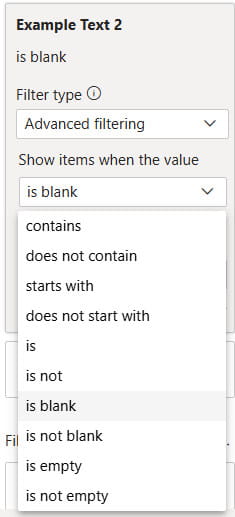
Yep, you’ve guessed it – ‘blank’ is actually referring to nulls or “(Blank)” whereas ‘empty’ is referring to blanks or “ ”. And at this point, I’ve probably lost you completely.
Fortunately, numeric and date values can’t be blank in Power Query, which means when we move to Power BI, their behaviour is consistent. Nulls in these types of columns are basically just ignored. That means, for numeric nulls, they aren’t displayed on visuals, and they’re not included in counts, sums, averages or other aggregations. Zeros, on the other hand, are included in all of these. For dates, they also won’t get plotted and are excluded from aggregations like counts or earliest/latest determinations.
Steps to manage the behaviour of nothing
If you’re confused by all this talk of null, blank and empty, then that’s probably a good thing. Because it means that what we do understand is actually very simple – we need to make sure we are aware of the handling of these values before loading into Power BI.
Ultimately, we want to consciously control the way blanks, nulls and zeros are dealt with, based on the context of our dataset and the analysis we wish to perform on it. Numeric fields are simple – if we want these fields to be included in our arithmetic, we need to convert all nulls (blanks) to zeros. Date fields might need a ‘default’ date to be specified, if we want to ensure the relevant data shows in our analysis. And blanks and nulls in text fields should be handled so that their behaviour is consistent, predictable and aligns to our desired analytics outcomes.
All of these needs to be done in Power Query, and fortunately there are lots of useful ways to handle nulls and blanks. While I haven’t got time to go into all of them, two in particular are worth highlighting:
Replace Values – found on the ribbon under Transform > Any Column, this is a quick and simple way to replace null values with an alternative, and works on any column type – just be aware that you can’t replace null with a text value in a numeric or date column
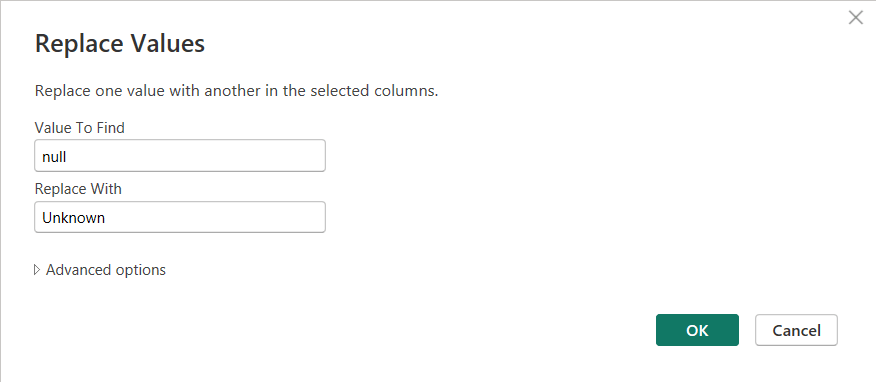
It’s also possible to use this for blanks, by simply leaving the ‘Value To Find’ field empty, or indeed if you wish to work in reverse, turning blanks or zeros into nulls.
Coalesce – this is a slightly hidden feature in Power Query as it can only be accessed through writing some M code, but fortunately the code is very simple. Coalesce is an operator – a bit like addition or multiplication – which allows you to provide an alternative to a null value. The operator is a pair of question marks – ?? – and is particularly handy when trying to get the net value from two columns where nulls are present in some records:
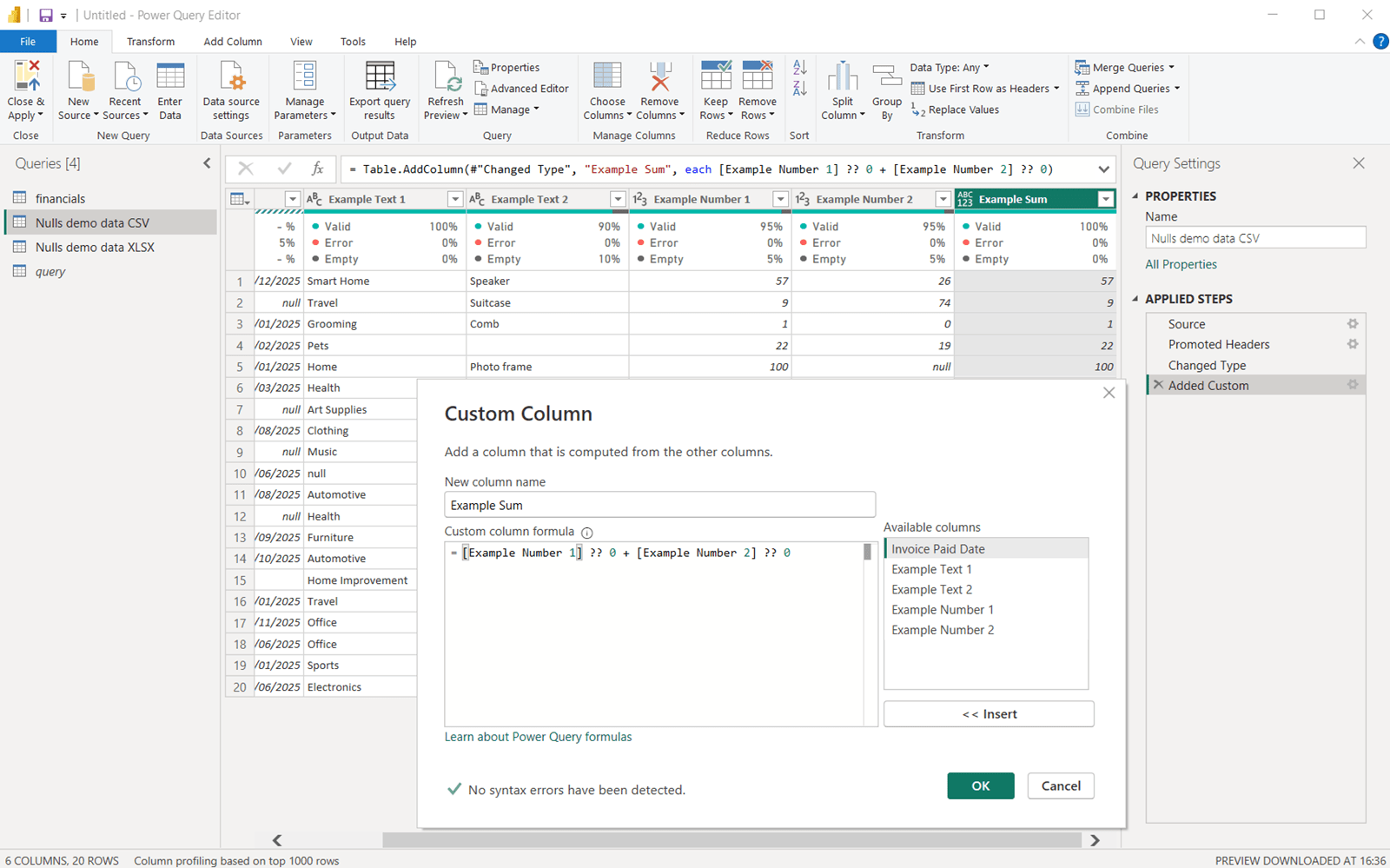
= [Example Number 1] ?? 0 + [Example Number 2] ?? 0
therefore ensures that if either columns have nulls they are substituted with zeros so the sum can be carried out, rather than returning null as would otherwise be the case.
A whole lot of nothing
Hopefully, having overcome the philosophical challenges of why there is a difference in data terms between the presence of nothing and the absence of something, it is now clear that appreciating how to effectively handle nulls, blanks and zeros in Power BI is crucial to delivering accurate and insightful data analytics. Taking the time during data transformation to fully understand your data, and treat all permutations of ‘nothing’ appropriately, will always pay dividends at the presentation stage.
