
One of Excel’s small but frustrating behaviours is the treatment of blank cells. If we enter =A1 into a cell, and A1 is blank, Excel displays the result as 0. Even though A1 is not 0... it’s blank!
If we’re not careful, this behaviour can lead to incorrect calculations.
Imagine an AVERAGE function with blank cells. Should they be included in the result or ignored? Get this wrong and it could significantly distort the result.
So, do you really know how Excel handles blank cells? Let’s find out.
Why blank cells display as zero?
Let’s get philosophical for a moment; what is nothing, and does it exist?
That’s a tough question to answer. It has been debated for centuries, and I doubt we are going to solve that question here. But that’s the concept we must consider.
If a blank cell contains nothing, how should Excel handle this nothingness? The developers had to make a choice.
Let’s suggest we have a formula =A1 + B1 where A1 contains 1 and B1 is blank. Excel treats the blank as 0. Therefore, the formula becomes = 1 + 0.
Or we could be using text. =A1 & B1 where A1 contains Alpha and B1 is blank. Excel treats the blank as an empty text string. Therefore, the formula becomes = "Alpha" & ""
Excel’s automatic treatment can be confusing:
- A blank cell is equal to ""
- A blank cell is equal to 0
- But "" is not equal to 0
Excel adjusts the treatment of blank cells based on the context.
If A1 is blank and we enter =A1 in a cell, Excel determines the context is numerical and therefore returns 0.
Once a cell contains a formula, it is no longer blank. Therefore, a blank cell cannot propagate through all calculations. At some point the blank will convert into either 0 or "".
We may not like this treatment, but that’s what the original developers decided.
When does blank cease to be blank?
As noted in the previous section, a formula cannot return blank as a value. But at what point does the blank cease to exist?
We can answer this question for any scenario using two rules.
RULE #1
Let’s suggest we have a formula:
=AVERAGE(A1:B1)
where A1 contains 1 and B1 is blank.
The result is 1.
Which means the blank in B1 is not converted to 0. If it were, the result would be 0.5.
Or, how about if we changed the formula as follows:
=AVERAGE (A1:B1*1)
This result is 0.5. Which means the blank in B1 is converted to 0.
This demonstrates the first rule:
When used in a direct calculation using operators (e.g. A1 + B1, A1 & B1, or A1:B1 * 1) the blanks are converted to zero or "" depending on the operators used.
RULE #2
We also know that if we enter = B1, Excel returns 0.
This demonstrates the second rule:
When a blank returns to the grid, it automatically returns as zero.
A blank remains blank, until an event occurs which causes either of the two rules to apply. Once that occurs the blank no longer exists.
We need to be aware of these treatments to understand how function will calculate values.
From a formula perspective, the following return different results if there are blank cells in the range A1:B1.
=AVERAGE(A1:B1)
=AVERAGE (A1:B1*1)
So, make sure you apply the treatment based on the results you want.
How to return alternative characters when a cell is blank
When working with dynamic arrays, blank cells become a bigger issue.
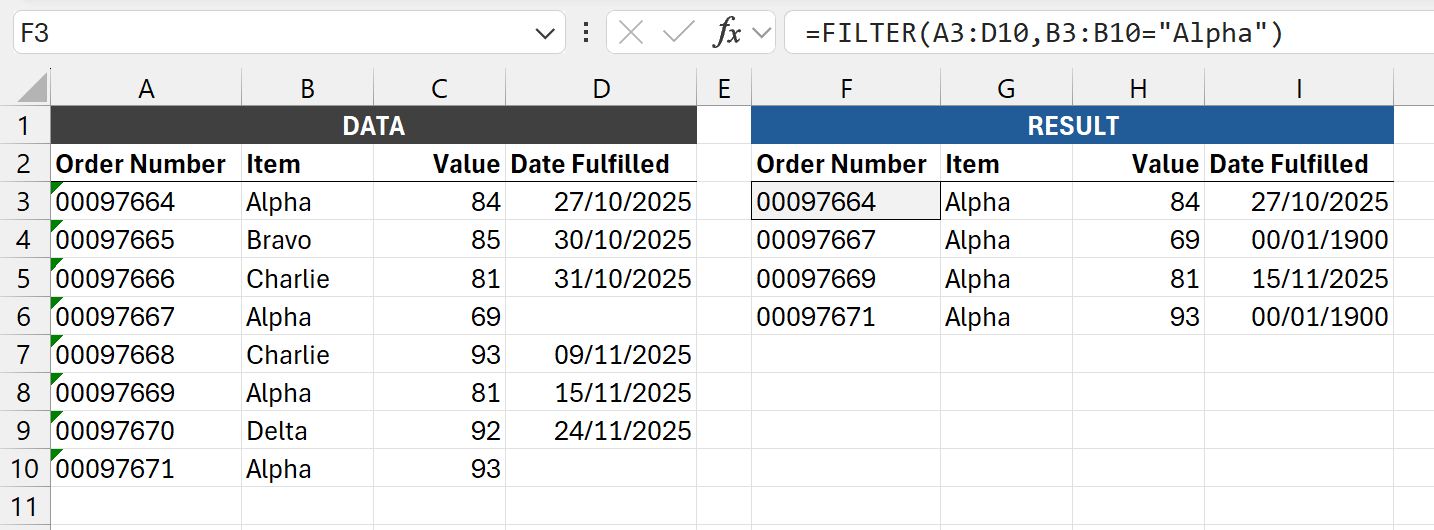
The in the example above, we have a FILTER function based on the values in A3:D10. The formula in cell F3 is:
=FILTER(A3:D10,B3:B10="Alpha")
The values in the Date Fulfilled column were originally blank, but the output of FILTER converts the blanks to zero. Because the cells are formatted as dates, they display as 00/01/1900.
A quick glance at this might make a user believe that all orders were fulfilled.
The output it would be clearer if the FILTER result displayed the blank cells as "". How can we achieve this?
We are not performing any direct calculation using operators on the values, so the blanks remains blank during the calculation.
It is only when the result returns to the grid that the blank is converted to zero.
That means we can intercept the blank value and convert it before it returns to the grid.
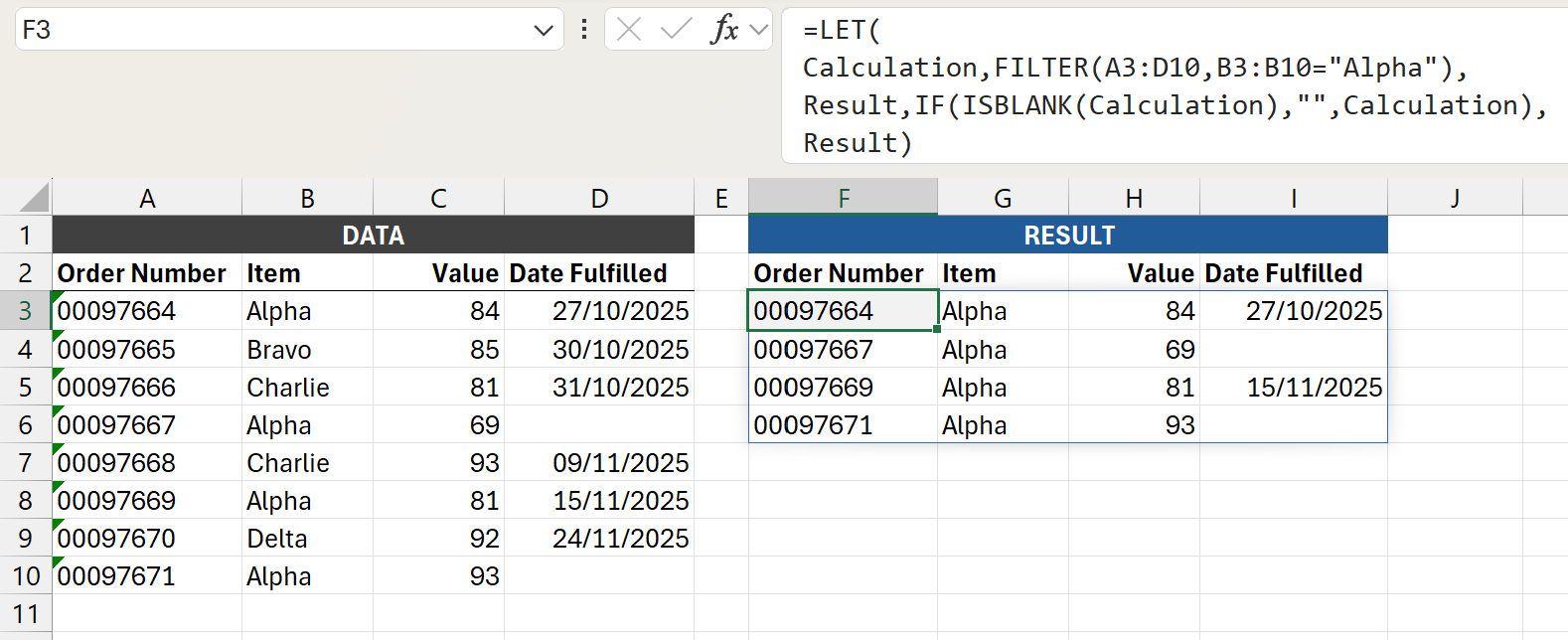
The formula in cell F3 is:
=LET
(Calculation,FILTER(A3:D10,B3:B10="Alpha"),
Result,IF(ISBLANK(Calculation),"",Calculation),
Result)
We use the ISBLANK function to identify if a value is blank. Where that is true, it returns "". Where that is false, it returns the original value.
With a brief glance at the output, we can clearly see which orders have not been fulfilled.
Remember, the date values which look blank now are not blank, they are empty text strings. If this is the output for a report, there is no problem. But if these values are used in subsequent calculations, we will need to handle the empty text strings in those calculations.
Conclusion
The philosophers can keep debating the existence and importance of nothingness. We’ve seen that in Excel, it both exists and is important.
Blank cells, by their very nature, may seem insignificant, but if used incorrectly, your workbook could be filled with calculation errors and with outputs which mislead.
So, you’ve been warned. In Excel, nothingness needs to be considered and handled carefully.
Archive and Knowledge Base
This archive of Excel Community content from the ION platform will allow you to read the content of the articles but the functionality on the pages is limited. The ION search box, tags and navigation buttons on the archived pages will not work. Pages will load more slowly than a live website. You may be able to follow links to other articles but if this does not work, please return to the archive search. You can also search our Knowledge Base for access to all articles, new and archived, organised by topic.
