Key takeaways
- Excel PivotTable function: A powerful analysis tool, PivotTable allows Excel users to summarise hundreds or thousands of rows of detailed data.
- Excel Tables and PivotTable: By pairing PivotTable with the Table function in Excel, users can create an analysis layer using the Table function as a structured data source.
- Elements of a PivotTable: The Fields pane in Excel PivotTable contains all the available fields from the original source data. These fields can then be filtered, placed in columns or rows, or expressed as values.
Tables help us organise and maintain our data, automatically expanding as new records are added. Once our data is properly structured, the next question is: what can we learn from it? That's where PivotTables come in.
What is a PivotTable?
A PivotTable is one of Excel's most powerful analysis tools. It allows us to take hundreds or thousands of rows of detailed data and turn them into meaningful summaries in seconds.
With a PivotTable, we can:
- group or summarise large datasets quickly;
- calculate totals, counts and averages;
- rearrange reports without changing the original data;
- filter information to focus on specific records;
- explore the same data from multiple perspectives; and
- refresh results when the source data changes.
The key advantage is flexibility. Rather than building a different report every time somebody asks a new question, we can often answer that question by simply rearranging the same PivotTable.
Why Excel Tables and PivotTables work together
Excel Tables and PivotTables work particularly well as a pair. The Excel Table acts as our structured data source, and the PivotTable sits on top of that data and provides the analysis.
Tables automatically expand when new rows are added. When a PivotTable is created from an Excel Table, the data source adjusts automatically and we simply need to refresh the PivotTable to include the new records. There are other refresh settings available to us, but this is the default.
Example data
To see PivotTables in action, we'll use six months of sales data from a fictional cheesecake company (you can download our supporting workbook here). The dataset contains over 1,000 individual transactions, recording which customers bought which cheesecakes and how much they spent.
Looking directly at the raw data, it can be difficult to answer questions such as:
- Which cheesecake flavour generates the most revenue?
- Who are our biggest customers?
- How does revenue change from month to month?
A PivotTable allows us to answer those questions without creating complex formulas or manually filtering the data. Instead, we simply tell Excel how we would like the information to be grouped and summarised, and the PivotTable does the hard work for us. Let's build one.
Creating a PivotTable
To create a PivotTable:
1. Click anywhere inside your source Table.
2. Go to Insert > PivotTable.

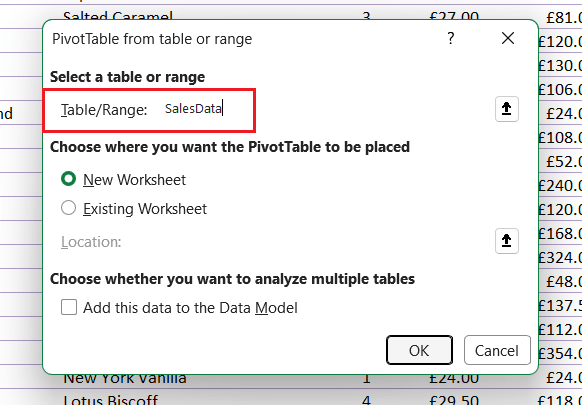
3. Check that the Table/Range box shows your Table's name rather than a cell range (in our supporting workbook, our Table is called SalesData).
4. Choose where the PivotTable should be placed.
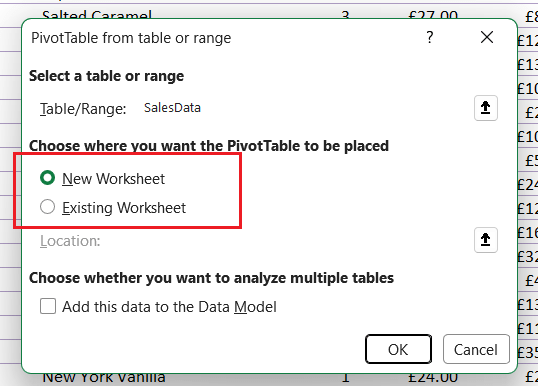
5. Click OK.
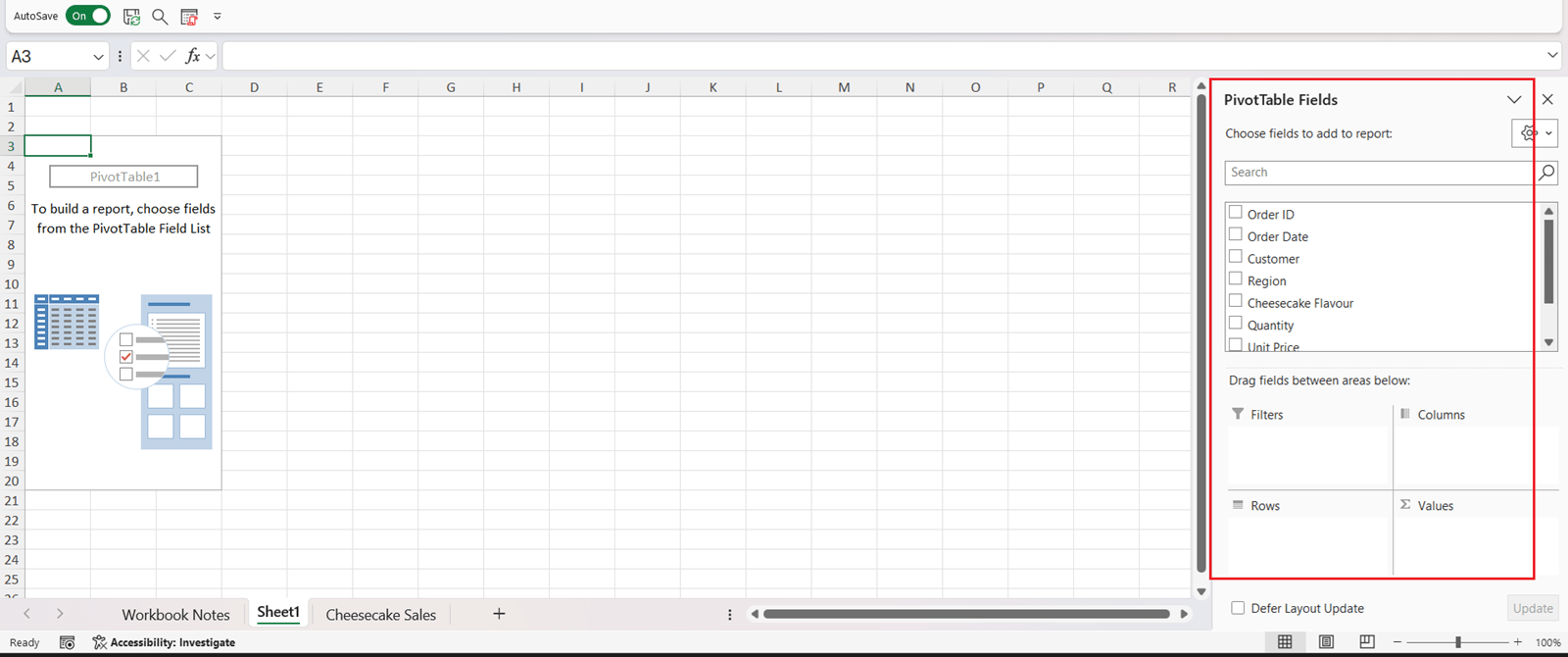
Excel creates a blank PivotTable and displays the PivotTable Fields pane.
Understanding the PivotTable Fields pane
Most of your work with PivotTables happens in the Fields pane (highlighted in red on the right-hand side of the screenshot above). This contains the available fields from your source data and four key areas:
- Filters: fields placed here filter the entire report.
- Columns: fields placed here appear across the top of the report.
- Rows: fields placed here appear down the left-hand side of the report.
- Values: this is where the numbers being analysed are placed. Usually, Excel will sum numerical values automatically (for example, Sum of Revenue, but you can change the calculation operation to something else (average, count, etc).
Building a PivotTable is largely a matter of dragging or selecting fields into these four areas and seeing what story the data tells. We can also create our own calculated fields, but that's beyond the scope of this introductory article.
First insight: revenue by flavour
Suppose we put the following fields:
- Cheesecake Flavour into Rows
- Revenue into Values
Excel instantly creates a Sum of Revenue by flavour. Then we can sort the Revenue values in descending order by right-clicking on any revenue line in the PivotTable output (and choosing Sort).
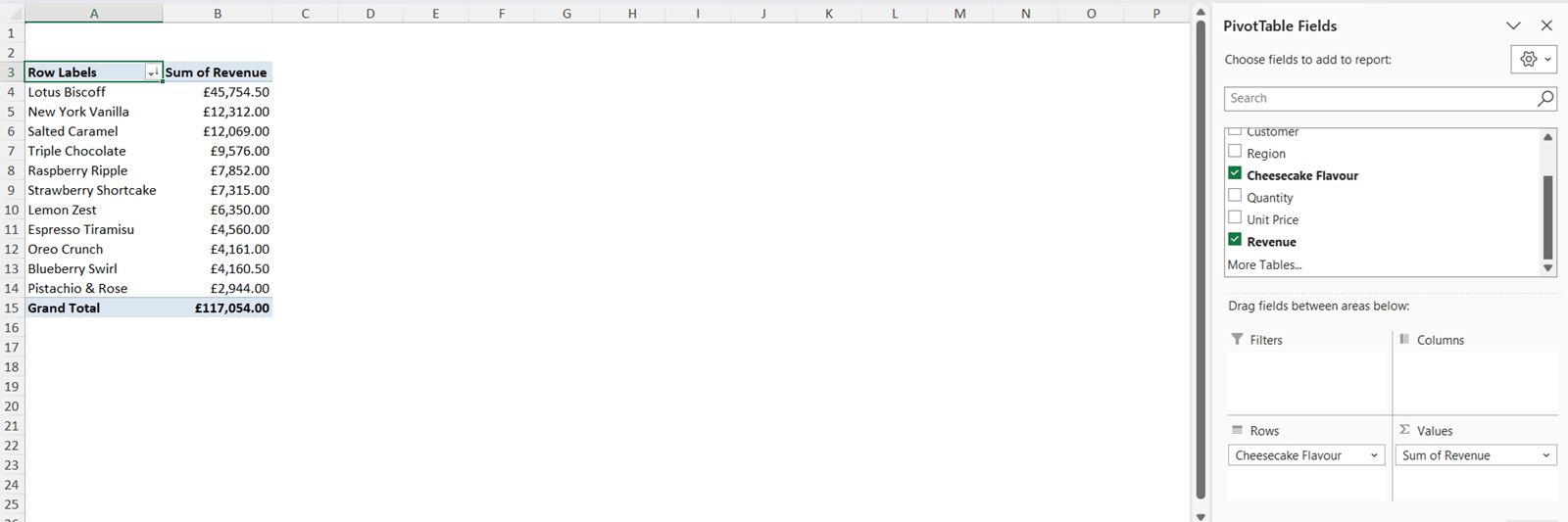
Immediately, we can see that Lotus Biscoff Cheesecake is the company's highest revenue product. This is the sort of insight that would be difficult to spot by scrolling through more than 1,000 individual transactions.
Second insight: revenue by customer
Now let's ask a different question. Instead of analysing flavour, take Cheesecake Flavour out of the Rows area and drop Customer in its place. The same PivotTable now shows Revenue by Customer.
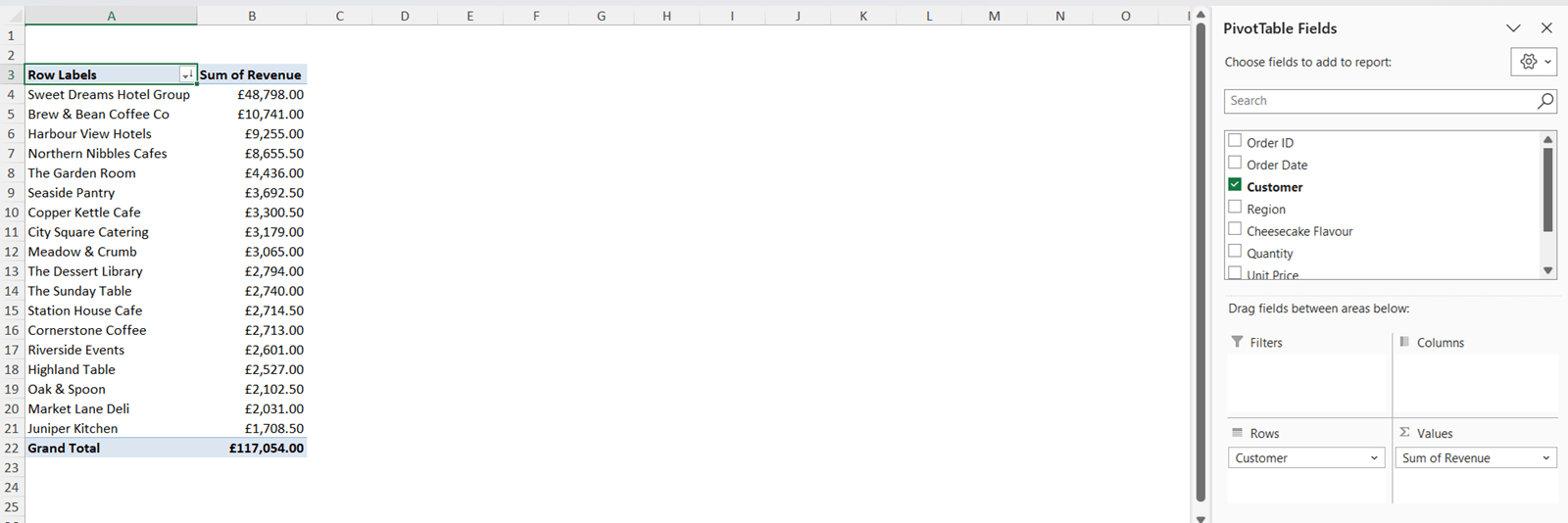
If we again sort by revenue in descending order, we discover that Sweet Dreams Hotel Group is the company's largest customer by a significant margin.
Notice what happened here: we didn't build a new report, write a formula, or modify the original data. We simply rearranged the PivotTable to answer a different question.
Your turn
We've only scratched the surface of what PivotTables can do.
Open up the workbook and try putting different fields into the Rows, Columns, Values and Filters areas. For example, put Cheesecake Flavour back into Rows and add the date field to Columns to see how each flavour's revenue changes month by month. You may discover patterns, trends or relationships that are not obvious when looking at the raw data.
The beauty of a PivotTable is that experimentation is encouraged, and nothing you do changes the underlying data. It only changes the way it's summarised.
With the evolution of Excel in recent years, there are many alternative ways to summarise your data, but the more ‘traditional’ and trusty PivotTable still has a place for modellers seeking quick insights in Excel.
Excel tips and tricks
ICAEW's Excel Community shares regular Tips & Tricks on how to get the best out of this key accountancy tool. See all their posts by topic, and by level in the Spreadsheet Competency Framework.

Stay up to date
You can receive regular email updates from ICAEW insights, including weekly or monthly enewsletters. Subscribe to whichever works for you.
Sign upYou may also be interested in
ICAEW Community

Excel
Do you use Excel in your organisation? Are you using it to its maximum potential? Develop your skills and minimise spreadsheet risk with our Excel resources. Join the Excel Community
ICAEW Certificate

Analytics in Power BI
Gain essential data analytics skills and advanced reporting techniques to stay ahead of industry demands with this practical qualification from ICAEW.
Find out moreICAEW support

Training and events
Browse upcoming and on-demand ICAEW events and webinars focused on making the most of the latest technologies.
Events and webinars CPD courses and more