
Welcome back to Excel Tips and Tricks! This time, we have a Basic level post exploring Accessibility features, available in Excel and Google Sheets, that enable consistency and inclusivity by making spreadsheets easy to read and use for everyone. In this post, we also revisit the basics and explore how the features are important to consider for good spreadsheet practice.
Accessibility checker functionality can be used to review your new and existing spreadsheets. The accessibility checker scans a workbook and identifies issues, such as poor contrast, merged cells and missing alternative text with charts and images, that make it hard for others (including screen‑reader users) to understand or navigate your spreadsheet. The checker encourages consistency by ensuring everyone follows the same rules for layout, structure, and clarity and therefore the checks are designed to highlight issues with colour, illustrations, and table structures.
The table below summarises the areas that are checked for accessibility for Excel and Google Sheets, with feedback provided on what needs to be updated to resolve accessibility issues.
Excel |
Google Sheets* |
|---|---|
Colour and contrast |
Sheets |
Media and illustrations |
Images |
Tables |
Tables |
Document structure |
Contents |
Document access |
Charts |
* While Google Sheets does not have a native accessibility checker, users can install an add-on called Grackle Sheets that delivers the same functionality.
In Excel, the accessibility checker is built-in and can be accessed via the Review >> Check Accessibility menu.
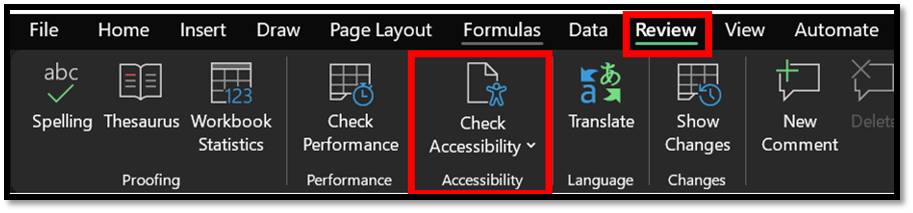
Once you click on ‘Check Accessibility’ under this menu, a pane will open up on the right-hand side of Excel, with a list of errors and warnings as well as recommended actions to fix these issues.
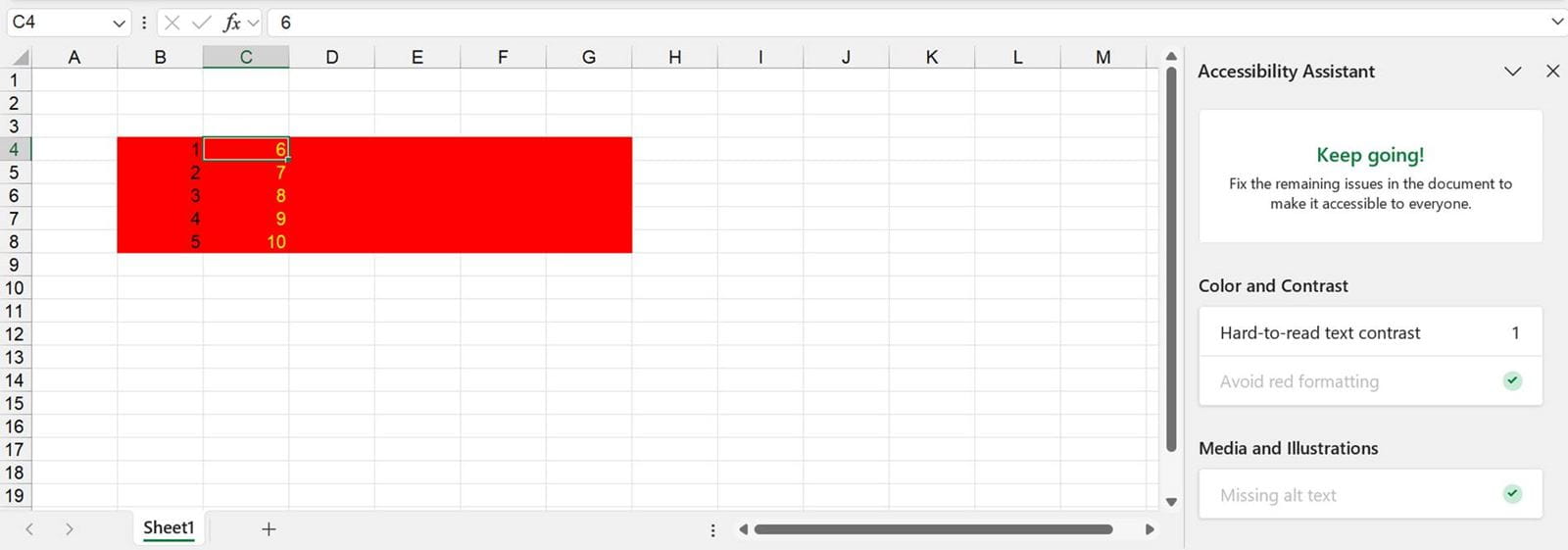
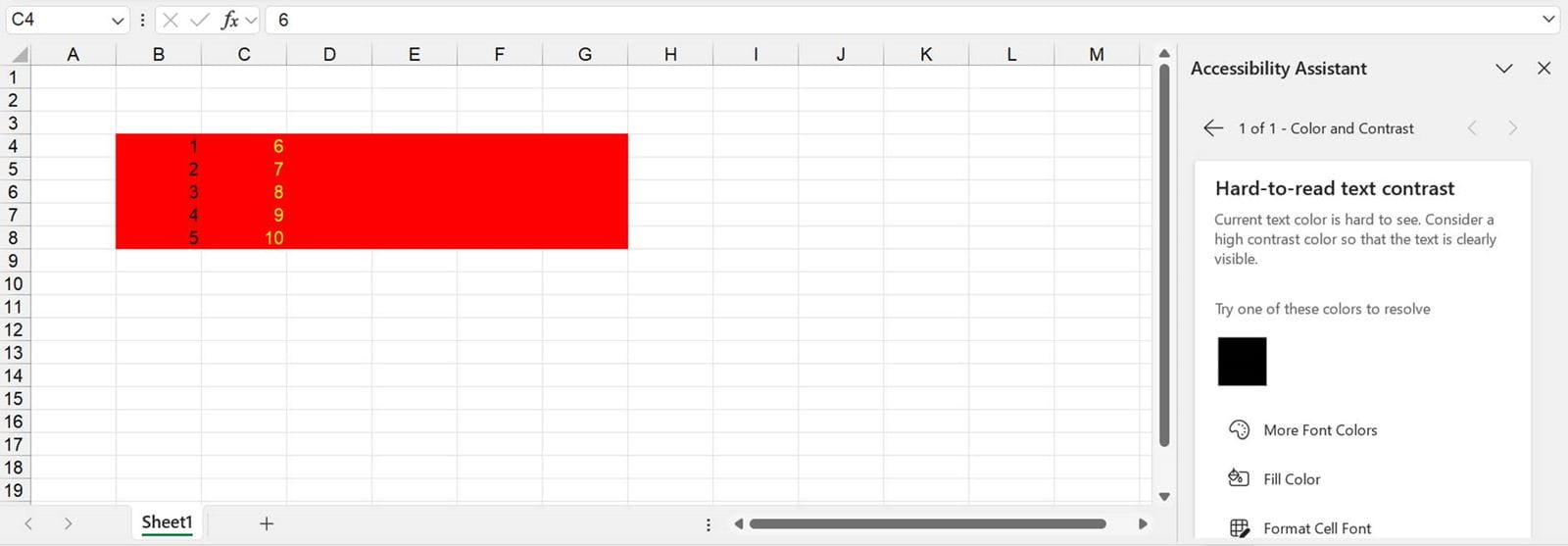
In the example, the checker has highlighted ‘Hard-to-read contrast’ as an issue. When I click on this, I am presented with a recommendation to change the text to black to fix this.
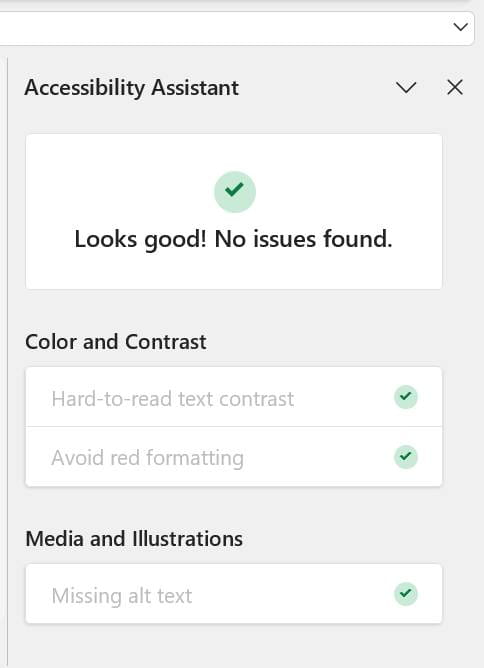
Once all issues are resolved, the checker will reflect this.
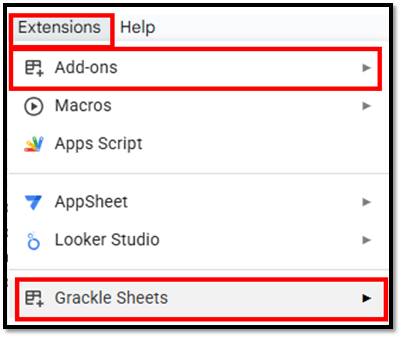
On the other hand, in Google Sheets, the Grackle Sheets add-on can be installed via the Extensions menu. Grackle sheets works in a similar way, and highlights issues and offers guided corrections.
Using and applying accessibility features, encourages consistency by ensuring everyone follows the same rules for layout, structure, and clarity, which in turn makes spreadsheets easier to read and use for everyone. This also aligns with several of ICAEW’s 20 Principles of good spreadsheet practice including:
- Principle 2: Adopt a consistent methodology for spreadsheets in your organisation.
- Principle 6:Tailor the design and documentation to the needs of the audience and dependent processes.
- Principle 7: Make the spreadsheet easy to use, providing supporting guidance where helpful.
- Principle 9: Structure workbooks with a clear flow of inputs, processes, and outputs.
- Principle 11: Structure worksheets to avoid inconsistent logic and layout.
- A refreshed look at defining spreadsheet competency
- Excel Tips and Tricks #507 - Using Excel internationally part 1: why some functions are not good travellers
- Excel Tips and Tricks #506: Creating a single master list after merging data
- Excel Tips and Tricks #505 – 3 ways of converting US Dates into UK formats
- Excel Tips and Tricks #504 - Accessing accessibility checkers for good spreadsheet practice
Archive and Knowledge Base
This archive of Excel Community content from the ION platform will allow you to read the content of the articles but the functionality on the pages is limited. The ION search box, tags and navigation buttons on the archived pages will not work. Pages will load more slowly than a live website. You may be able to follow links to other articles but if this does not work, please return to the archive search. You can also search our Knowledge Base for access to all articles, new and archived, organised by topic.
