Key takeaways
- SUM and SUMIFS are two of Excel's most useful functions.
- Users often confuse SUMIF with SUMIFS as the arguments for each appear in a different order.
- They are often the foundation of many types of business spreadsheets.
- These functions help save time and effort during spreadsheet analysis.
The 2026 World Cup has delivered goals, surprises and no doubt, a few AI-generated office sweepstakes. The tournament also provides the perfect opportunity to learn two of Excel's most useful functions: SUM and SUMIFS.
These functions may not be very exciting, but they are the foundation of countless spreadsheets. Whether analysing budgets, expenses, invoices or football statistics, understanding when and how to use each one can save you time.
For this article, we'll use a dataset containing all 48 teams from the 2026 World Cup group stage, including goals scored and points earned.
The dataset and SUM
Our dataset contains five columns:
- Group (A-L)
- Team
- Confederation
- Goals Scored
- Points
For example, here are the top eight entries in the table:
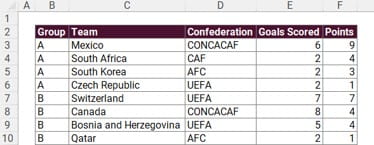
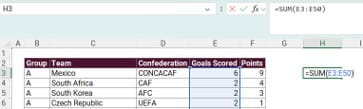
Let's start with the simplest question: How many goals were scored by all 48 teams during the group stage?
The SUM function simply adds numbers together.
=SUM(E3:E50)
SUMIF: adding values that meet one condition
Football fans rarely stop at total goals.
A more interesting question might be: How many goals were scored by UEFA teams?
Now we need Excel to add only the rows where the Confederation column contains "UEFA".
We could filter the data and use a clever formula to sum only the visible rows (check out the AGGREGATE function if this sounds of interest).
However, a more dynamic and sensible route would be to use a SUMIF or SUMIFS formula.
SUMIF and SUMIFS: what’s the difference?
SUMIFS supports up to 127 criteria, while SUMIF only supports one. To make matters more confusing, SUMIF and SUMIFS use their arguments in a different order. That’s why I usually recommend sticking with SUMIFS, so you don't have to remember two different structures.
SUMIF:
=SUMIF(criteria_range,criteria,sum_range)
SUMIFS:
=SUMIFS(sum_range,criteria_range1,criteria1)
Notice that SUMIFS starts with the sum range.
It's a small difference but one that catches many users out. To avoid it, just stick to SUMIFS for all situations where you require one or more criteria.
Which function should you use?
A simple rule of thumb:
| If you want to... | Use |
| Add everything | SUM |
| Add values matching one or more conditions | SUMIFS |
How to use SUMIFS
To answer the question “How many goals were scored by UEFA teams?” we could type:
=SUMIFS(E3:E50,D3:D50,"UEFA")
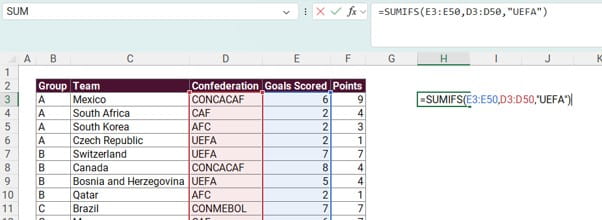
Here's what each part means:
- E3:E50 = the numbers to add
- D3:D50 = where Excel checks the condition
- "UEFA" = the condition
Excel looks down the Confederation column and whenever it finds UEFA, it adds the corresponding goals scored.
You can use SUMIFS with text, numbers or dates.
For example:
=SUMIFS(E3:E50,F3:F50,">=8")
This adds the goals from teams that scored eight or more goals during the group stage.
SUMIFS: multiple conditions
Let's raise the difficulty level. Suppose someone asks:
“How many goals were scored by UEFA teams that earned at least five points?”
Now we have two conditions:
- Confederation = UEFA
- Points ≥ 5
This is where SUMIFS comes in.
=SUMIFS(
E3:E50,
D3:D50,"UEFA",
F3:F50,">=5")
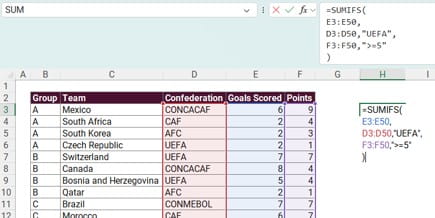
Think of it as Excel performing a mini-investigation:
"Show me teams that are UEFA members and earned at least five points, then add their goals."
SUMIFS allows you to combine up to 127 criteria, although I’m not sure why you’d ever want to write a formula with that many conditions.
Using cell references
Hard-coding criteria works, but referencing cells is often better.
Suppose cell H2 contains the text UEFA
=SUMIFS(E3:E50,
D3:D50,H2,
F3:F50,">=5"
)
This formula will still sum the number of goals scored by UEFA members, where they also earned at least five points.
Now you can change H2 to any of the federations and your formula will update dynamically.
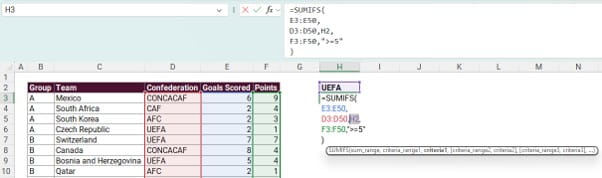
This is particularly useful when building dashboards or interactive reports.
Final whistle
SUMIF and SUMIFS are among the most valuable functions in Excel. They help answer everyday business questions quickly and reliably without the need for complex formulas or PivotTables.
Whether you're analysing World Cup goals, departmental spending, sales performance or client invoices, these three functions should be part of every Excel user's toolkit. And unlike VAR, they return the same answer every time.
Download the full Excel spreadsheet with data on all 48 Word Cup 2026 teams and the goals they have scored during the group stage games.
Excel tips and tricks
ICAEW's Excel Community shares regular Tips & Tricks on how to get the best out of this key accountancy tool. See all their posts by topic, and by level in the Spreadsheet Competency Framework.

You may also be interested in
ICAEW Community

Excel
Do you use Excel in your organisation? Are you using it to its maximum potential? Develop your skills and minimise spreadsheet risk with our Excel resources. Join the Excel Community
ICAEW Certificate

Analytics in Power BI
Gain essential data analytics skills and advanced reporting techniques to stay ahead of industry demands with this practical qualification from ICAEW.
Find out moreICAEW support

Training and events
Browse upcoming and on-demand ICAEW events and webinars focused on making the most of the latest technologies.
Events and webinars CPD courses and more