
The world’s favourite spreadsheet turns 40 next month, so before a full-on Excel-stential crisis (with a title like that you didn’t expect some bad puns?), let’s explore some oddities.
- Excel doesn’t know what a triangle is…
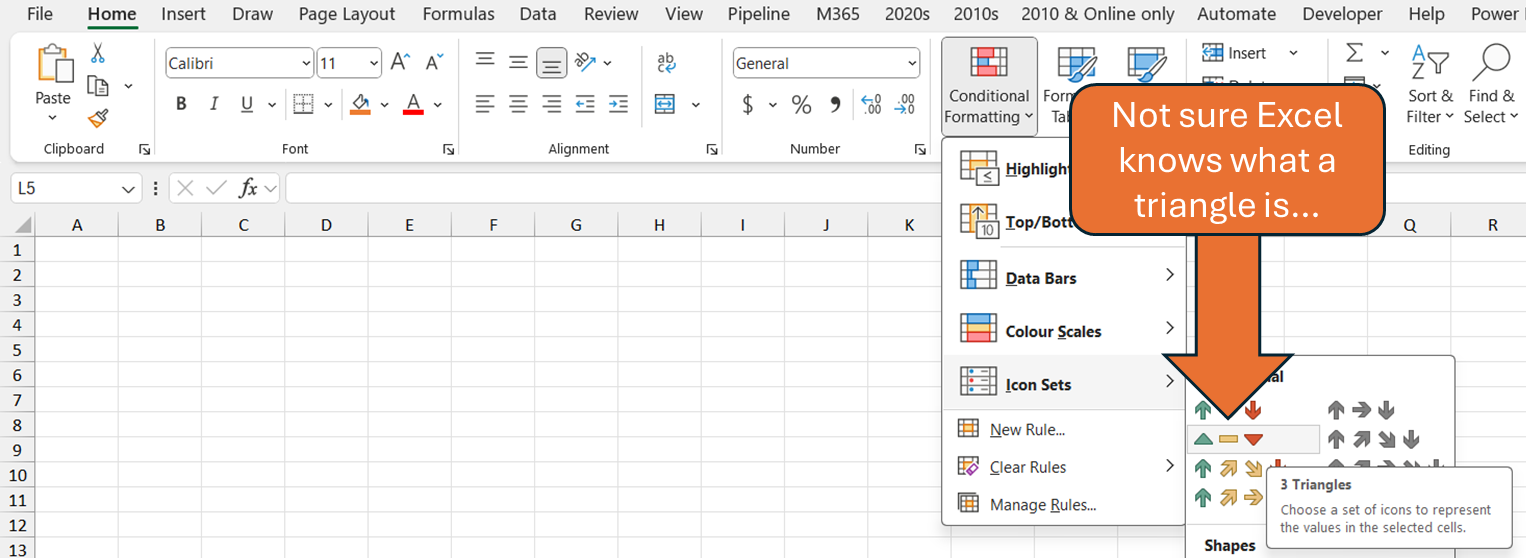
Conditional formatting is one of Excel’s most underused features, get a cell to recolour dependent on its value, but within Conditional Formatting, I always disliked Icon Sets the most, especially the 3 supposed triangles. Some things are hidden deep inside menus, others can only be accessed in weird ways:
- Some things can be double clicked... For example:
- Double click the Format Painter to lock it in and take that format to multiple places
- Double click a cell with a formula to autofill down to the end of the region
- Double click any value cell in a PivotTable to create a new worksheet with all the rows from your source data adding up to that total (or averaging etc.)
- Some things can be right clicked... For example:
- Right click any command in the Ribbon, then choose “Add to Quick Access Toolbar” and you’ll see it permanently on the top left of your screen. I beef up my Quick Access Toolbar with actions that have way too many clicks for their own good like Freeze Panes or Data Validation.
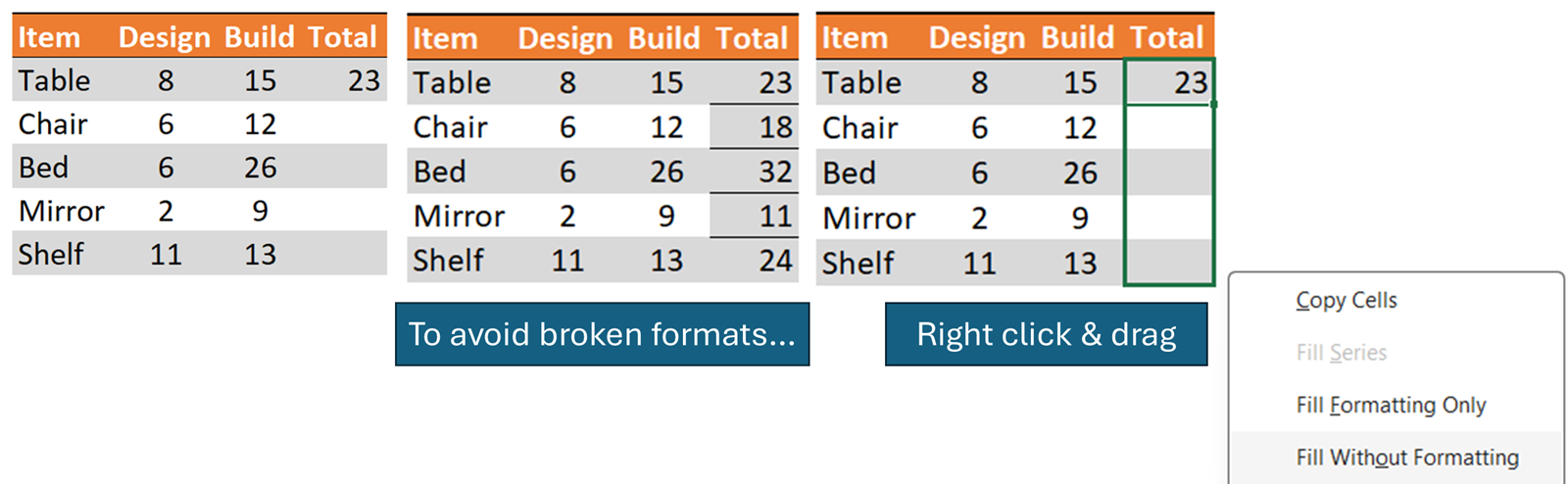
- Select data, then click Home tab > Format as Table > Right click a colour scheme you like, then you can choose “Apply and clear formatting”.
- Misaligned weekdays. Excel can format a date to show the day of the week as well just month day year. You can also use =WEEKDAY(cell) to extract the day of the week numerically or =TEXT(cell, “dddd”) to extract the name of the day, BUT the weekday of any date before March 1900 are actually incorrect (see screenshot below).
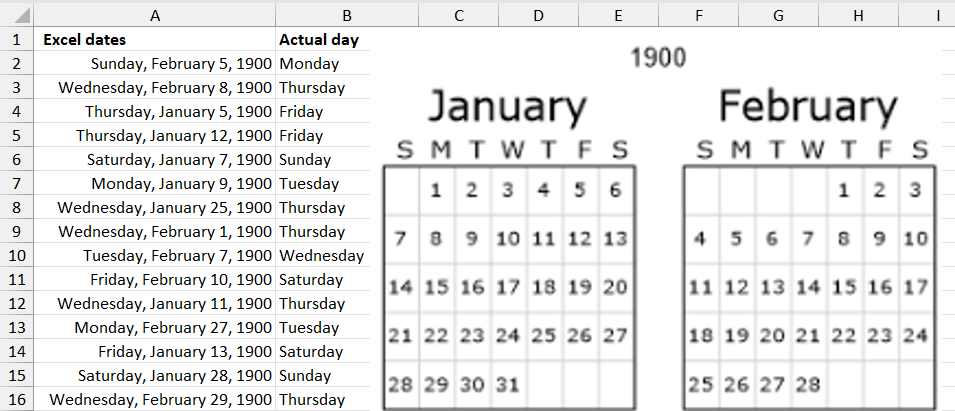
The reason why… 29 February 1900 never existed, but Excel thinks it did. But 1900 is divisible by 4 so it’s a leap year you say. It’s not that simple. A solar year lasts 365.2422 days, its close enough to 365.25 that every four years is an approximation, but 1900 wasn’t a leap year and neither will 2100 be. This was what the switch from the Julian to the Gregorian calendar was about, well that and officially forcing the new year to be on 1st January. Many had celebrated the first day of the year to be 1st April, particularly in France. It’s commonly believed that French people who continued to celebrate 1st April as the first day of the year were mocked and called April Fools.
Back to Excel, it adopted the error from Lotus 1-2-3 which was the market leading spreadsheet app at the time, rather than reinvent the system, Excel adopted many issues/inconsistencies into its own product to reduce barriers for its customers to switch. Did you honestly think anyone at Microsoft would invent VLOOKUP? XLOOKUP is the way it always should have been, VLOOKUP is one of the many inherently flawed things Excel inherited from Lotus and didn’t bother fixing until recently.
But wait – there are centuries, millennia before March 1900, does Excel gets all of those weekdays wrong? Urm… No, well yes, well…
- Dates before 1900 don’t exist in Excel. Seriously – try it. Excel stores dates as numbers, if you write today’s date in Excel and then format as a number, you will get a number around 45,870 (that’s 1 Aug 2025 anyway). Excel stores dates as numbers so you can use them in calculations, e.g. subtract a date from another to know how many days are in between.

This is a completely real news story from 5 years ago, read more here, but we’ll come back to that one.
The 1900 date system was another issue that Excel adopted from Lotus 1-2-3, but the first Excel version had a different system. Excel 1.0 didn’t try to compete with Lotus because Lotus 1-2-3 worked on MS Dos/Windows (made by Microsoft) but…
- Excel 1.0 worked on Mac only. Microsoft originally released Excel to not work on its own operating system, but instead to work on Mac. Microsoft’s operating system (DOS) wasn’t very graphical. Windows 1.0 launched in 1985 as well but was very buggy. Meanwhile, Mac had a polished graphical user interface system with a mouse, menus, and windows, I mean just look at how beautiful this is…
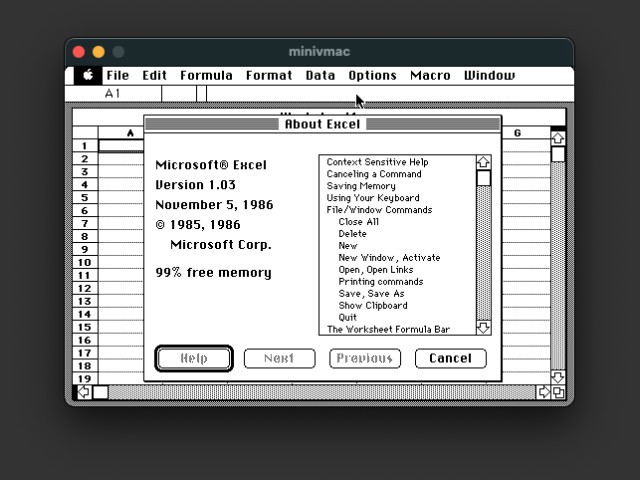
You see, Excel’s 40th anniversary is really coming up. It’s actually on 30 September 1985, but this is the earliest screenshot I could find, November 5, 1986 – ah yes – the dreaded American style Month – Day – Year format. Why did Americans have to botch dates, they do it the other round… They do dinner and then a movie. Anyhow, if you’ve spent those hours manually fixing US dates from some data you downloaded, you’ll be surprised to learn that…
- Excel has a built-in way to convert Month – Day – Year dates to Day – Month – Year dates, but its super hidden. Select your dates (using a mouse, your keyboard or dating app), then click Data tab > Text to Columns. This feature is hidden inside text to columns despite having nothing to do with splitting a column (=TEXTSPLIT makes Text to Columns redundant now for the most part anyway). Once in Text to Columns, click Next two times (because you’re not actually interested in converting Text to Columns, then you can select Date > MDY (which is the source of your date), and click Finish. The video embedded below shows all the steps.
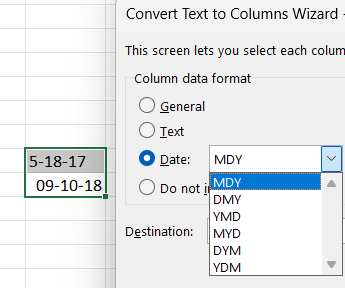
So, Excel isn’t great with dates, probably because dates happen after another thing, getting a phone number… and we all know how bad Excel is with those, except that…
- Excel can finally store phone numbers. I don’t think it’s an exaggeration to say that over 2 billion people have, at some point in their lives, typed a phone number into Excel thinking that would store it. Yes sure, if you’re nerdy enough to read an article on ICAEW’s Excel Community, you probably are ready to explain why, but doesn’t mean you didn’t ever try it, and assume it would actually work, kind of like this sketch video I made if Excel was human. Well, now there is something you can change deep inside Excel’s Options menu that no one ever bothers clicking on. Click File > Options > Data and untick the blue box, do it one time globally for all your Excel files.
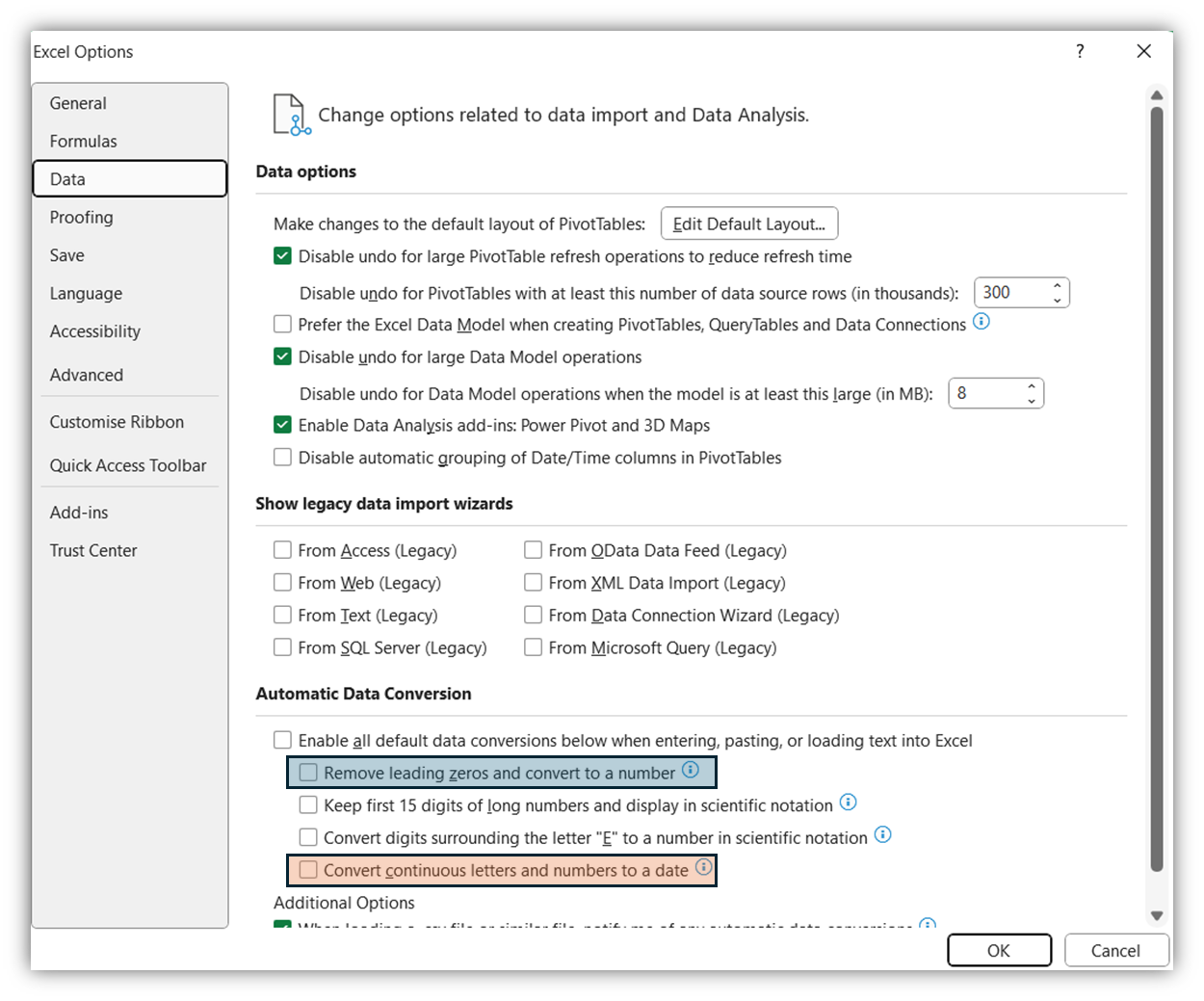
This is available for Office 2024 and M365 users, the other interesting thing in this screenshot, also new, is the orange box. This would have stopped the genome problem mentioned earlier, where some genes had names like MARCH1 or SEPT1. This was changed because 1 in 5 genetics scientific papers had contained errors because of Excel, but Excel Options are not something ever looked at, if they were you would know that…
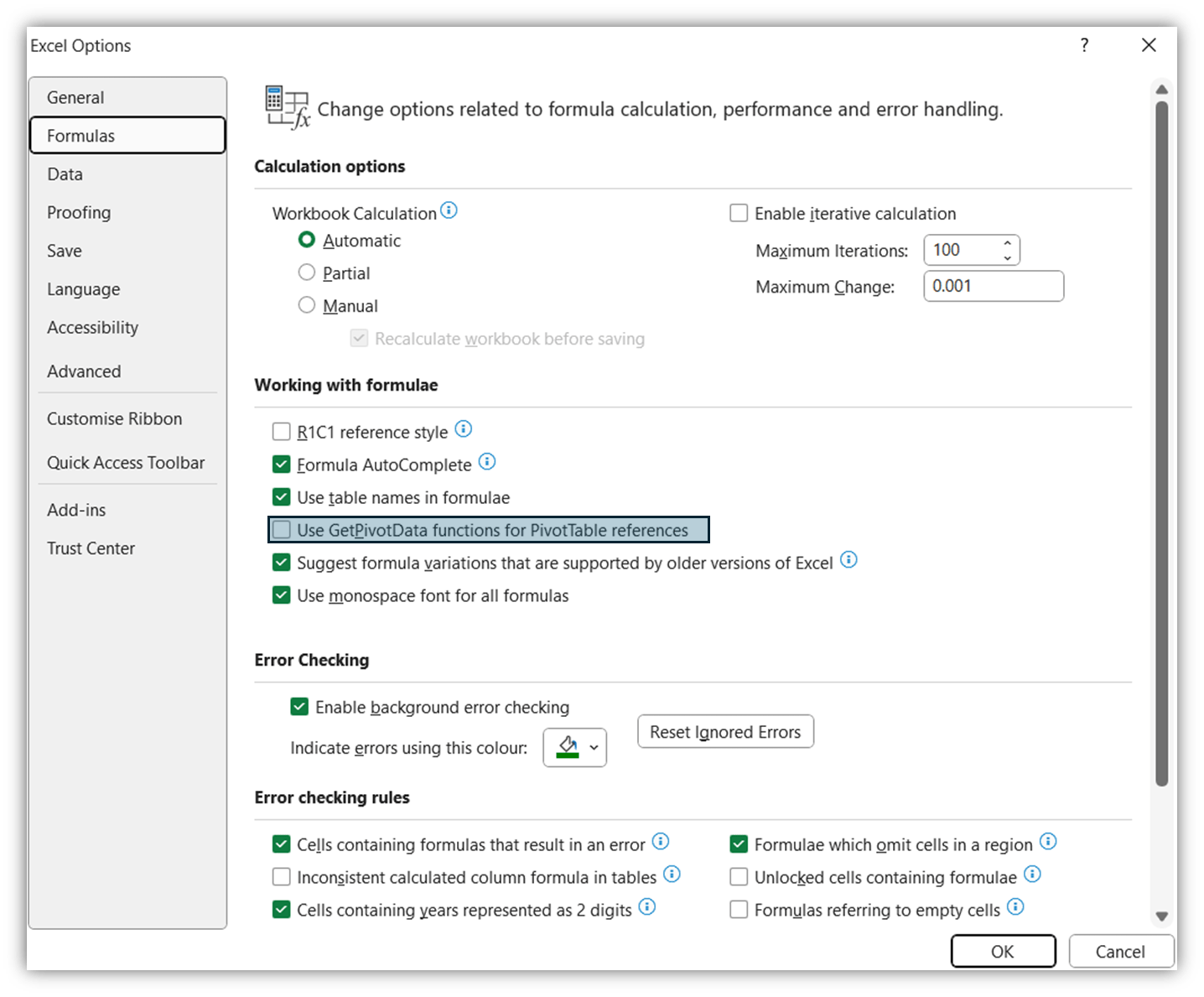
- You can easily stop Excel doing =GETPIVOTDATA when linking a cell to a PivotTable. Have you been annoyed by that before, it’s also something deeply hidden inside Excel‘s Options. Click File > Options > Formulas > Untick the box shown in blue. Why’s it ticked by default? Does anyone actually want it? I remember one time when I thought GETPIVOTDATA was advantageous once in the 5000+ PivotTables I’ve used over the years.
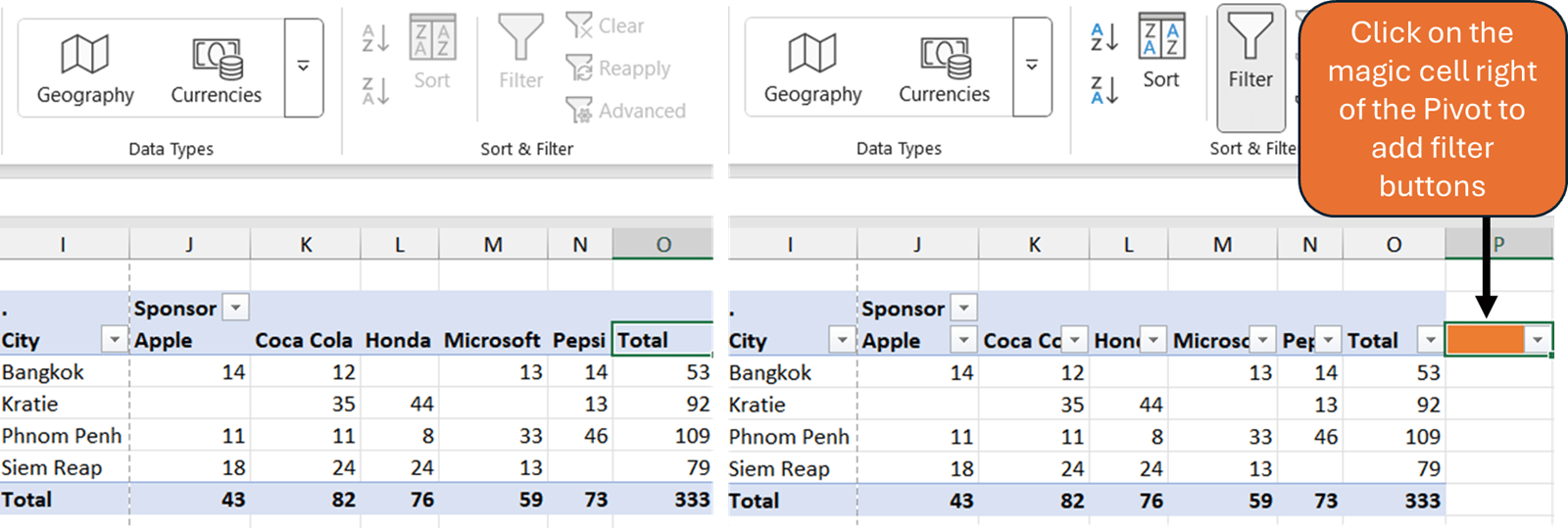
Speaking of Pivots, when you try sorting a PivotTable by a column, it doesn’t allow you to with the normal interface, except that
- Clicking the magic cell to the right of a PivotTable adds filters to every column allows sorting/filtering.
Still in keeping with sorting Pivots, PivotCharts (charts made from PivotTables) operate for the most part exactly like regular ones, but there is one super convenient benefit…
- You’re able to sort PivotCharts but not regular charts… Just right click and sort
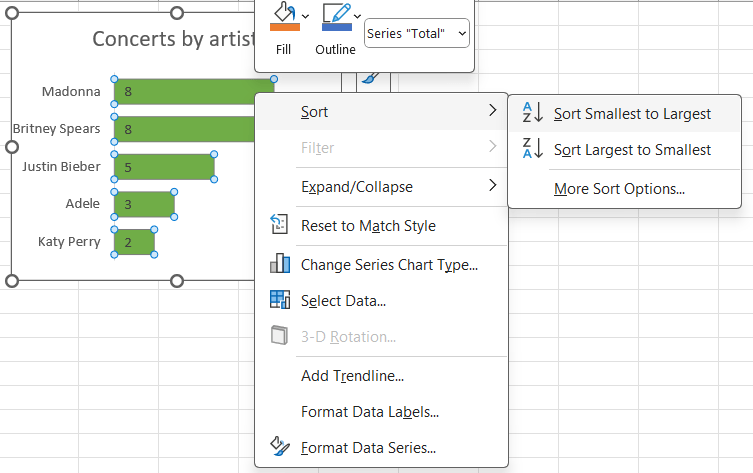
But when you’ve got a horizontal bar chart, Excel gets its wires crossed…
- Sorting a bar chart happens in reverse
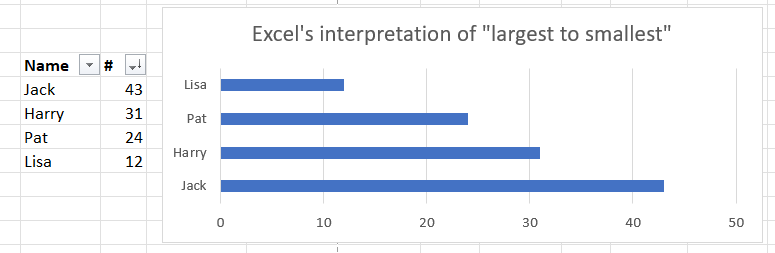
Horizontal bar charts sort in inverse order for some reason. Those two make up an assortment of quirks but I like to save the best to last…
- Excel can convert numbers into words but only in urm… Thai. So e.g. 74 becomes seventy four, something very in demand back when we used to use cheques. =BAHTTEXT(number) will spell out a number in the Thai language. Microsoft developed this in the two thousands if not earlier, likely because Thailand has strict formatting rules for financial documents (count yourself lucky to be a UK accountant or just count – it’s what we’re good at). In Thailand, numbers are required to be spelled out in words, so Microsoft implemented =BAHTTEXT, fortunately though, since 2024, the AI enabled =TRANSLATE(cell) function exists, and you absolutely can type =TRANSLATE(BAHTTEXT(cell)) to convert a number into words in English (or whatever language your computer is set to). It ends with the word “Baht” which is Thailand’s currency, but you can use =TEXTBEFORE to take that out, this video explains more:
ICAEW Excel Meetup – Excel at 40!
Join the ICAEW Excel Community for a special evening as we celebrate this Excel's 40 years of innovation, resilience, and impact.

Archive and Knowledge Base
This archive of Excel Community content from the ION platform will allow you to read the content of the articles but the functionality on the pages is limited. The ION search box, tags and navigation buttons on the archived pages will not work. Pages will load more slowly than a live website. You may be able to follow links to other articles but if this does not work, please return to the archive search. You can also search our Knowledge Base for access to all articles, new and archived, organised by topic.
