
Introduction
In the series so far, we have looked beyond the conditional formatting Icon Sets options that are available directly from the main Conditional Formatting dropdown, including reversing the order of icons; not displaying some icons at all; mixing icons from different icons sets and suppressing the normal cell contents to just show the icons. The other graphical formats, Data Bars and Colour Scales also have more detailed options that are not visible from the main conditional formatting dropdown.
Data Bars
At first glance, it might seem there wouldn’t be much more to do with a data bar than choose the colour and whether it has a Gradient Fill or Solid Fill from the Conditional Formatting, Data Bars dropdown. However, clicking on the More Rules… option at the bottom of the dropdown list reveals several additional options:
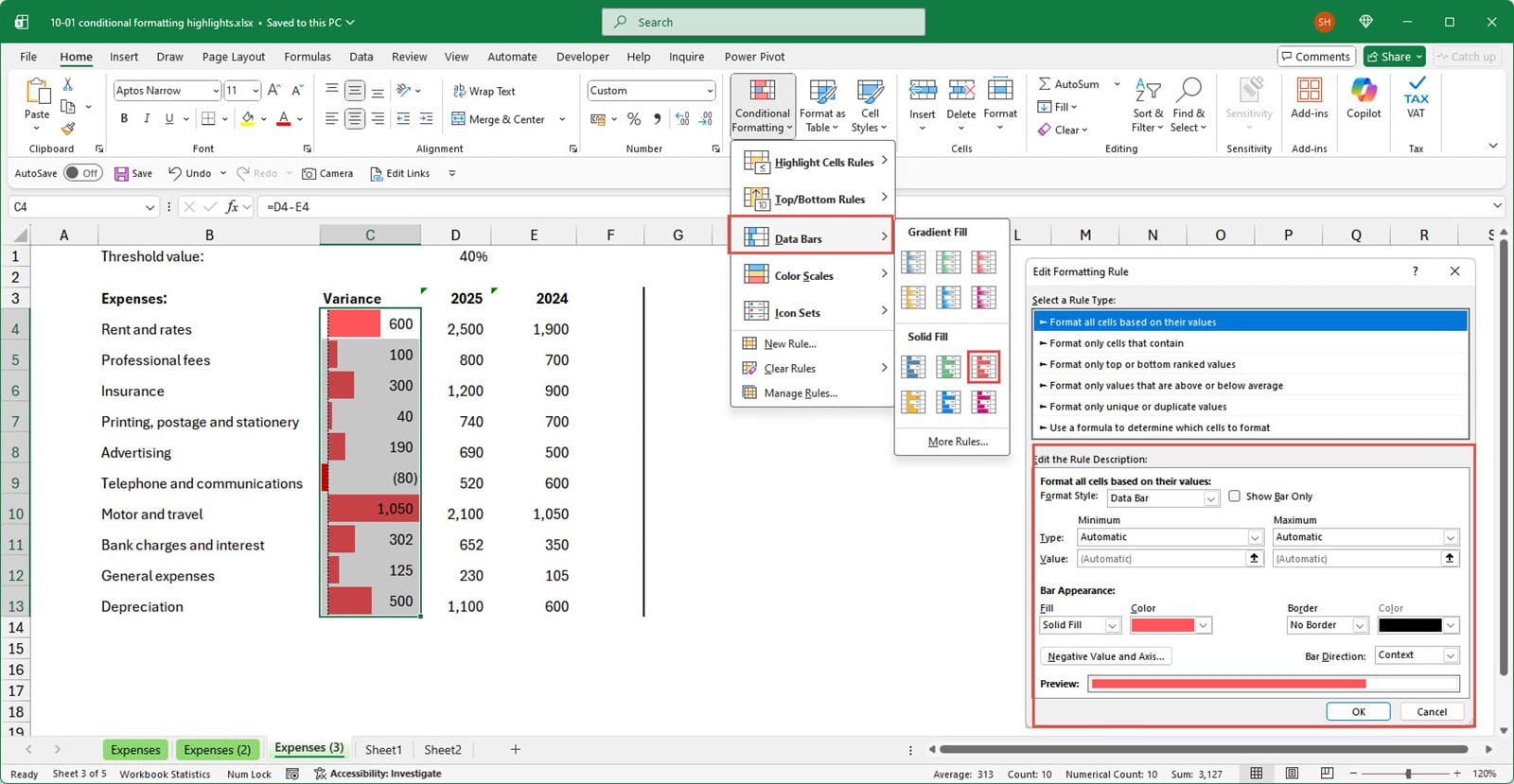
As for Icon Sets, it is possible to use the Show Bar Only option to suppress the actual cell contents and just show the conditional format. The other options control exactly how and where the bars will be displayed in each cell. By default, the Data Bars will generally be drawn so that the right-hand edge of a bar for a zero value is at the left-hand edge of the cell (so no bar will be visible), and the right-hand edge of the bar for the highest value in the range will be shown at the right-hand edge of the cell, so the bar will fill the whole cell. Where there is a mix of negative and positive values, the bar for the lowest value will start at the left-hand edge of the cell and extend to the Axis position. This can be seen in cell C9 for the negative value of -80. All of these aspects of data bars can be changed. The Minimum and Maximum value Types can be changed independently between:
- Lowest value
- Number
- Percent
- Formula
- Percentile
- Automatic
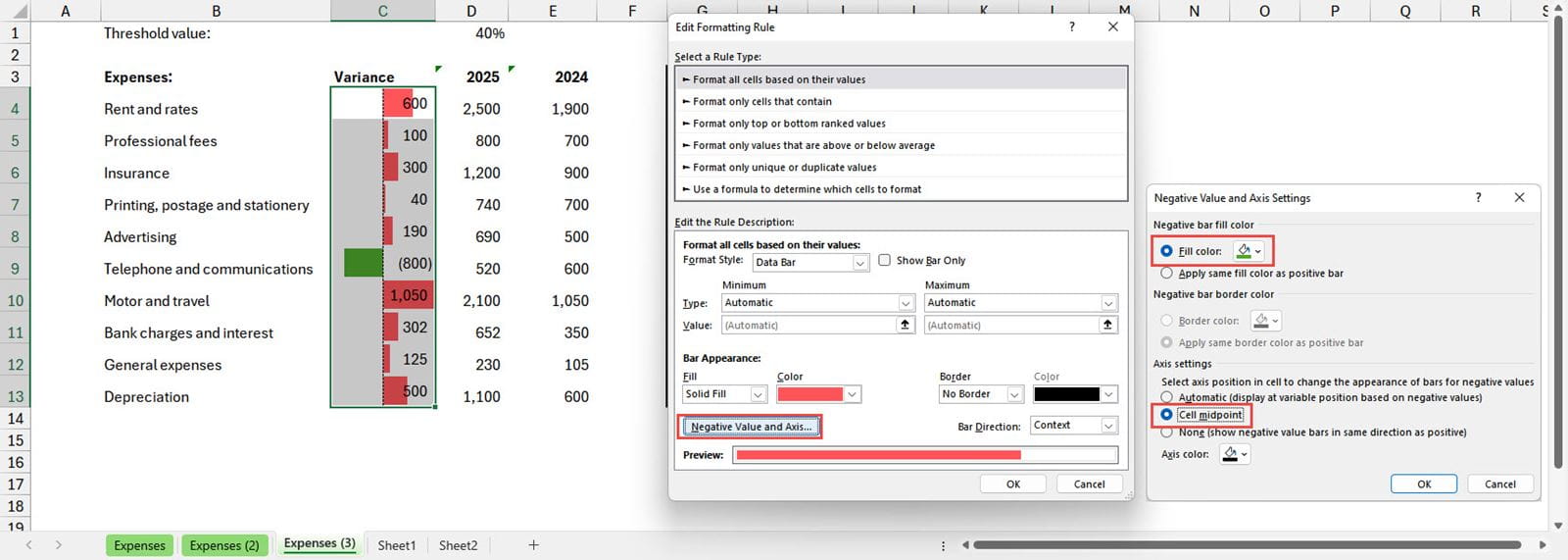
The Negative Value and Axis… button allows us to adjust the colour of any bars that show negative values and to set the position of the Axis between negative and positive bars. In this example we have set the Axis to be at the Cell midpoint and changed the Fill colour for negative bars to green. It’s worth reiterating the advice from the first post in the series about the need to consider accessibility. For those who are red/green colour blind, other ways need to be found to distinguish graphic elements apart from colour. In the earlier article, we were looking at simple ‘traffic light’ circle icons, so the use of red and green could well have been confusing. In this case, as well as colour, negative and positive bars will be on opposite side of the axis line, so colour is less of an issue:
Colour Scales
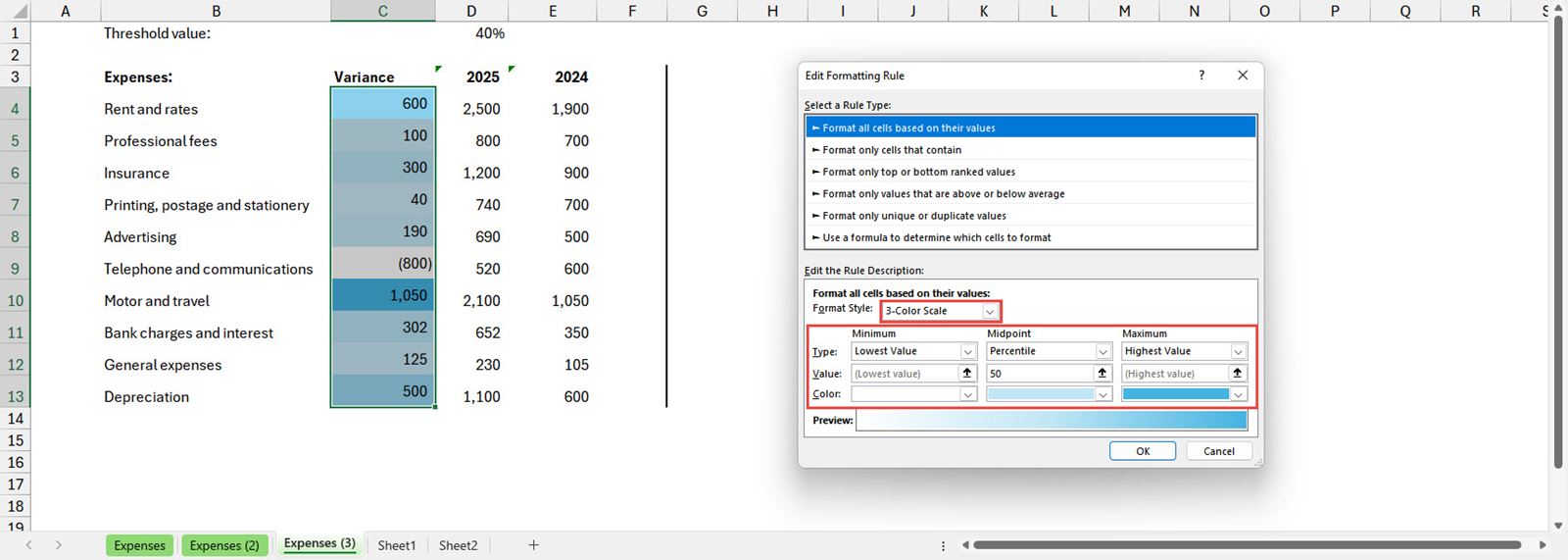
The situation is similar for Colour Scales. For this type of conditional formatting graphic, the advanced options include the choice between a 2-Colour Scale and a 3-Colour Scale. Again, the Minimum and Maximum values and, for 3-Colour Scales, the Midpoint value, can be set to:
- Lowest Value (Minimum), Percentile (Midpoint), Highest Value (Maximum)
- Number
- Percent
- Formula
- Percentile
The colour can be chosen for each of the two or three points:
Conclusion
Conditional Formatting can be a very useful way to help direct attention to key items within an Excel report. In many cases, the default options available with one or two clicks from the Home Ribbon tab, Styles group, Conditional Formatting dropdown will be all that is needed. However, understanding the additional options available through the More Rules…/Edit Rule… dialog can allow you to not only increase the effectiveness and impact of the conditional formatting in your reports, but can also help you to deal with some accessibility issues, particularly those involving differences in colour perception.
Additional resources
You can explore all aspects of Excel, including all aspects of the use of conditional formatting using the ICAEW Excel archive portal:
The 'Open in full-screen mode' icon in the bottom right-hand corner of the embedded report should show the contents at a more readable size with the Escape key returning you to the post.
Archive and Knowledge Base
This archive of Excel Community content from the ION platform will allow you to read the content of the articles but the functionality on the pages is limited. The ION search box, tags and navigation buttons on the archived pages will not work. Pages will load more slowly than a live website. You may be able to follow links to other articles but if this does not work, please return to the archive search. You can also search our Knowledge Base for access to all articles, new and archived, organised by topic.
