
Number formatting speed up
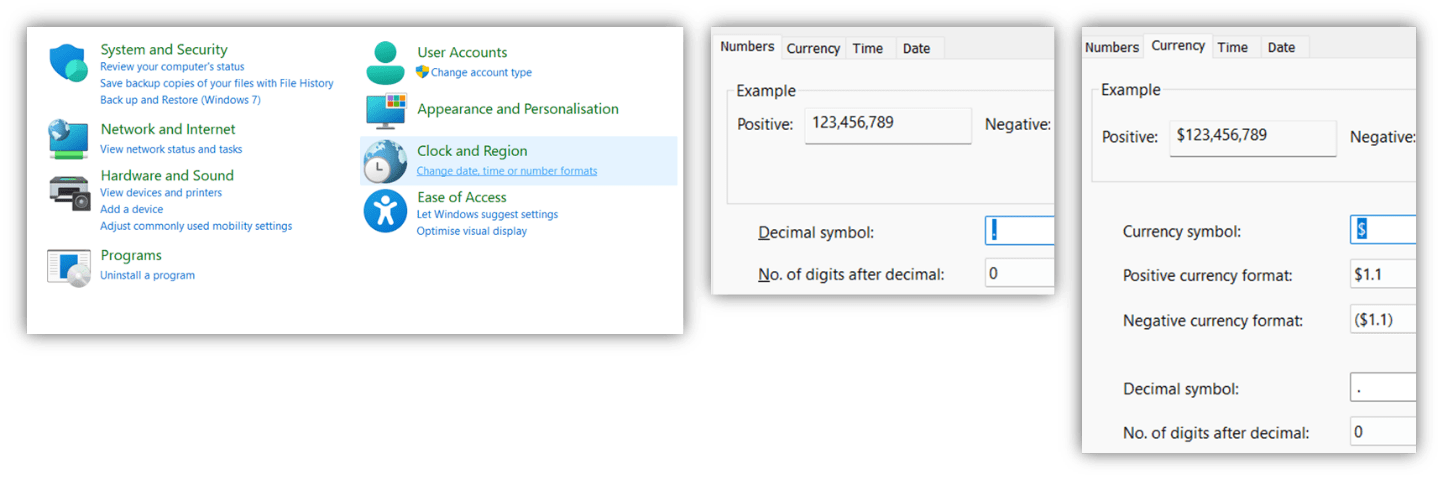
- Default to 0 decimal places: If you’re anything like me, you almost never want cluttered decimal places, and you constantly get the unintuitive increase / decrease decimal symbol wrong. There is a little-known computer wide setting which enables you to set your default decimal places to zero, but it’s a bit hidden. On a Windows machine, click Start > type “Control Panel” in search. This takes you to old Windows settings manager, next click “Clock & Region” and go to “Additional settings”, here set the number of decimals to be zero and do the same for the default decimals for currency (Excel doesn’t take effect unless you set both). I did this change years ago and never looked back.
- Ctrl Shift can be used with 1 until 6 to activate shortcuts plus the character left of 1, well it can with American keyboards, but as UK ones differ slightly, here is the list:
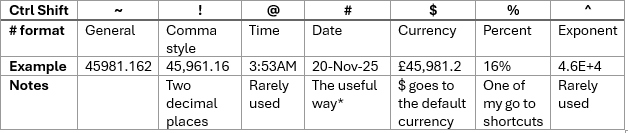
Ctrl Shift # is in my opinion one of the most useful shortcuts, there is no other way to get to this format besides setting your own custom format, and it is the only way to unambiguous way to read a date the same on a US & UK computer.
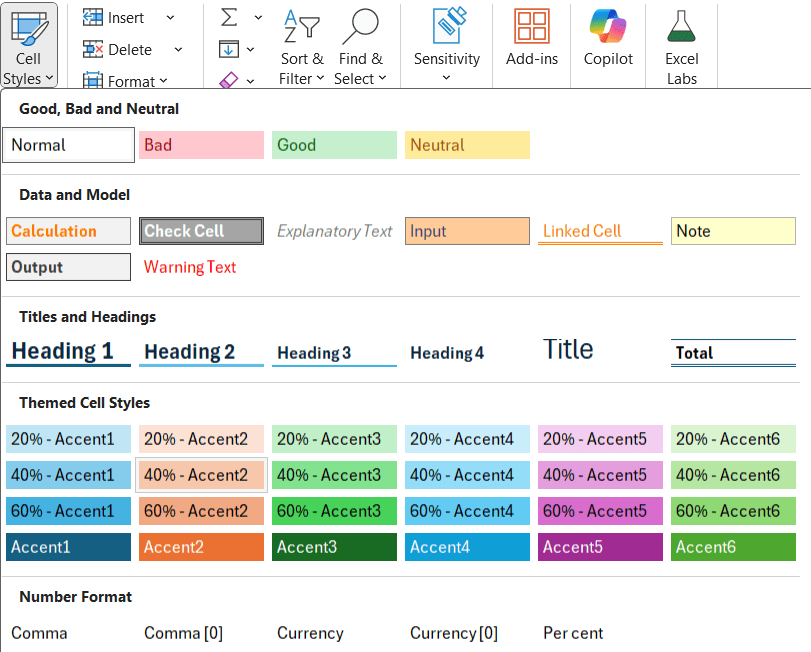
- Cell Styles: Excel’s Home tab has a section called Cell Styles. Here you can click on a preset combination of cell formatting actions, I personally don’t use these too often but the number format section at the bottom is useful to quickly jump to zero decimal places using “Comma [0].
- M number formats: Set custom number formats for thousands and millions by right clicking a cell > Format cells > Number > Custom > paste in one of these two:
- Millions: #0,,"M";(#0,,"M");0
- Thousands: #,##0,"K";(#,##0,"K");0
- Create a macro with your preferred number format, assign a custom shortcut to it. This works especially well for millions or thousands, copy the number format code, such as #0,,"M";(#0,,"M");0. Next, preselect some cells, click View tab > Macros > record macro. If you want this to be accessible in any Excel workbook, store the macro in the “Personal Macro Workbook” which is by default open but hidden whenever you use Excel. Note you can assign a keyboard shortcut here but don’t overwrite existing shortcuts e.g. I use Ctrl Shift K for thousands and Ctrl Shift M for millions. After your macro is recording, navigate to the number format custom box (right click the cells > Format cells > Number format pane > Custom), then paste in the code and click View Tab > Macros > Stop recording.
This video has the tricks shown above plus some additional number format speed up tricks:
Optimising the defaults for speed up
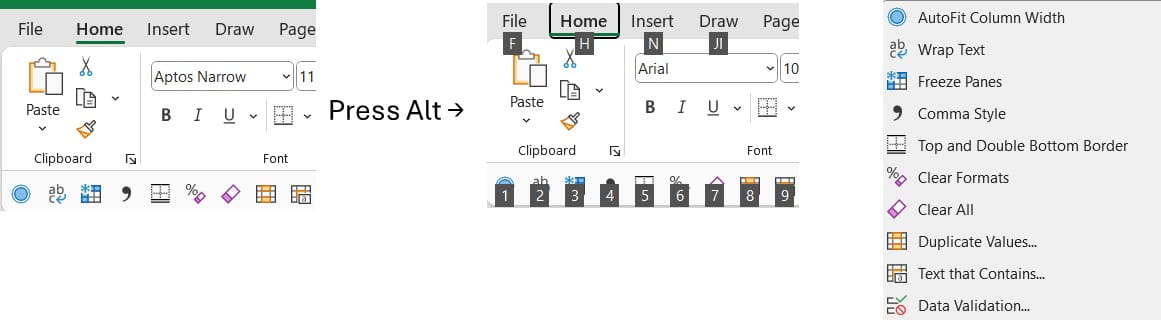
- The Quick Access Toolbar: If you’ve read this far, you’re interested enough in speed up tricks to become a true master of the quick access toolbar. The Quick Access Toolbar is a set of icons, which you can click on regardless of where you are in the menus. Over the years, Office Apps have hidden them more and more, but I cling on, for me these are a list of things which should have quicker access than they do, or should have keyboard shortcuts but don’t, for example Freeze Panes is, I think around once every few Excel hours by most users, but its three clicks deep without a simple keyboard shortcut, so I add it to the toolbar. My optimal toolbar should be:
- Below the ribbon
- Showing just the icons, not the command labels
- Have the defaults removed (undo, redo, save) because any true productivity warrior can do these with their eyes closed, then the top ten command(ment)s which I have found I want quick access to consistently for the last twelve years are the ones shown below:
- AutoFit Column Width: Equivalent of double clicking in between columns
- Wrap Text: I use it so often and it has no built-in shortcut
- Freeze Panes: A long three clicks deep, three sounds like freeze.
- Comma Style: This is a macro to have zero decimals and commas for thousands
- Top and Double Bottom Border: Two clicks away for something I use so regularly
- Clear Formats: A useful tool that most don’t know even exists
- Clear All: Most also don’t know this exists, delete values & formats in one click
- Duplicate values: A conditional formatting option I use regularly
- Text that Contains: Another common conditional formatting option
- Data Validation: As its so many clicks deep, most don’t use it, meaning they have far more errors in their data.
What’s more, if you use Alt + that number you can access each command without leaving the keyboard but note data validation would be Alt 09. After this the shortcut combo keys gets less practical, so my other commands up there differ from year to year.
- Using special → ↑ symbols: Go to Insert tab → Symbol and scroll down the list to grab them.
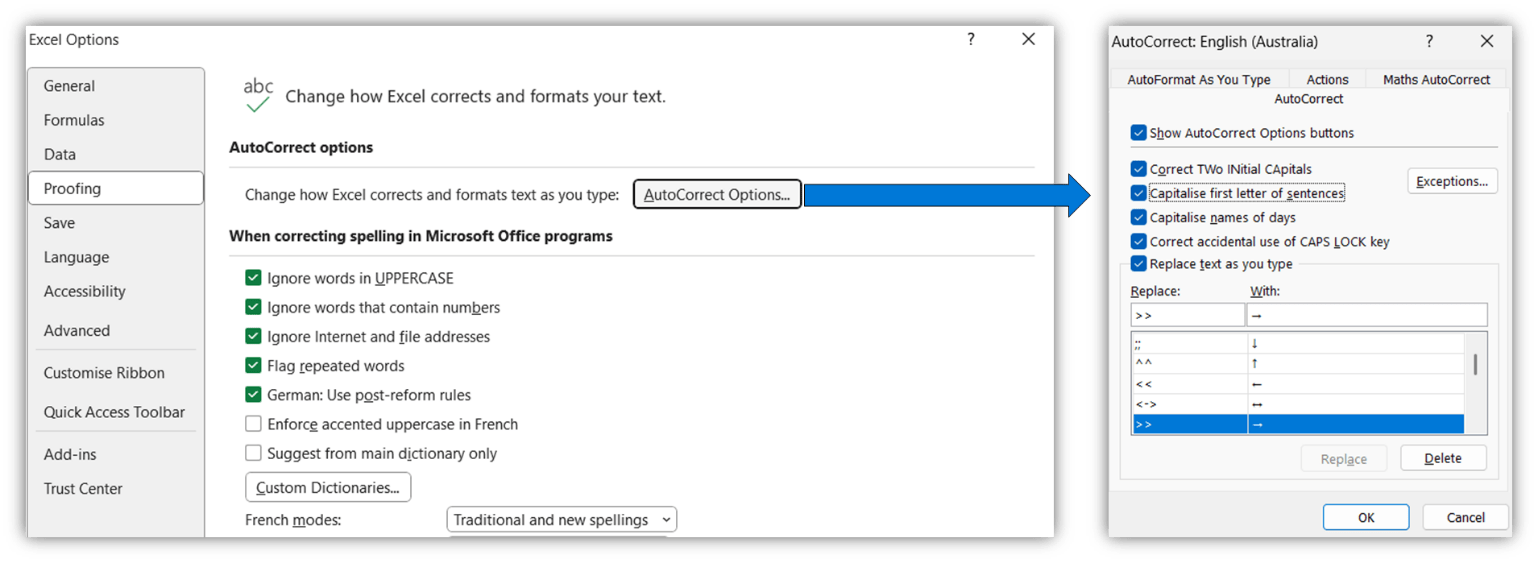
- Add ↓ ← via your keyboards: Keyboards should have arrows; they are far more useful keys that | or ` in English. I have used them thousands of times since setting up that double arrows on my keyboard will convert into arrows so >> becomes → ^^ becomes ↑ and ;; becomes ↓.
You have probably noticed that Typing (c) becomes © automatically, but you can get (c) by typing backspace, well you can convert any character combination to anything else. To set this up as I have, first, go to Insert → Symbol and grab the arrow or other character, then go to File → Options → Proofing → Autocorrect options. Paste the symbol you copied into “With” and type in the character combination you’d like to automate it. This same process can be repeated on Word, PowerPoint, OneNote and Outlook Desktop but you will need to set it up for each app. As well as arrows, you might want to set up something similar for € or even a commonly used phrase.
The process can also be followed on this video:
That wraps up this segment on Excel’s speed up tricks, be sure to grab the next edition in early 2026.
Archive and Knowledge Base
This archive of Excel Community content from the ION platform will allow you to read the content of the articles but the functionality on the pages is limited. The ION search box, tags and navigation buttons on the archived pages will not work. Pages will load more slowly than a live website. You may be able to follow links to other articles but if this does not work, please return to the archive search. You can also search our Knowledge Base for access to all articles, new and archived, organised by topic.