
Some users find the Excel Flash Fill feature useful, while others find the significant limitation of it only being able to create static text too much of a compromise. Enter the new, AI-powered, enhancement: Formula by Example. It works in a similar way but creates a formula rather than static text, making it much more useful and automatic.
Introduction
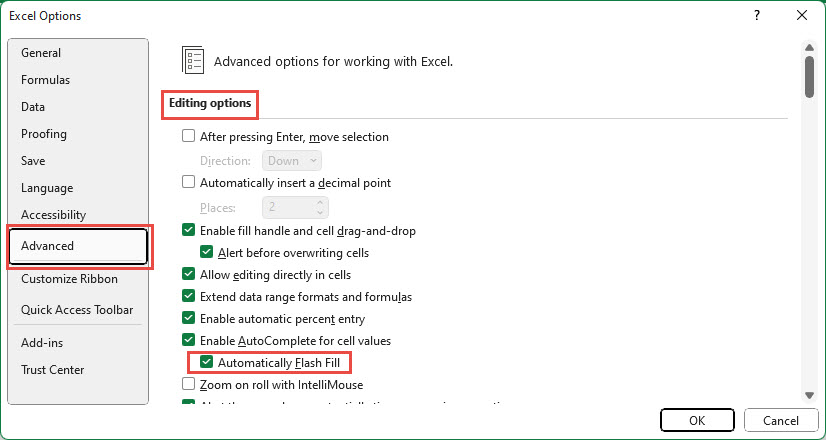
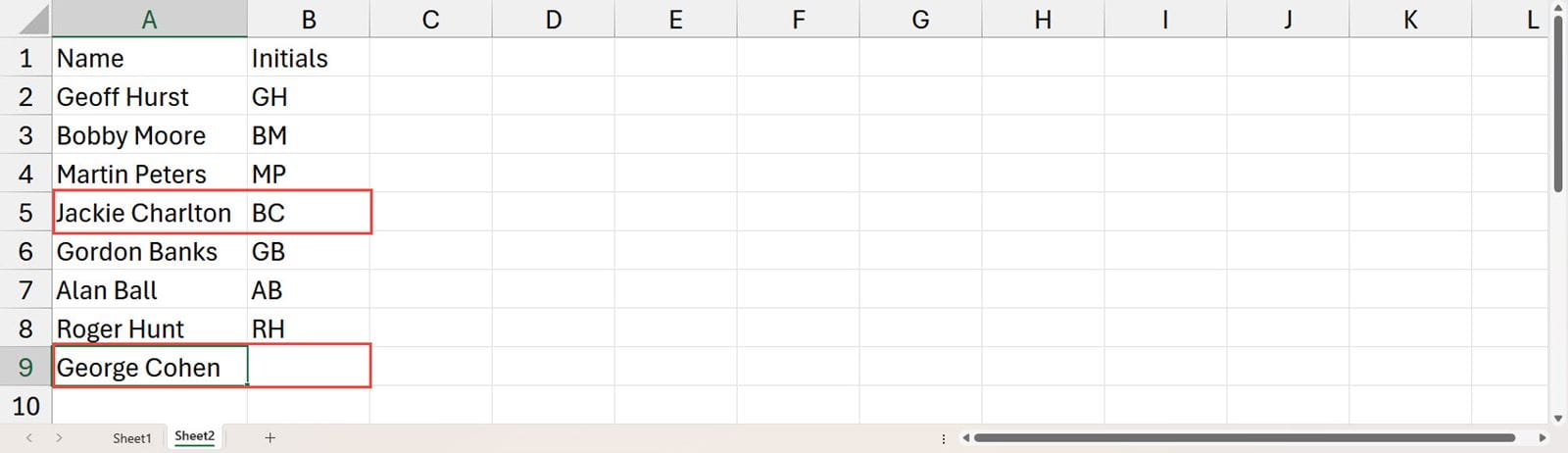
First of all, apologies to everyone who really likes Excel’s Flash Fill feature and does find it very useful. I am sure there are circumstances in which it can be a suitable solution. However, Flash Fill does suffer from one significant drawback: it generates fixed values and doesn’t automatically update when the source data changes, or is added to, meaning it needs to be run each time the data changes. In contrast, Formula by Example – as its name suggests – creates a formula that will update automatically like any other Excel formula.
Formula by Example featured in the ‘My top 5’ list of updates in David Benaim’s quarterly review of Microsoft 365 updates but here, we’ll compare it to some existing Excel features.
Flash Fill and Formula by Example compared
The two features seem to work in similar ways. Both are designed to allow you to create a new column of data based on transforming or combining the values in adjacent columns. For Flash Fill, the existing columns can just be in a standard range of cells but, at present, Formula by Example needs the existing data to be in an Excel Table, though it is suggested that in future the feature will also support standard ranges. For both features, the existing data needs to be sufficiently consistent that Excel will be able to recognise a pattern, and the operation will be triggered by entering examples of the desired results.
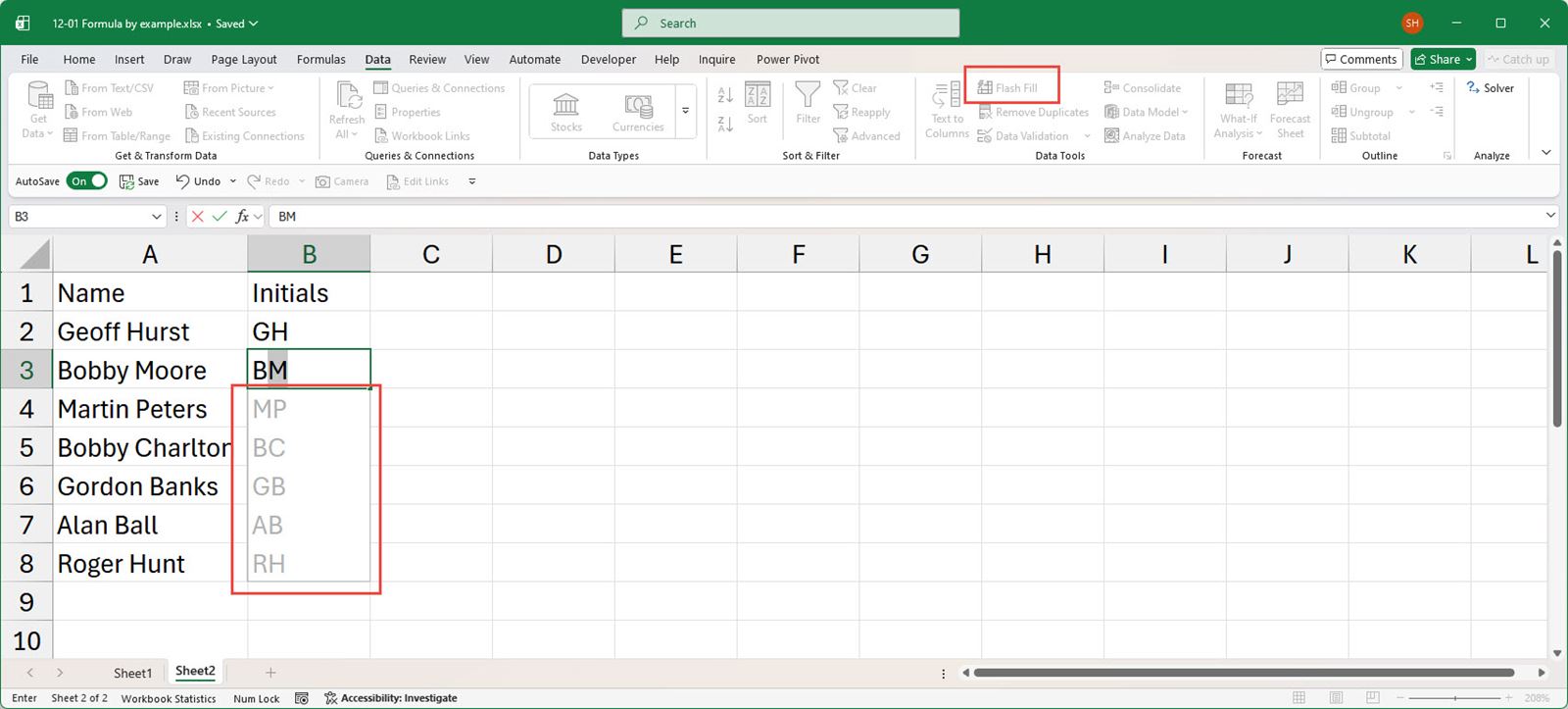
In this example, Flash Fill has worked out that we want to include the initials of the two names in the column A cells, in our new column B. After entering our second example value in column B, Flash Fill has worked out what we want to do and proposed completing our range of cells accordingly:
To compare this with Formula by Example we currently need a Copilot subscription if we are using the desktop edition of Excel for Windows, but without access to Copilot, we can instead use Excel for the Web.
Here, in Excel for the Web, we have entered the first three sets of initials and then Formula by Example recognises a potential pattern and proposes a formula that will transform our data accordingly:
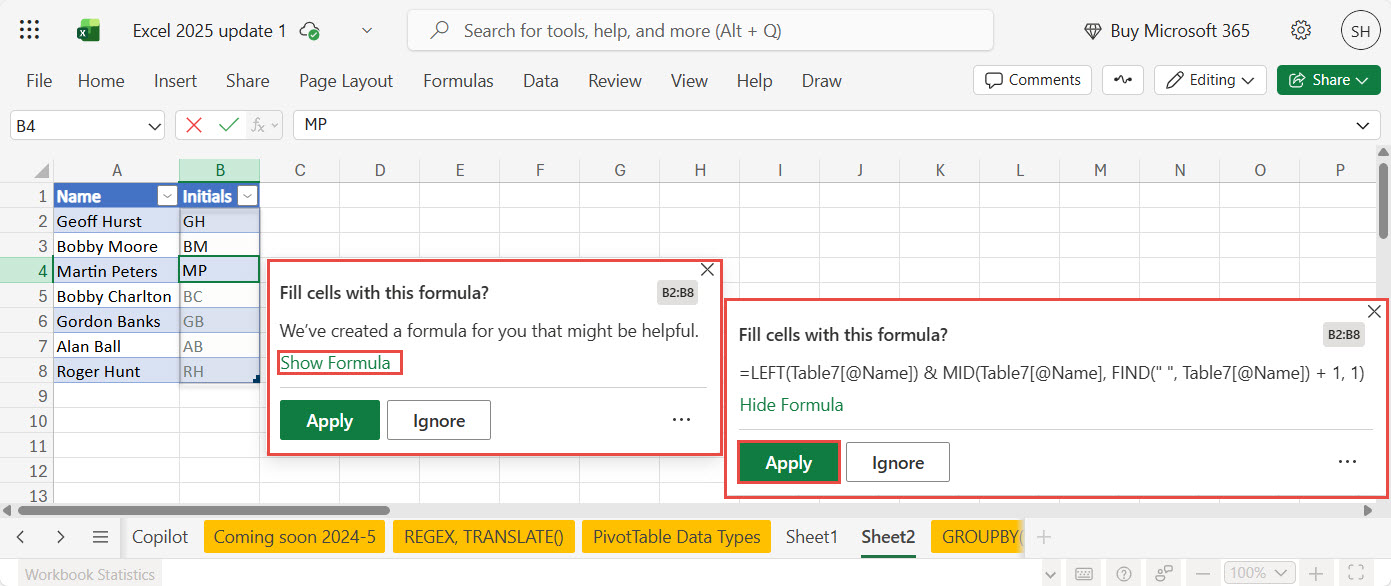
We can see that the proposed formula uses the Excel text functions LEFT(), MID() and FIND() to extract the leftmost character and the first character after the first space:
=LEFT([@Name]) & MID([@Name], FIND(" ", [@Name]) + 1, 1)
It’s important to review the formula to make sure it will achieve the result that we want for all possible entries in our column. If we are happy that the formula will work reliably, we can click the Apply button to copy it to all the relevant cells in the column. Even if the proposed formula isn’t quite right, it might provide the basis for creating one that is. Unlike Flash Fill, we have created formulas in our column rather than static text, so changes and additions should correctly update our calculated values:
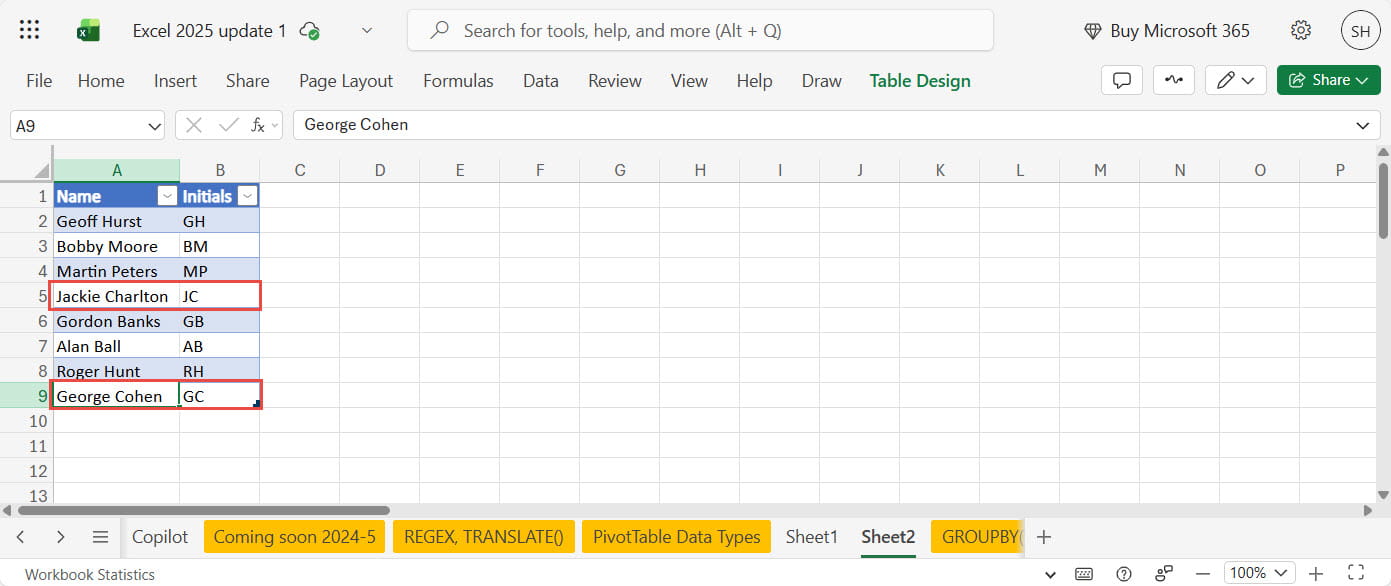
As well as text transformations, Formula by Example can also cope with extracting individual elements from a full date, such as month and year; arithmetic calculations and rounding.
Power Query Column from Examples
If Formula by Example seems a bit familiar, then it could be because of its similarity to the Column From Examples feature that has been available in Power Query for several years. This feature works in the same way to add columns to Power Query queries by entering examples of the required result:
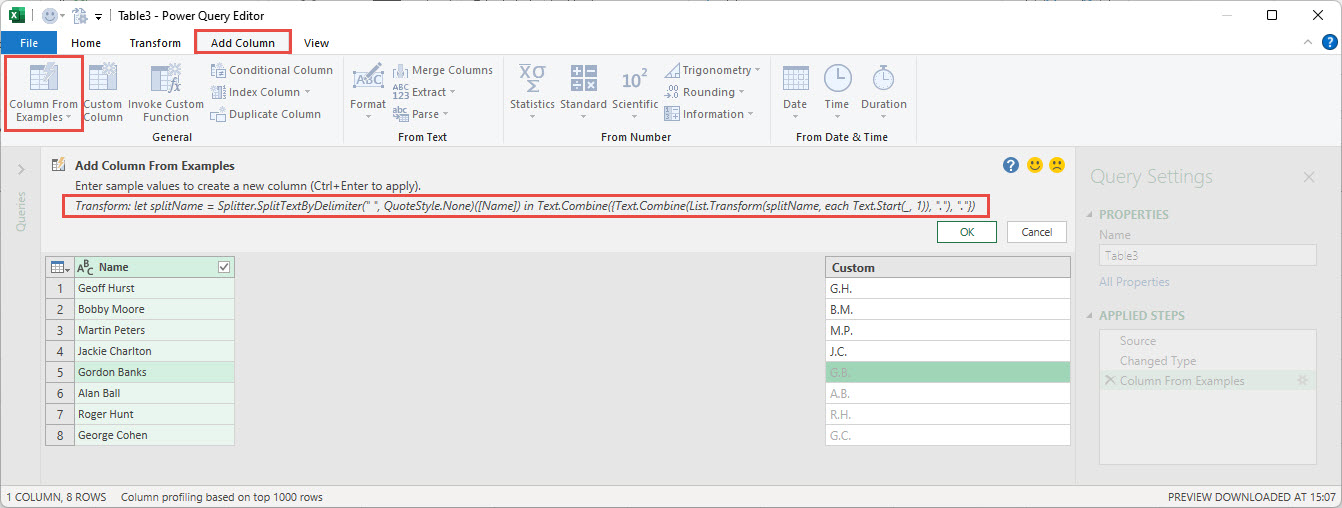
Strangely, Column From Examples struggled to recognise the pattern of simple initials but managed to cope when the full stops were added to each example.
Additional resources
You can explore all aspects of Excel, including Flash Fill and Column From Examples, using the ICAEW Excel archive portal:
Archive and Knowledge Base
This archive of Excel Community content from the ION platform will allow you to read the content of the articles but the functionality on the pages is limited. The ION search box, tags and navigation buttons on the archived pages will not work. Pages will load more slowly than a live website. You may be able to follow links to other articles but if this does not work, please return to the archive search. You can also search our Knowledge Base for access to all articles, new and archived, organised by topic.
