
The Canva Suite has become a force of nature with 1 billion designs being produced monthly, and now it finally launched Canva Sheets, but how does that compare to Excel or Google Sheets.
Probably the most successful new business application suite from the last fifteen years has been Canva, with one billion designs monthly it’s become a juggernaut. Although it started off as graphic design software, it has developed into word processing, presentations, websites, whiteboards, video and now it has launched an Excel competitor called Canva Sheets.
I’ll cut to the chase here. No, it is not in the league of Excel or Google Sheets at storing or processing data, but Canva Sheets does have its benefits, with completely different use cases, which I did not think I needed until I tried them. This video tutorial goes through the main aspects of Canva Sheets covering this document.
The user interface
Although there is a Desktop app, Canva’s web app usually has more functionality, here is a screenshot demo of one of their templates.
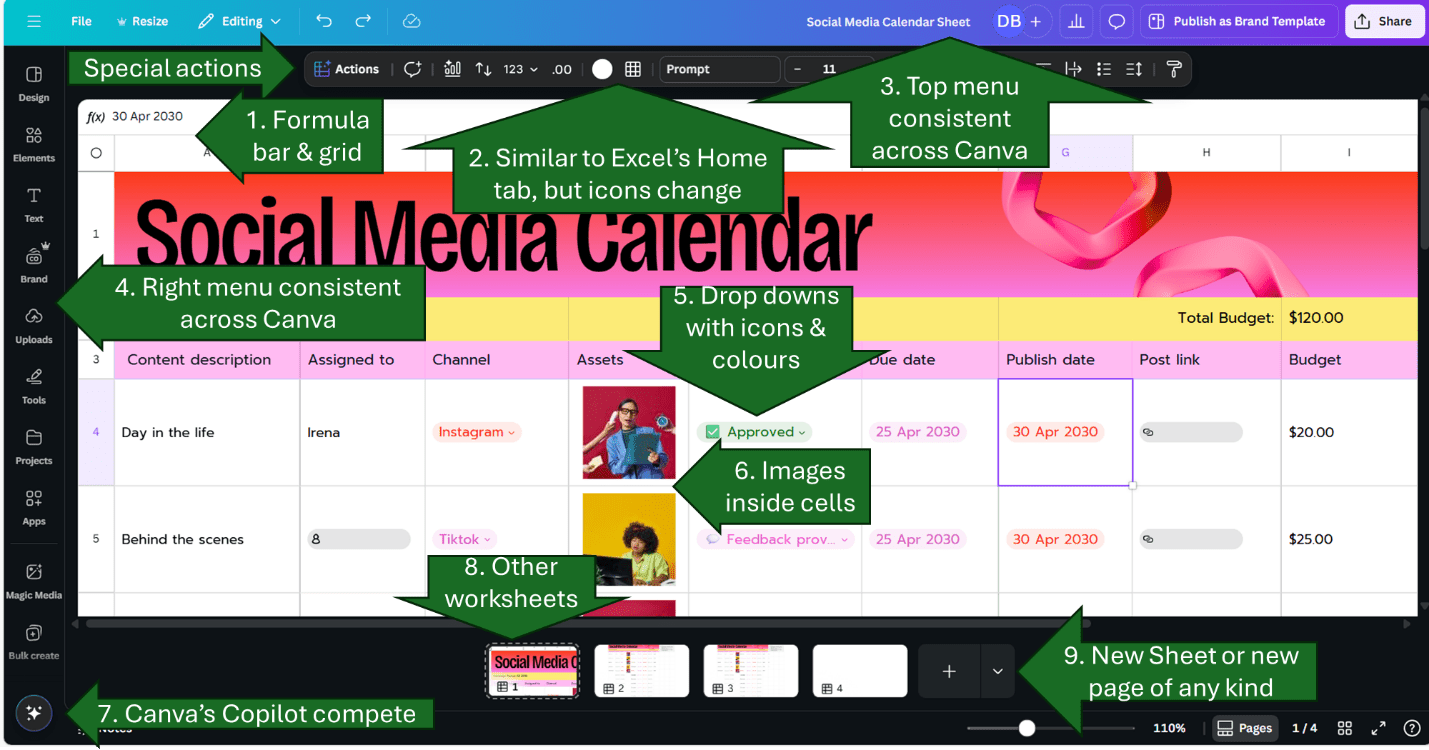
You’ll immediately notice its far more visual than Excel’s templates, in fact the images, gradients at the top here are photos you’re able to insert into Excel too, and most don’t, so that’s not a particularly strong win for me. The rest looks not too different. Breaking down the menus:
- The grid system and formula bar are similar to Excel’s.
- The toolbar on top in black/grey has similar icons to Excel’s Home tab, but it is context specific, depending on what is selected. We will come back to the Actions menu.
- The right menu for sharing, File etc. is consistent across Canva, (similar to Excel’s top toolbar).
- The left menu is also consistent across Canva. Add your elements / graphics from here, but Canva gives you access to hundreds of millions of stock photos & other stock assets with the pro account. You can also use a slew of AI image editing tools which are super useful.
- Canva’s version of dropdowns, dates and links are far more visual than Excel allows, but more limited (see below)
- Excel added the ability to have images inside cells, in the last couple of years, I don’t use it much personally, but in Canva, there are some beneficial advantages discussed later.
- Canva AI works similarly to the paid Copilot or Google Gemini add-in, but is included within the one price for Canva Pro
- Navigate other worksheets similarly to Excel.
- Rather than having Excel for your spreadsheet, Word for your document etc. A Canva file can now consist of multiple document types, e.g. One spreadsheet, one doc, three presentation slides, a whiteboard etc. It is an interesting concept that I am beginning to see the benefit of.
Formulas
Canva Sheets works like Excel with a formula bar, referencing cells, ranges, absolutes etc. It also launched with 66 functions which is a far cry from the 500+ in Google Sheets and Excel, but then again Google Sheets launched with a limited list too and now it has a similar number to Excel’s count. Here is the full list of functions taken from Canva’s website.
- Math & statistical: SUM, AVERAGE, MIN, MEDIAN, MAX, COUNT, COUNTA, COUNTBLANK, COUNTUNIQUE, MODE, CORREL, PRODUCT, SUMPRODUCT, ROUND, ROUNDUP, ROUNDDOWN, ABS, STDEV, VAR, SQRT, EXP, LN, LOG, LOG10, POWER, PI
- Logical: IF, IFS, COUNTIF, COUNTIFS, AVERAGEIF, AVERAGEIFS, SUMIF, SUMIFS, AND, OR, NOT, IFERROR, ISBLANK, ISERROR
- Financial: IRR, NPV, PMT, PV, FV, NPER, RATE
- Date: DATE, DAYS, YEAR, MONTH, DAY
- Text: TEXT, VALUE, CONCAT, CONCATENATE, LEN, LEFT, RIGHT, UPPER, LOWER
- Lookup: VLOOKUP, HLOOKUP, XLOOKUP, INDEX, MATCH
The inclusion of COUNTUNIQUE is very appreciated, this has been in Google Sheets for years but still not in Excel. Its first release lacking any modern functions such as TEXTJOIN, TEXTAFTER, STOCKHISTORY, SWITCH etc.
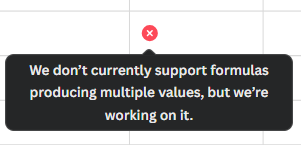
Dynamic Arrays are coming soon, which is confirmed by the fact that the #SPILL! error is included in the documentation as a possible error plus, trying to force an array returns this pop up.
Canva Sheets is emphaising “Magic Formulas” where a formula can be built from a prompt, but that feature works well with Excel’s copilot, Google’s Gemini or chat GPT.
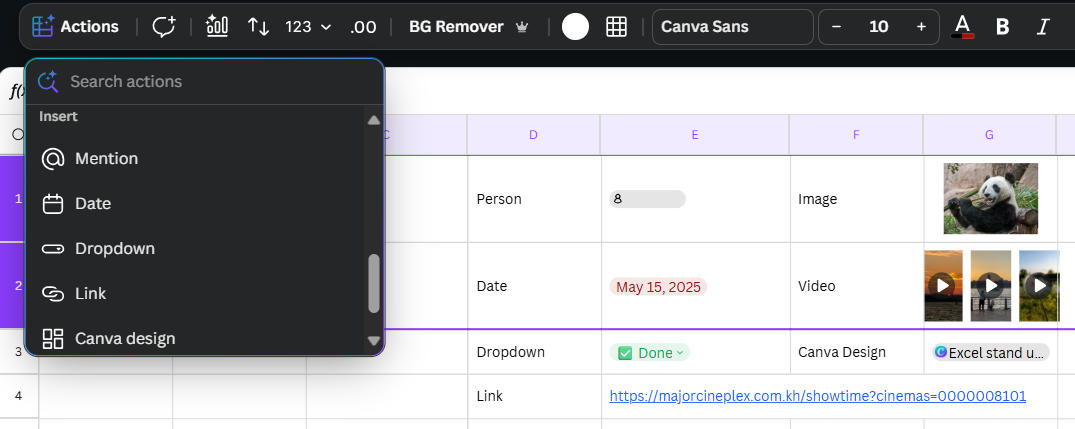
Data types beyond values
Copy/paste and other basic commands
On right click, you get options such as Merge Cells, Freeze Panes, and Sort but no Filtering (which is a key missing aspect for now).
You’re able to Shift click to select cells, but it’s not currently possible to select nonadjacent cells using Ctrl or any other way. Certain shortcuts are different, and many features are missing such as Tables, Conditional Formatting, PivotTables, Data Validation, Flash Fill, Power Query, Grouping, Sparklines to name a few.
Paste special works with Values or Formats but other paste special options are missing. Interestingly, if you copy a few cells and paste them into any non-Sheets Canva design, you maintain all the spreadsheet capabilities, although, if there are images in the cells, you need to click cell by cell to detach any images from its cells. One of my main criticisms of Canva generally is that certain actions take far too many clicks, such as copying and pasting.
Bulk actions on graphics – where Canva Sheets really shines
Any graphic designer will find that Canva Sheets can speed things up through automation. Canva remains a design application at its core and Sheets is no different, these three aspects in particular, I’ve used multiple times in the short weeks that I’ve had access:
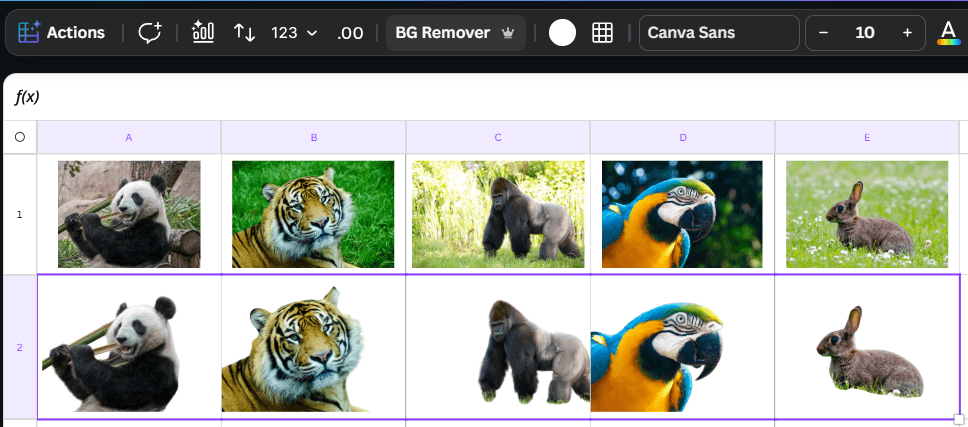
- Remove background en-masse: Multi select cells with images, click BG remover and the AI tool will take effect in seconds (see below).
- Bulk Resize: Say you want versions of a single design in square, 16:9, A4, landscape and/or portrait. This feature (accessible via the “Actions” menu) allows you to create many sizes from one, where Canva uses AI to reimagine how the resized design would be. The output would show as links in Canva sheets.
- Bulk create: Mail merge for the 2020s. Create a prototype design and a Canva Sheets table, then assign different aspects in the design to different columns in the spreadsheet and bulk create. For example, a speaker event has 6 speakers, Canva can create 6 graphics with the name, topic, and image varying page by page. As shown below, the process is straightforward: click Actions > Bulk Create, select the data, then select which objects (image or text) need to be mapped. The video at the start of this article shows the steps. I highly recommend going into “Advanced options” to select “Produce multiple pages in 1 design.” The output looks like so, which you can see in this public link.

Other Commands under the “Actions” menu
Interesting options are under this menu, the ones with crowns are only for Canva Pro users.
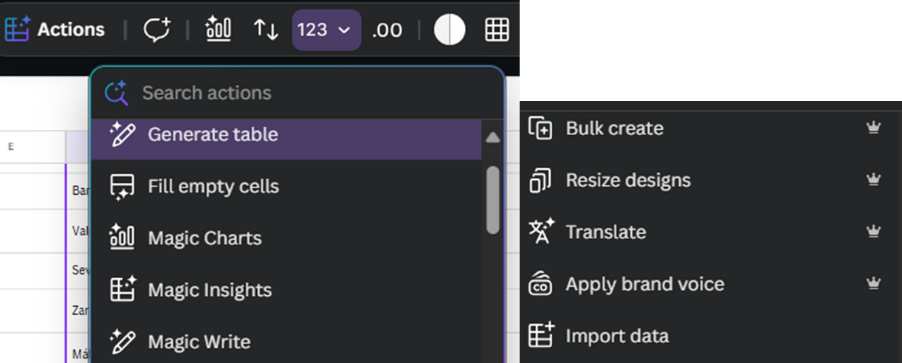
- Generate Table and Fill Empty Cells can generate data from a prompt; it can be useful for dummy data as you can ask things like “Generate a list of cities in Portugal”.
- Magic Insights and Magic Write are AI features similar to Copilot, but not things I tend to use.
- Translate can translate any Canva design which now includes Sheets
- Apply brand voice will reword any text based on how the organization would like you to use language pre-set in the branding section.
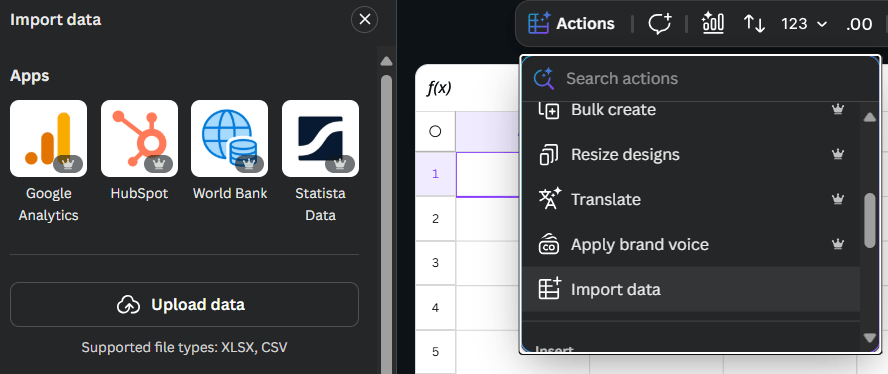
- Import data can grab data from an Excel or CSV file as well as third party data sources with publicly accessible data.
Canva charts
Compared to Excel, Canva charts have fewer data controls but many more graph types which came about because Canva acquired Flourish, a London-based data visualisation startup in 2022. Flourish produced very clean, stylish interactive visuals compared to the outdated style in Excel. Canva has been working to integrate Flourish ever since, and this new release has many improvements.
These charts are included within Excel’s offering

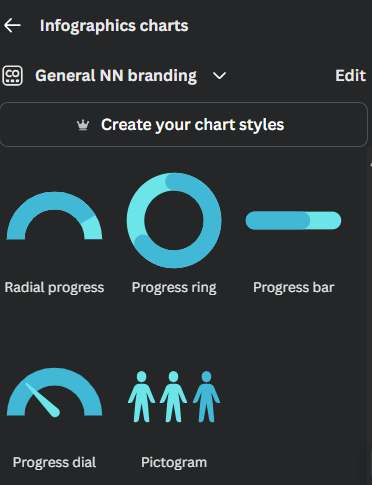
For more charts, you can add an app called “Flourish”, the company that Canva acquired. Accessing Flourish gives you access to Sankey charts, map charts, word clouds, calendar charts, organisation structure diagrams and hundreds more.
Access and pricing
Canva Sheets comes in its free offering with most features, although almost all AI tools come with the paid version only including the bulk image tools BG remover, Bulk Create and Bulk Resize. Canva Pro is far cheaper than most apps currently thought at only $50 per year. Sheets was released for early testers and should roll out to all Canva users very soon.
So… is Canva Sheets the new green?
Canva Sheets is a far cry from the sophistication of the 40-year-old product that is Excel, but if you are looking for a tool to do graphic design in bulk, then Canva Sheets can be a great asset.
Archive and Knowledge Base
This archive of Excel Community content from the ION platform will allow you to read the content of the articles but the functionality on the pages is limited. The ION search box, tags and navigation buttons on the archived pages will not work. Pages will load more slowly than a live website. You may be able to follow links to other articles but if this does not work, please return to the archive search. You can also search our Knowledge Base for access to all articles, new and archived, organised by topic.
