
In a recent webinar, Ruth Butler-Lee, Head of Financial Modelling at Arriva UK Trains Ltd, covered a practical introduction to dynamic arrays in Excel and how they can be used to address the common problems faced when using traditional Excel formulas in financial modelling. In this article, Ruth returns to share a summary of the pros and cons of using dynamic arrays.
You may have heard about Dynamic Array formulas in Excel but weren’t sure when you might want to use them or (maybe more importantly!) when you shouldn’t use them. I recently presented, alongside Ben Ducker and John Yeldham, a highly-rated webinar on what dynamic arrays are and how they are best used in practice (available to view on demand here) for those who want to know more.
However, for those who want a summary (or a reminder) of the pros and cons we discussed in the webinar I have summarised them in this article, using screenshots from the example we used.
The Pros and Cons of Dynamic Array Formulas in Excel
Dynamic array formulas have transformed the way financial modellers and analysts work in Excel. By allowing formulas to “spill” results into adjacent cells automatically, they promise cleaner, more scalable, and more efficient spreadsheets. But as well as benefits there are downsides, so you need to know when to use them and when not to.
The Advantages
- Automatic Handling of Variable Data Sizes
Traditional models can require users to guess how many rows of data they’ll need, leading to bloated spreadsheets filled with empty formulas. Dynamic arrays adjust automatically as new data is added, keeping models lean and responsive which can transform large, slow models, into smaller, faster, more usable models.
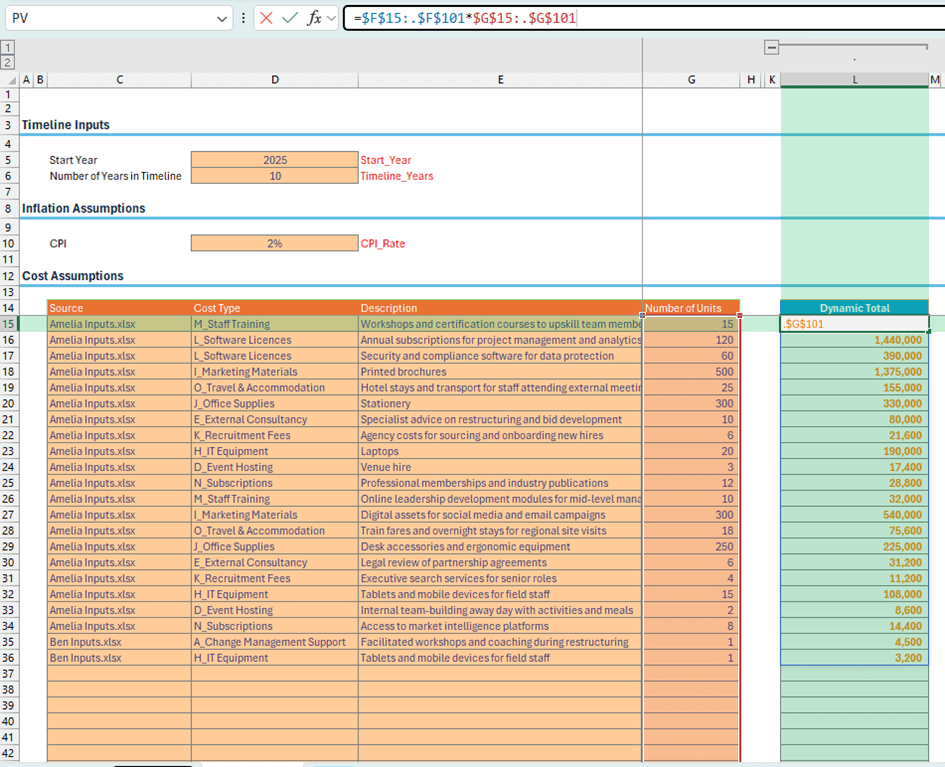
For example, the helper column in the screenshot below uses the trimrange dot notation (adding a “.” after the “:” in the range definitions) to resize the spill range of the formula in L15 so that it only spills down to row 35 to match the number of input rows in the table:
- More Powerful Functions
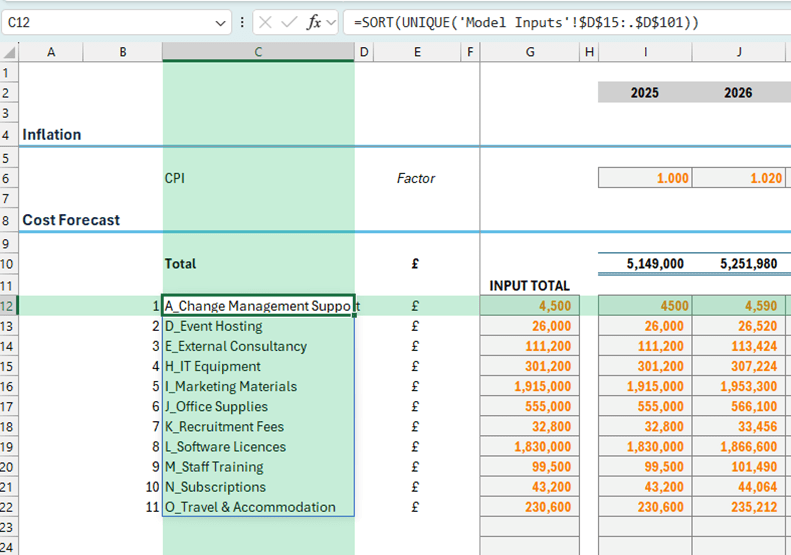
Dynamic array functions have added simpler ways of doing things, removing the need for complex formulas and helper columns. For example, SORT and UNIQUE allow you to easily create a dynamic sorted unique list from a list of values:
- Improved Data Integrity
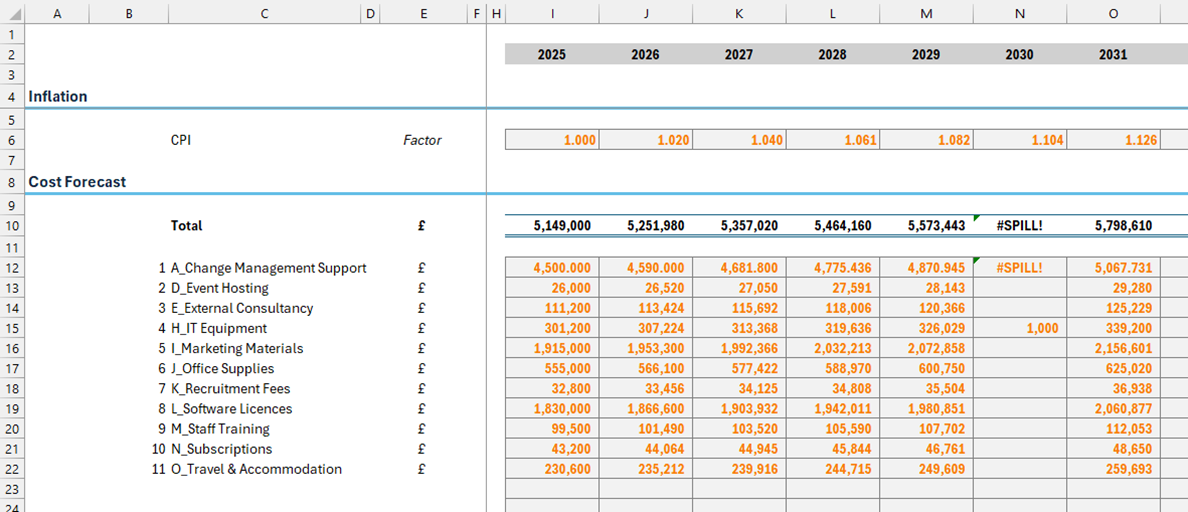
Dynamic arrays help prevent accidental overwrites. If someone tries to enter data into a cell that’s part of a spilled range (e.g. in N15 in the example below which is within the spilled range of the formula in N12), Excel returns a #SPILL! error, protecting the integrity of your calculations.
The Drawbacks
- Auditing and Debugging Challenges
With traditional formulas, Excel’s auditing tools (like tracing precedents or evaluating parts of a formula) work cell by cell. Dynamic arrays, however, exist in a single cell and spill results, making it harder to trace individual values or debug complex calculations. If you try to use the formula auditing tools then they either won’t work (e.g. ‘Trace Dependents’ is no longer reliable) or, in the case of ‘Evaluate Formula’, will show you the evaluation steps for all cells in the array at once which makes the functionality almost completely unusable.
In my opinion this is by far the biggest drawback to using dynamic array formulas.
A partial workaround is to break formulas into smaller chunks, but this adds extra steps to your models and isn’t as functional.
- Formatting Limitations
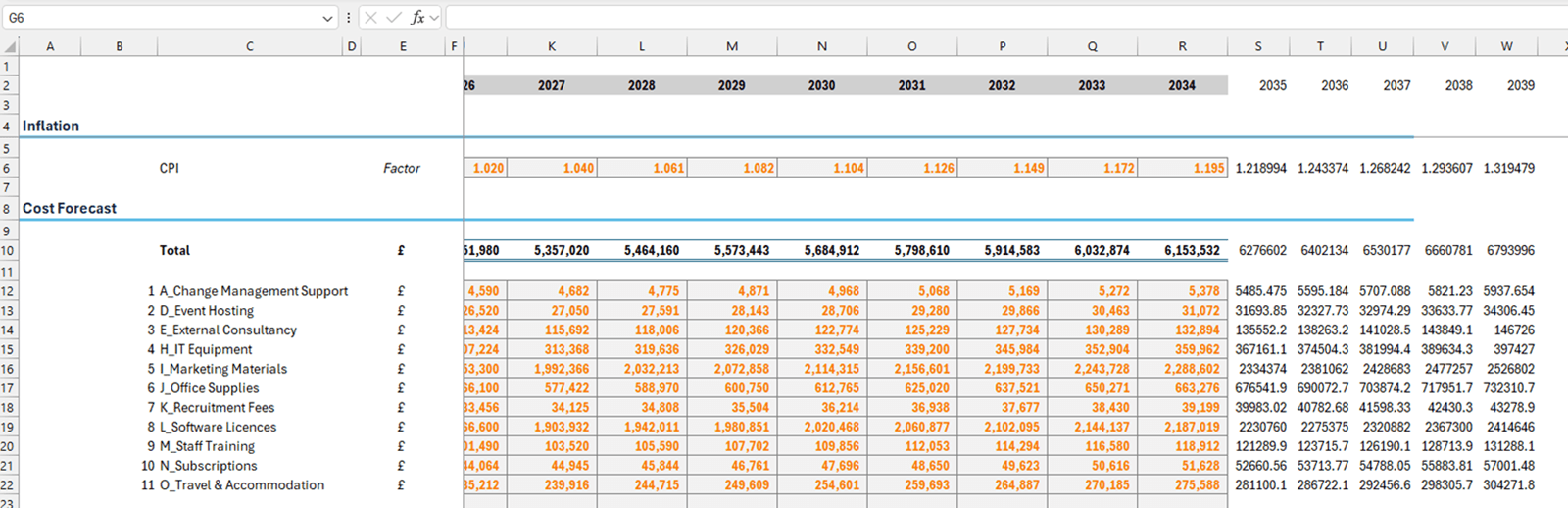
Dynamic arrays don’t automatically copy formatting as they expand. If you add new data and the array grows, you may still need to manually apply formatting to new cells.
- Complexity in Advanced Scenarios
Spilling formulas across both rows and columns can lead to very complex formulas.
For example. in the screenshot below the main calculation block is spilt across rows and down columns from the formula in cell I12. In order to calculate the total per column instead of being able to use a SUM formula, BYCOL is required. We cover more on BYROW and BYCOL in Tip #497.
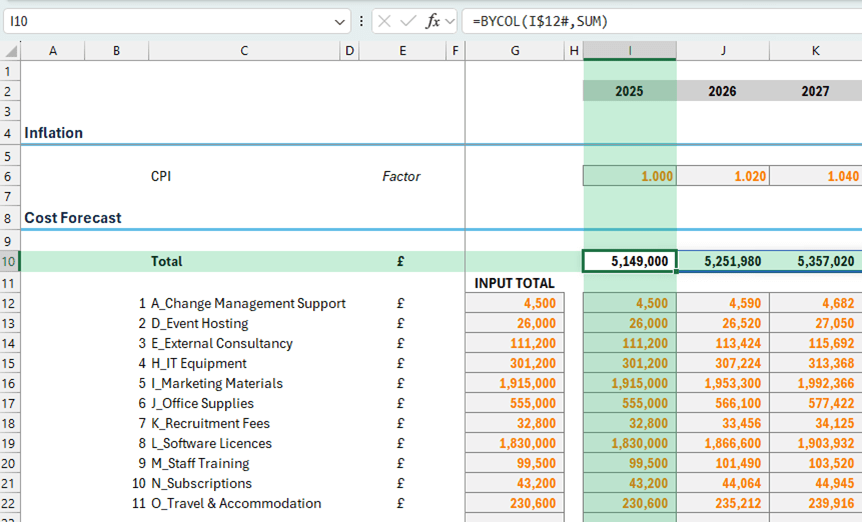
While 2D spilling can make models extremely flexible, it can also make them harder to understand and maintain, especially for users who are not themselves familiar with dynamic array formulas. Sometimes trading flexibility for simplicity and taking a simpler approach, e.g. spilling only down rows rather than across both rows and columns, is the better option.
- Not Always Suitable for Core Calculations
Some advanced techniques may look elegant but are difficult to audit and can obscure the logic of your model. For core calculations, clarity and traceability should take precedence over clever formula tricks.
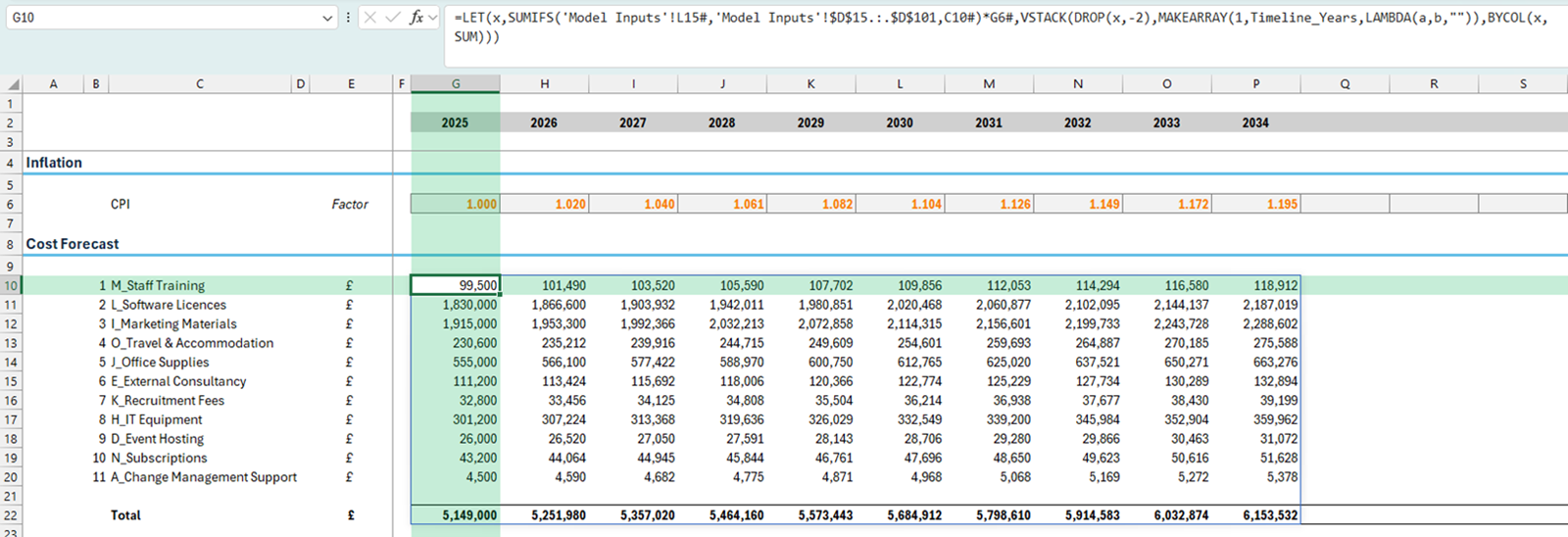
As an example, the screenshot below shows a formula where the total row moves depending on how many categories of data there are. In the screenshot there are 11 cost categories in the input data and so the total row appears in row 22, but if there were 14 categories then the total row would appear in row 25. However, I think most people would agree that no one wants to review a formula like the one shown – it is much less complex just to put the total row above the table!
Conclusion
Dynamic array formulas are a powerful addition to Excel’s toolkit, offering significant improvements in efficiency, scalability, and data integrity. Used in the right way they can transform your models but make sure that they are only used where the value outweighs the disadvantages.
Archive and Knowledge Base
This archive of Excel Community content from the ION platform will allow you to read the content of the articles but the functionality on the pages is limited. The ION search box, tags and navigation buttons on the archived pages will not work. Pages will load more slowly than a live website. You may be able to follow links to other articles but if this does not work, please return to the archive search. You can also search our Knowledge Base for access to all articles, new and archived, organised by topic.
