
Text validation is a staple of data preparation and regular expressions might just help you.
Product codes, invoice numbers, general ledger account strings, business IDs and employee IDs all follow rules. A code that breaks the rule may be a typographical error (“typo” to you and me), a duplicated master record or a transaction posted to the wrong account. Checking that every entry follows the rule sounds simple. Doing it with Excel’s traditional text functions takes rather more effort.
For chartered accountants, this is not merely a spreadsheet curiosity. Clean master data underpins revenue analysis, inventory reconciliations, intercompany matching and the data analytics now routine in audit and assurance work. If invalid codes slip through, lookups miss matches and totals stop reconciling.
In this article, I shall validate a list of product codes by two [2] methods:
- using native text functions only
- using a single regular expression “RegEx”).
I will use the attached Excel file as my example.
Setting the Scene
On the ‘RegEx Examples’ sheet, each product code must meet all of the following conditions:
- start with two [2] or three [3] uppercase letters (A to Z)
- then have one hyphen
- then have exactly four [4] digits
- end right after those four [4] digits (nothing after).
If a code meets every condition, the formula should return TRUE. If not, it should return FALSE.
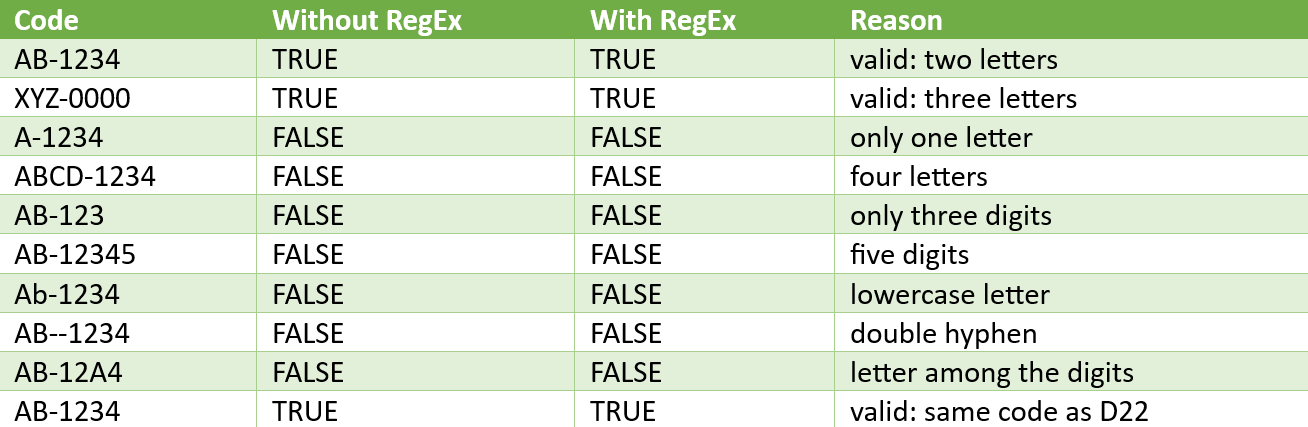
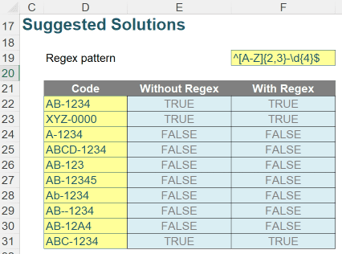
Cells D22:D31 contain ten [10] test codes. Three [3] are valid (AB-1234, XYZ-0000 and ABC-1234 in cell D31). The other seven [7] each break one rule: too few letters, too many letters, too few digits, too many digits, a lowercase letter, a double hyphen and a letter among the digits.
Column E solves the problem without RegEx. Column F solves it with a regular expression.
The Traditional Approach
Without RegEx, each rule must be tested separately. Rather than start with the final formula, which is quite a mouthful, I shall build it up one step at a time. I will use the first test code, AB-1234 in cell D22, to show the result of each step. In the final formula, this code is given the name productCode.
Before testing anything, I need four [4] intermediate values. I shall define each one first, so that the tests make sense when they appear.
First, I need to know the position of the first hyphen (“-”) in the code is using FIND function:
=FIND("-",productCode)
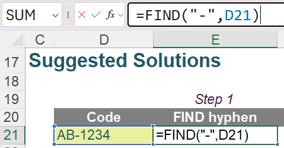
For AB-1234, this returns 3. If there is no hyphen, FIND returns #VALUE! instead, so I wrap it in IFERROR to convert the error to zero [0]:
=IFERROR(FIND("-",productCode),0)
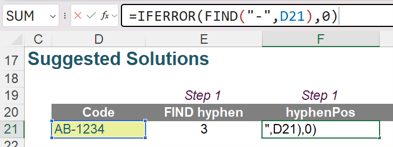
I shall call this result hyphenPos.
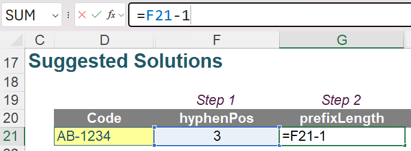
Second, prefixLength is the number of characters before the hyphen, and suffixLength uses LEN to count the characters after it:
- prefixLength:
=hyphenPos-1
- suffixLength:
=LEN(productCode)-hyphenPos
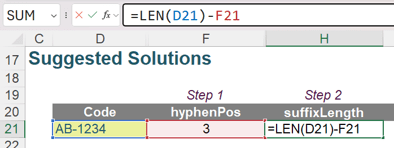
For AB-1234, prefixLength is 2 (that is, 3 - 1) and suffixLength is 4 (that is, 7 - 3).
Third, I need to check whether the letters are uppercase, which is the awkward part. Excel’s text comparisons are not case-sensitive. For example, ="a"="A" returns TRUE. Comparing letters directly would therefore let Ab-1234 through. Instead, prefixCodes converts each character before the hyphen into its character code:
=CODE(MID(productCode,SEQUENCE(prefixLength),1))
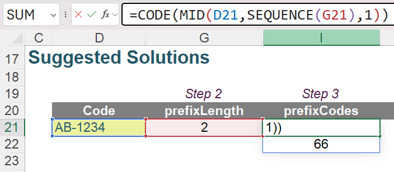
SEQUENCE generates the positions {1;2} for a two-letter prefix or {1;2;3} for a three-letter prefix. MID extracts the character at each position and CODE returns its numeric code. For AB-1234, this returns {65;66} as uppercase A to Z are codes 65 to 90.
With hyphenPos, prefixLength, suffixLength and prefixCodes defined, each of the four [4] rules becomes a test. The first two [2] tests check the lengths with the OR function:
=OR(prefixLength=2,prefixLength=3)
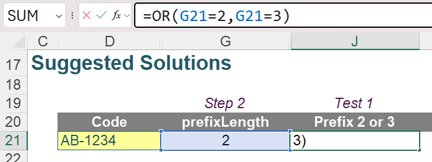
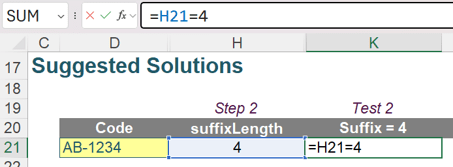
Both return TRUE for AB-1234. The second test also catches a double hyphen. In AB--1234, five [5] characters follow the first hyphen, so it fails.
The third test checks that every character before the hyphen is an uppercase letter:
=SUM((prefixCodes>=65)*(prefixCodes<=90))=prefixLength
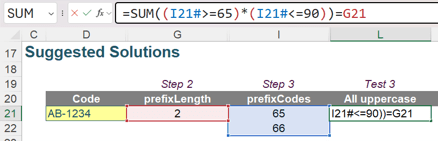
Multiplying the two [2] TRUE / FALSE arrays returns one [1] only where a character satisfies both conditions. SUM counts them, and the count must equal prefixLength. For AB-1234, this gives {1;1}, which sums to 2, so the test returns TRUE. For Ab-1234, the code for “b” is 98, so the count is only one [1] and the test fails.
The fourth test checks the four [4] characters after the hyphen:
=SUM(--ISNUMBER(--MID(productCode,hyphenPos+SEQUENCE(4),1)))=4
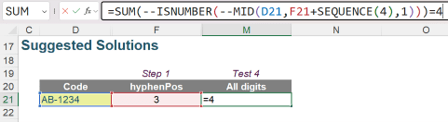
It is easiest to read this from the inside out. hyphenPos+SEQUENCE(4) gives the four [4] positions after the hyphen, {4;5;6;7} for AB-1234, and MID extracts the character at each, {"1";"2";"3";"4"}. The inner double unary (--), immediately before MID, tries to convert each character into a number: a digit succeeds, anything else returns #VALUE!. ISNUMBER flags the successes as TRUE. The outer double unary, immediately before ISNUMBER, then turns these TRUE / FALSE values into 1 / 0 so that SUM can count them. AB-1234 scores 4 and passes. In AB-12A4, the letter A fails, so the count is three [3].
Finally, AND requires all four [4] tests to pass. IFERROR returns FALSE when there is no hyphen, or when the hyphen is the first character. In both cases prefixLength is zero [0] or negative, and SEQUENCE would otherwise return an error.

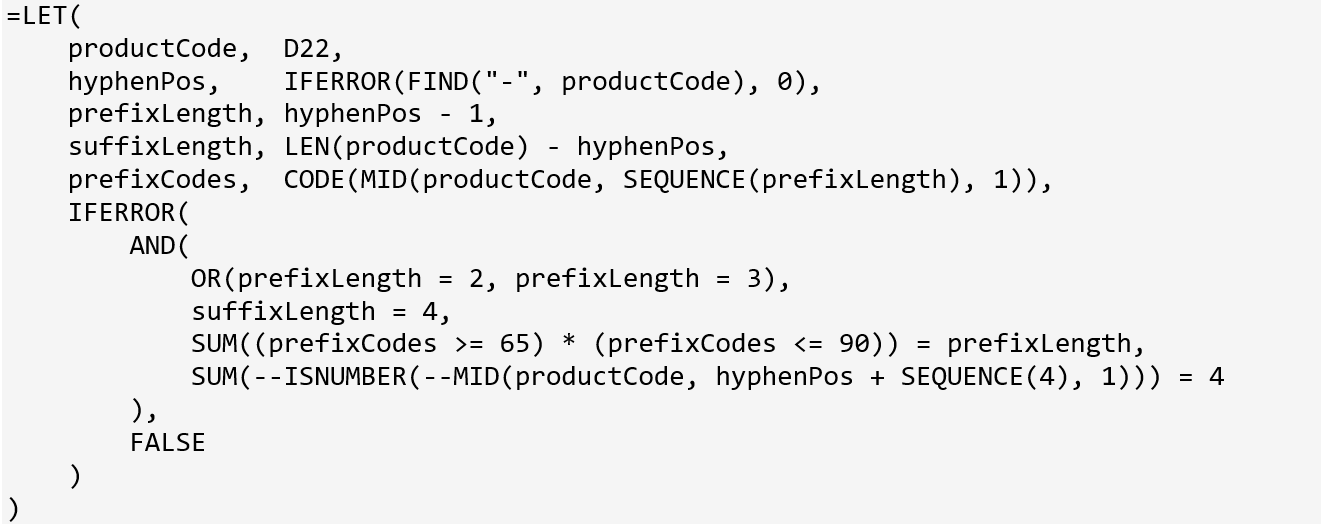
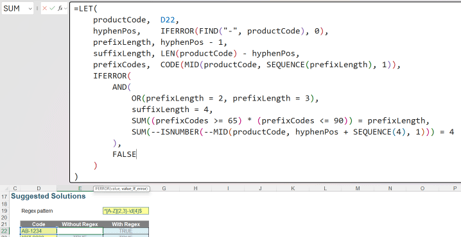
The formula works: it returns the correct answer for all ten [10] test codes. Even so, it needs eleven [11] functions to check four [4] simple rules. A reviewer must trace character positions and character codes to confirm that it reflects the plain-English requirements. In a review file or an audit working paper, that is a lot of logic to evidence for one simple control.
The RegEx Approach
A regular expression (RegEx) describes the shape of the text rather than the steps needed to inspect it. Excel for Microsoft 365 now has three [3] native RegEx functions: REGEXTEST, REGEXEXTRACT and REGEXREPLACE. They use PCRE2, a widely documented RegEx standard, so patterns written for other tools generally work in Excel too.
First, I place the pattern in its own cell, F19, rather than hard coding it into every formula:
^[A-Z]{2,3}-\d{4}$
The ‘With RegEx’ formula in cell F22 is then:
=REGEXTEST(D22,F$19)
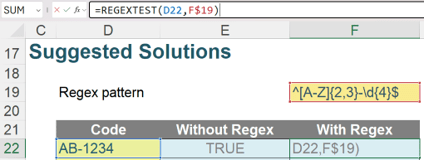
REGEXTEST has the syntax REGEXTEST(text, pattern, [case_sensitivity]). It returns TRUE if the pattern is found in the text and FALSE if not. The optional third argument defaults to zero [0], meaning case sensitive. Unlike Excel’s normal text comparisons, Ab-1234 therefore fails without any extra effort.
Each part of the pattern maps directly onto one of the requirements:
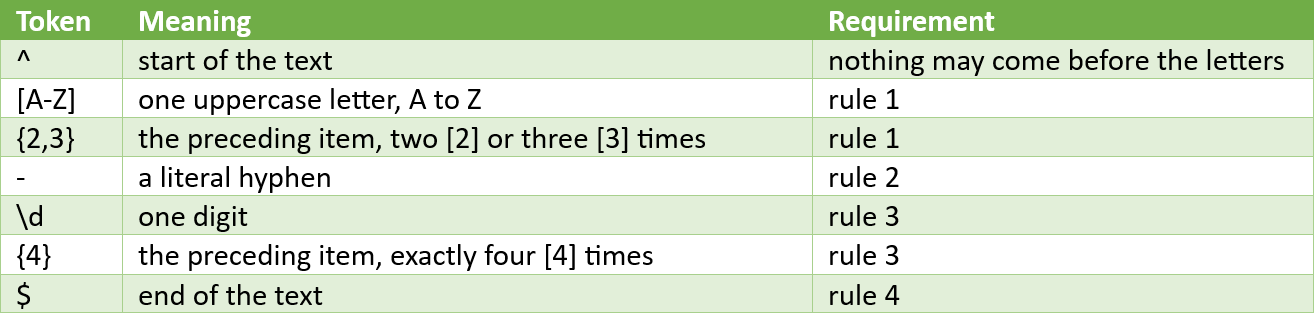
The anchors ^ and $ are important. REGEXTEST looks for a match anywhere in the text. Without ^, 1AB-1234 would return TRUE because it contains AB-1234. Without $, AB-12345 would also return TRUE.
The RegEx version needs just one [1] function, REGEXTEST, and an eighteen-character pattern. The LET version is much longer. The rules are stated once, in one cell, in the order they are written in the requirements. A reviewer can read the pattern against the rules line by line.
Checking the Results
Both approaches return identical results for all 10 test codes:
The real difference appears when the rules change. Suppose the business now allows three [3] or four [4] digits. With RegEx, I edit one cell: {4} becomes {3,4} in F19, and every formula in column F picks up the change. Without RegEx, the LET formula itself must be rewritten: suffixLength=4 becomes OR(suffixLength=3,suffixLength=4), and the digit test must count suffixLength characters rather than four [4]. Miss one change and the formula still returns an answer, just not the right one. The edited formula must then be copied down again, and every other copy elsewhere in the workbook needs the same treatment.
Validation is only the start. REGEXEXTRACT can pull an invoice reference out of a free-text bank narration, which helps with bank and debtor reconciliations. REGEXREPLACE can strip spaces and punctuation so that account codes from different systems match. XLOOKUP and XMATCH also accept a RegEx match mode (match_mode 3), so lookups can match on a pattern rather than an exact value.
There are two [2] caveats:
- The RegEx functions are available in Excel for Microsoft 365 only. Colleagues or clients using Excel 2021 or Excel 2024 will see #NAME? instead of a result, so check your audience before relying on them.
- A pattern can become cryptic as it grows. Keep it in a labelled cell and document what each part does, just as you would document any other assumption.
Word to the Wise
Excel’s traditional text functions can validate almost anything, given enough patience. The cost is a formula that describes how to inspect the text, character by character, rather than what the text should look like. That gap is where errors hide and where review time goes.
A regular expression closes the gap. The rule is written once, in one cell, in a form that maps line by line onto the business requirement. When the rule changes, the pattern changes, and the formula stays exactly as it was.
For accountants, that matters beyond tidiness. Data validation is a control. A control should be easy to understand, easy to test and easy to evidence, whether the reader is a reviewer, an auditor or the colleague who inherits the workbook next year.
RegEx will not replace every text function, and it is no excuse for an unreadable pattern. However, when the question is “does this text follow the rule?”, it is often the shortest route to a dependable answer. Sometimes, the regular expression really is the express route.
Archive and Knowledge Base
This archive of Excel Community content from the ION platform will allow you to read the content of the articles but the functionality on the pages is limited. The ION search box, tags and navigation buttons on the archived pages will not work. Pages will load more slowly than a live website. You may be able to follow links to other articles but if this does not work, please return to the archive search. You can also search our Knowledge Base for access to all articles, new and archived, organised by topic.
