Key takeaways
- Excel COUNT function: The COUNT function in Excel counts the number of cells within a range that contain numeric values, ignoring text, logical values, and blank cells.
- Excel COUNTA function: The COUNTA function in Excel counts all non-empty cells in a dataset, including text, numbers, error values, and empty text strings (" ").
- Excel COUNTIFS function: The COUNTIFS function in Excel counts cells that meet multiple specified criteria across one or more ranges using logical operators.
We’ve already looked at SUM and SUMIFS in a previous article, using them to answer the question “how much?” This time, we’ll look at three related functions that answer a different question: “how many?”
Counting is one of the most common tasks in any spreadsheet and fortunately Excel makes this relatively easy with three COUNT functions that each serve a different purpose.
By the end of this article, you’ll know when to use COUNT, when COUNTA is more useful and how COUNTIFS lets you count records that meet specific conditions.
COUNT: Count numbers only
The COUNT function does exactly as its name suggests, with one important caveat: it only counts cells that contain values stored as numbers.
The syntax is straightforward:
=COUNT(range)
where range is any range of cells.
Suppose you have the following data containing invoice numbers in different formats:
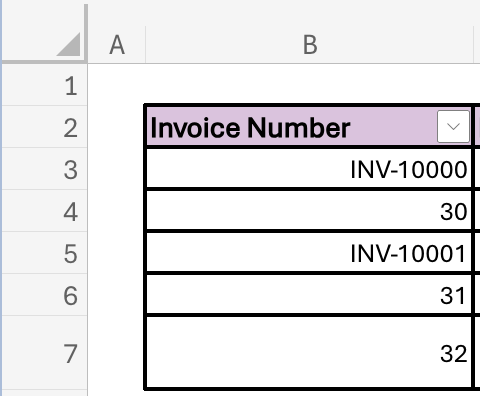
Using:
=COUNT(B3:B7)
returns 3 because only three cells contain numbers (30, 31, 32). The values that start with INV are text and COUNT ignores them.
(Reminder: Excel stores dates and times as numbers behind the scenes, so COUNT will include these.)
COUNTA: Count anything that isn’t empty
While COUNT focuses only on numbers, COUNTA counts all non-empty cells.
The syntax is equally simple:
=COUNTA(range)
where range is any range of cells.
On the same list of invoices as before, using this formula
=COUNTA(B3:B7)
returns 5, since there are 5 non-empty values in our list of invoices.
COUNTA is great because in most situations, you’re more interested in counting the records in a list, rather than only the records that are numbers.
A simple way to remember the difference:
- COUNT = Count number values
- COUNTA = Count anything that’s not empty
COUNTIFS: Count records that meet one or more conditions
Once you've mastered COUNT and COUNTA, the next step is to learn COUNTIFS.
COUNTIFS allows you to count records that meet one or more conditions simultaneously.
(Note that we don’t explore COUNTIF since it uses a different syntax order and you can just use COUNTIFS with one criterion instead.)
The syntax for COUNTIFS is:
=COUNTIFS(criteria_range1,criteria1,
criteria_range2,criteria2,
criteria_range3,criteria3,
…)
where “…” is shorthand for saying you can add up to 127 criteria in total (but please never go that far in a single formula).
Let’s expand our data from earlier to include Product as follows:
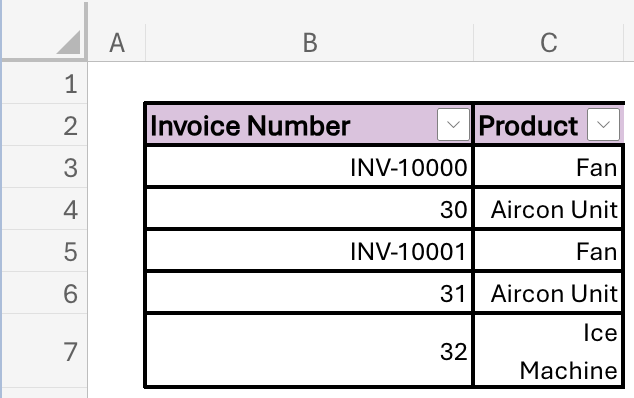
Now we’ll see an example with one criterion. Using this formula:
=COUNTIFS(B3:B7, ">30”)
returns 2 because there are two invoice numbers greater than 30.
We can also expand this out to include additional criteria and we don’t have to point at the same range for each of these criteria. For example, using this formula:
=COUNTIFS(B3:B7, ">30”,
C3:C7, "Aircon Unit")
returns 1 because there is one row that satisfies both conditions:
- Invoice Number is greater than 30; and
- Product equals "Aircon Unit".
Make sure that all of your criteria ranges are of equal size. If, for example, one range in your formula covers 100 rows and another range in your formula covers 99, Excel will return an error.
Why COUNTIFS often beats manual filtering
Lots of Excel users rely heavily on manual filters when analysing data, but COUNTIFS offers a lightweight, more dynamic alternative.
For example, you could build a dashboard where users select:
- Invoice range
- Product
- Cost centre
Your COUNTIFS formulas could then instantly update key metrics based on these selections without requiring any manual filtering, creating dynamic reports that are easier to maintain and understand.
Combining with filters
Be careful when using these formulas in combination with filters.
Look at this example:
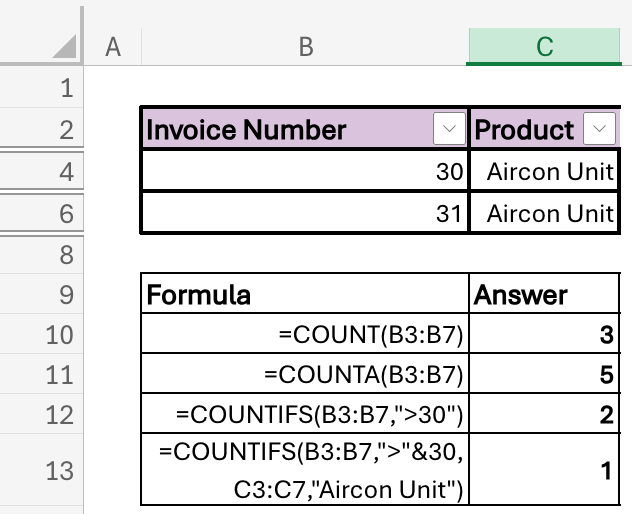
The eagle eyed among you will see we’ve applied a filter to the data in cells C3:C7, noted by three things:
- The filter icon appearing next to the header “Product”
- Rows 3, 5 and 7 are hidden, and
- The row numbers that remain appear in blue.
However, all the formulas shown below that filtered data are still returning the same answers: 3, 5, 2 and 1. What we’re seeing is that the COUNT, COUNTA and COUNTIFS functions are still counting things in the full range, irrespective of the manual filter we’ve applied. This catches lots of people out, but now you know to watch out for it.
In summary
- COUNT helps you understand how many numeric values exist, whereas COUNTA tells you how many non-empty records exist.
- COUNTIFS enables you to count records that meet specific conditions.
Together, they form a powerful toolkit for anyone working with business data and help you answer one of the most common questions in Excel: how many?
Excel tips and tricks
ICAEW's Excel Community shares regular Tips & Tricks on how to get the best out of this key accountancy tool. See all their posts by topic, and by level in the Spreadsheet Competency Framework.

You may also be interested in
ICAEW Community

Excel
Do you use Excel in your organisation? Are you using it to its maximum potential? Develop your skills and minimise spreadsheet risk with our Excel resources. Join the Excel Community
ICAEW Certificate

Analytics in Power BI
Gain essential data analytics skills and advanced reporting techniques to stay ahead of industry demands with this practical qualification from ICAEW.
Find out moreICAEW support

Training and events
Browse upcoming and on-demand ICAEW events and webinars focused on making the most of the latest technologies.
Events and webinars CPD courses and more