
Last time, we delved into the advanced options available for working with Conditional Formatting Icon Sets. We used these options to replace the standard set of three traffic lights, added to all the cells to which the conditional format applies, with a single highlight circle just for those cells that contain a value that matches, or exceeds, a threshold value. This threshold value was entered into a cell. This time we will make use of the extra flexibility that putting the value in a cell allows us, and use an Excel Spin Button to set the value more easily. We will then explore the use of a formula to calculate the threshold value automatically.
Introduction
When we entered our threshold value into a cell, rather than including it directly within the conditional format rule formula, we mentioned that one advantage would be the ability to easily change the value in the cell, or to calculate the value dynamically using a formula. We are going to look in more detail at making use of these capabilities.
Changing the threshold value
First of all, we can see that just entering a different value in cell D1 causes the conditional formatting rule to apply the highlight circles based on the new threshold value:
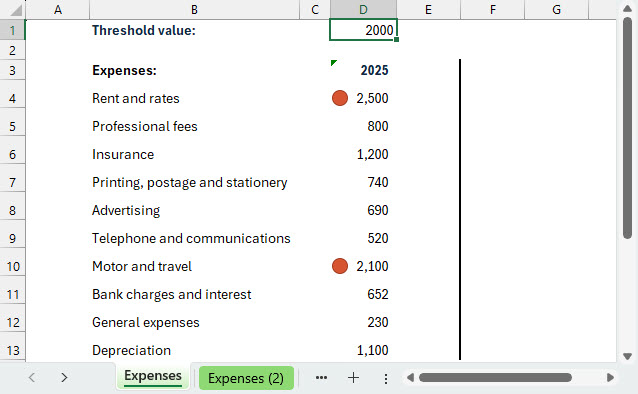
We could make this even easier for our user by using an Excel form control to allow them to set the threshold value more interactively.
We can use the Developer Ribbon tab, Controls group, Insert dropdown to choose a ‘Spin Button (Form Control)’. Note that the Developer Ribbon tab isn’t displayed by default so, if you can’t see the tab, you might need to right-click anywhere in the Ribbon and choose ‘Customise the Ribbon’. This will allow you to tick the Developer Ribbon in order to add it to the list of Ribbon tabs displayed.
Here we have inserted our Spin Button form control next to our threshold value. We have increased the row height to allow enough room to comfortably display the control. We can then right-click on the control and choose ‘Format Control’. This allows us to set a Minimum value and a Maximum value and also to set the Incremental change value. We have set the Incremental change to 100 so that when a user clicks on the control the value in the linked cell will go up or down by 100 each time. Finally, we set the Cell link cell to D1:
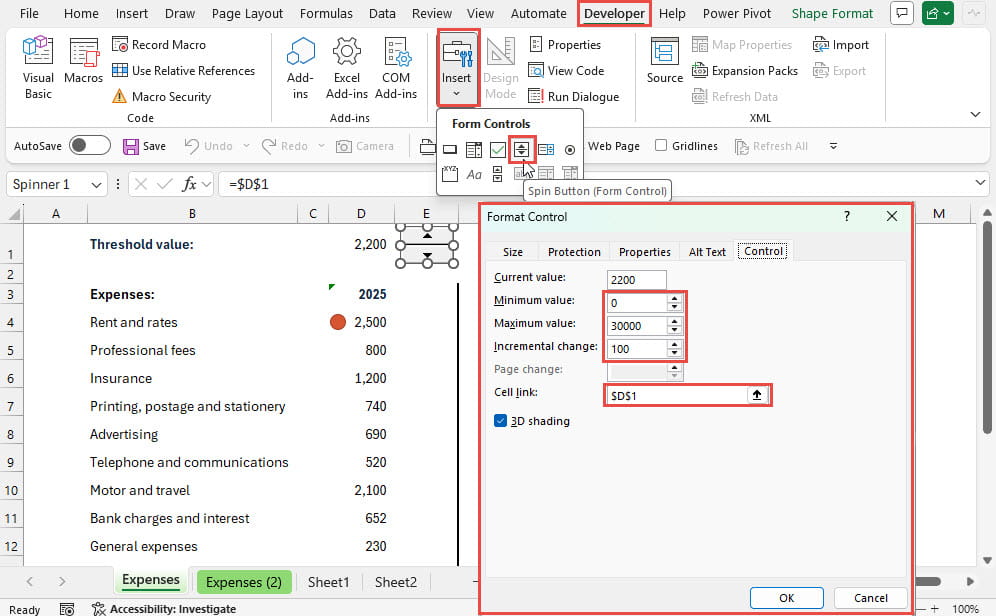
Our user can now just click on the appropriate part of the control to set the threshold value and see the effect on the conditional formatting highlights as the value changes.
Using a formula
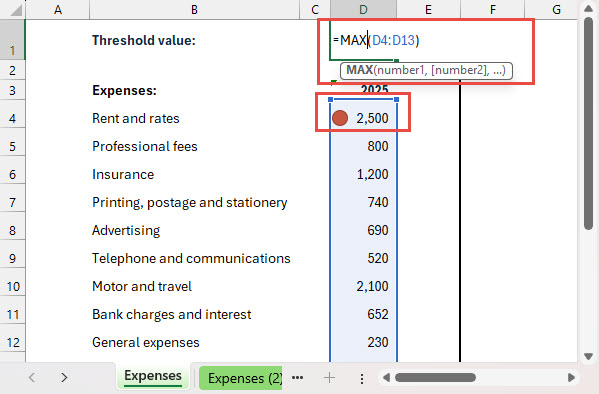
So far, we have manually set the threshold value, either by entering it directly or by using a form control. We can also use a formula in cell D1 to base our threshold value on a calculation. We’ll look at a very simple example. We could use the MAX() function to find the highest value, or equal highest values, in our range of expense value cells. Entering this in our threshold cell would ensure that our threshold value is equal to our highest value and so our icon highlight will only be applied to that cell (or cells if there is more than one equal maximum value):
Conclusion
Extending the capabilities of conditional formatting in Excel need not just be about the conditional formatting rule itself. By basing our rule on a the contents of a cell, or multiple cells, we can make it much easier for the user to increase the usefulness and impact of their reports by tailoring the conditional formatting to their own requirements, or by enabling it to adapt to changing values automatically by using a formula to calculate the relevant value or values.
Next time, we will continue to explore ways of making conditional formatting more useful.
Additional resources
You can explore all aspects of Excel, including all aspects of the use of conditional formatting using the ICAEW Excel archive portal:
The 'Open in full-screen mode' icon in the bottom right-hand corner of the embedded report should show the contents at a more readable size with the Escape key returning you to the post.
Archive and Knowledge Base
This archive of Excel Community content from the ION platform will allow you to read the content of the articles but the functionality on the pages is limited. The ION search box, tags and navigation buttons on the archived pages will not work. Pages will load more slowly than a live website. You may be able to follow links to other articles but if this does not work, please return to the archive search. You can also search our Knowledge Base for access to all articles, new and archived, organised by topic.
