
Rarely do meetings of the Excel Community Advisory Group descend into actual fisticuffs but, on the rare occasions when an unseemly brawl has erupted, an argument over the benefits or otherwise of PivotTables has invariably been the cause. For some, the recent introduction of dynamic array functions, and GROUPBY() and PIVOTBY() in particular, seemed to have turned the tables firmly in favour of the PivotTable sceptics. However, just as they were basking in the warm glow of vindication, a new option has appeared for Excel Beta Channel users in the PivotTable Analyze ribbon tab, Data group – AutoRefresh.
Introduction
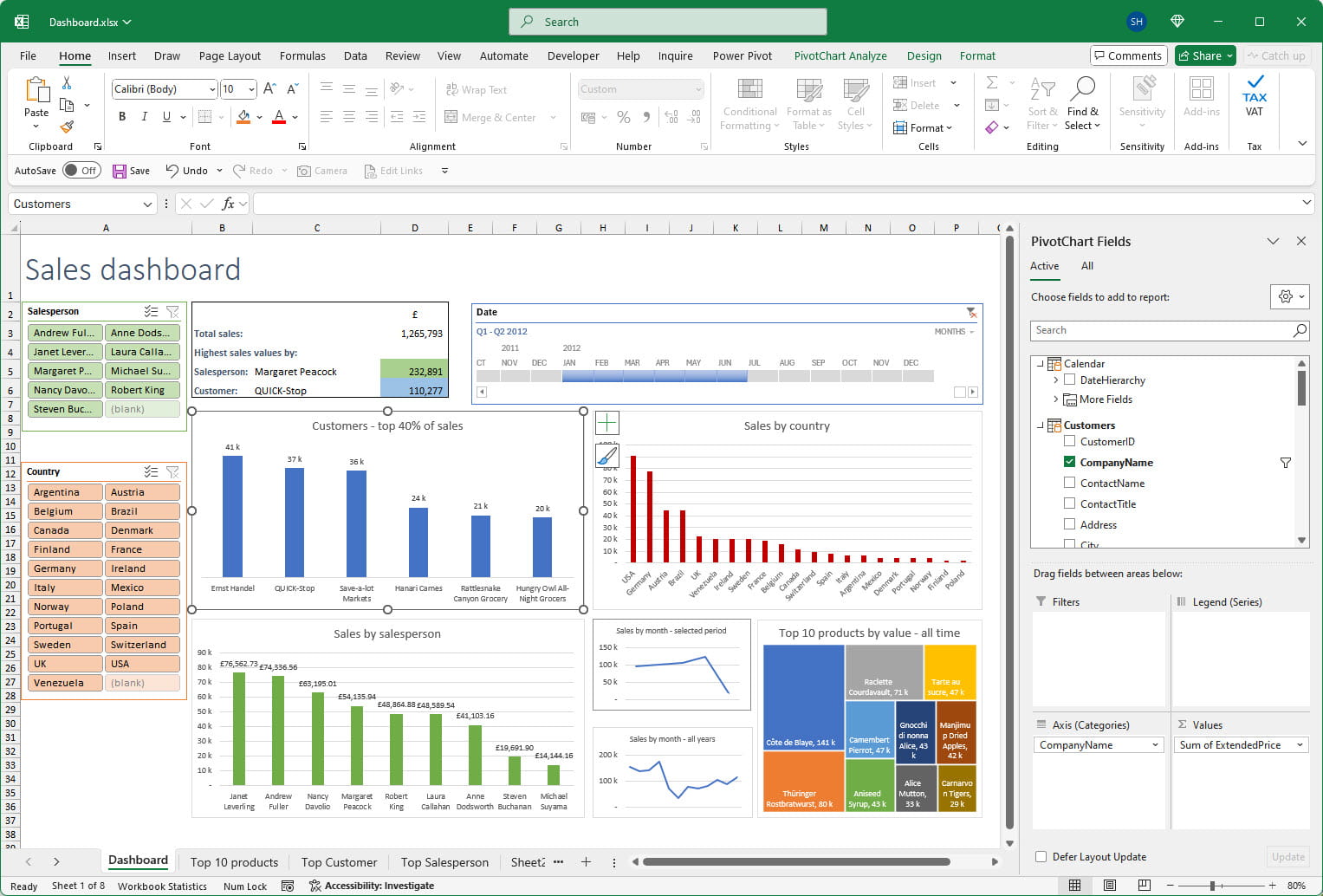
Summarising individual rows of data is a frequent task for accountants, and others who work with financial data. The introduction of PivotTables 30 or so years ago revolutionised the creation of such summaries by providing a simple way to generate summary tables which could update to reflect changes in the underlying data with a single click of the Refresh button. Since their original introduction many additions and enhancements, such as PivotCharts; Slicers and Power Pivot, have elevated PivotTables from simple summaries to become the processing engine behind impactful, interactive dashboards:
The enormous burden of refresh
Wonderfully capable and simple as PivotTables undoubtedly are, for some Excel users, the need to click the Refresh button to update them when the underlying data to which they are linked changes, is too much of a drawback. It’s not just the minor inconvenience of the click itself that concerns most people, but the worry that they might rely on a report that is outdated because they have forgotten to refresh the PivotTable.
It is possible to set the properties of a PivotTable (as long as it has been added to the Data Model) to automatically refresh periodically. However, even though it could be set to refresh every minute, this is still not the same as an automatic refresh driven by a change in the underlying data.
PivotTable AutoRefresh
For users on the Excel Beta update channel the new option appears in the PivotTable Analyze Ribbon tab, Data group. It is likely it will take a while before it becomes generally available and, of course, might change significantly, or even be withdrawn before this happens, but that is unlikely.
You will see in the screenshot that, in our example, the option is unavailable. This is because our PivotTable is based on external data and AutoRefresh is only available for PivotTables linked to data within the same workbook:

AutoRefresh is an option, so a PivotTable can be set to not use AutoRefresh, even when it is available, perhaps for performance reasons. If this is the case, then a ‘PivotTable Refresh Needed’ alert should be shown in the status bar when the underlying data does change.
You can find fuller details of the change in the Microsoft 365 Insider Blog
…and in the dynamic array corner
As suggested in the article summary, other views on the PivotTable debate are certainly available and you can see fellow Excel Community Advisory Group member, John Tennent, show how to use several array formula functions, and some advance conditional formatting, to duplicate what a PivotTable can do with a half a dozen mouse clicks, by viewing his on-demand video from March 2025:
Conclusion
Depending on your point of view, you might think PivotTables have landed a knockout blow with the introduction of PivotTable AutoRefresh. However, we have already seen improvements to dynamic arrays to overcome some of their major deficiencies compared to using a PivotTable, such as the ability for charts to automatically expand to incorporate changes in a source dynamic array. All that might be needed for the pendulum to swing back away from PivotTables would be for dynamic array spill areas to be able to act like a structured Excel Table and work with Slicers and Timelines, and dynamic conditional formatting for example. Of course, even this would still leave PivotTables leading in terms of simplicity, drill down, most aspects of formatting and interactivity.
Additional resources
You can explore all aspects of Excel, including array formulas, GROUPBY() and PIVOTBY() and, of course, PivotTables, Pivot Charts, Slicers and Power Pivot using the ICAEW Excel archive portal:
Archive and Knowledge Base
This archive of Excel Community content from the ION platform will allow you to read the content of the articles but the functionality on the pages is limited. The ION search box, tags and navigation buttons on the archived pages will not work. Pages will load more slowly than a live website. You may be able to follow links to other articles but if this does not work, please return to the archive search. You can also search our Knowledge Base for access to all articles, new and archived, organised by topic.
