Many finance processes depend on receiving, storing, and managing files from multiple locations and stakeholders. These are the types of questions we might hear:
- “Have we downloaded the latest stock report?”
- “Have all the departments submitted their information?”
- “When was the last general ledger report downloaded?"
Tracking these files often becomes a manual checklist. But even that checklist fails when there are resubmissions and updates to handle.
In this post, we will explore a better way to manage inputs. Plus, we will create a simple report that automatically shows which files we have and when they were last updated.
Managing files
Many inefficiencies in finance teams are caused by seemingly small process decisions that nobody questions. File naming is one of those areas.
It is common to find file names such as:
- Budget.xlsx
- Budget v2.xlsx
- Budget v3.xlsx
- Budget vFinal.xlsx
- Budget vFinal2.xlsx
- Budget vFinal Final.xlsx
Each time a new version is required, there is a new file name. However, this usually requires human logic to know which is the latest.
A better method is to keep a fixed file name for the latest version.
If a new version is required, the old version is saved in a Backup folder with a date or version number.
The current version is always called the same name.
This ensures everybody knows where the latest file is. Plus, any files referencing that file still point to the latest version.
This reduces risk and increases clarity.
File location and naming conventions
Having established that file names should not change, we can now consider how those files are stored and named.
Let’s suggest a file path is:
Z:\finance\reports\2026\P03\Trial Balance 20260331.xlsx
This relates to the Trial Balance for March 2026.
If it were September 2035, we would still know exactly where the file would be:
Z:\finance\reports\2035\P09\Trial Balance 20350930.xlsx
NOTE: Our file name contains a date. This is not version numbering. It is a date-based naming convention. Each file is a separate input; it is not an updated version of an existing input.
We can even build formulas to create the file path (line breaks added to improve readability).
="C:\Example\Month End Reporting\"
&TEXT(MonthEnd,"YYYY")
&"\P"&TEXT(MonthEnd,"MM")
&"\Trial Balance "&TEXT(MonthEnd,"YYYYMMDD")&".xlsx"
In the formula above, MonthEnd represents the reporting date. For this example, I’m assuming the financial calendar is aligned to the calendar year. If your year end is not aligned to the calendar year, you will need to flex the formula accordingly.
Now that we’ve created the formula, we can use it for listing the required inputs.
Dynamic file list
The following is a basic template.
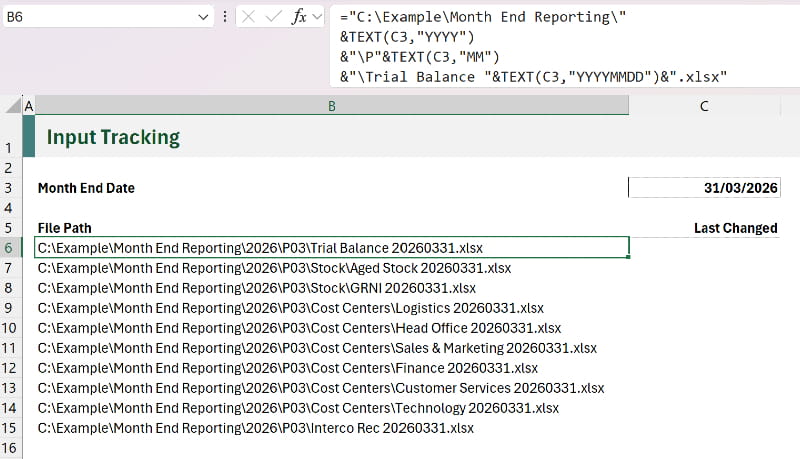
Cell C3 contains the month-end date.
Cells B6:B15 contain a list of the files required for the process.
The file paths are all generated as formulas. For example, the formula in cell B6 is:
="C:\Example\Month End Reporting\"
&TEXT(C3,"YYYY")
&"\P"&TEXT(C3,"MM")
&"\Trial Balance "&TEXT(C3,"YYYYMMDD")&".xlsx"
We now know exactly which files are required for the process, and the expected location of each file is generated automatically. But it’s the next step where this becomes the most useful.
Getting the date modified
Excel does not have a native worksheet function for checking the last modified date of a file. However, we can create our own function with VBA (which is one of the programming languages baked into Excel).
To create the function, follow these steps:
- Press Alt + F11 to open the Visual Basic Editor.
- Select your workbook in the Project Pane on the left.
- Click Insert > Module from the menu.
- Paste the code below into the code window.
Function LastFileChange(FilePath As String) As Date
Application.Volatile
LastFileChange = FileDateTime(FilePath)
End Function
Having created the function, we can now use it in Excel.
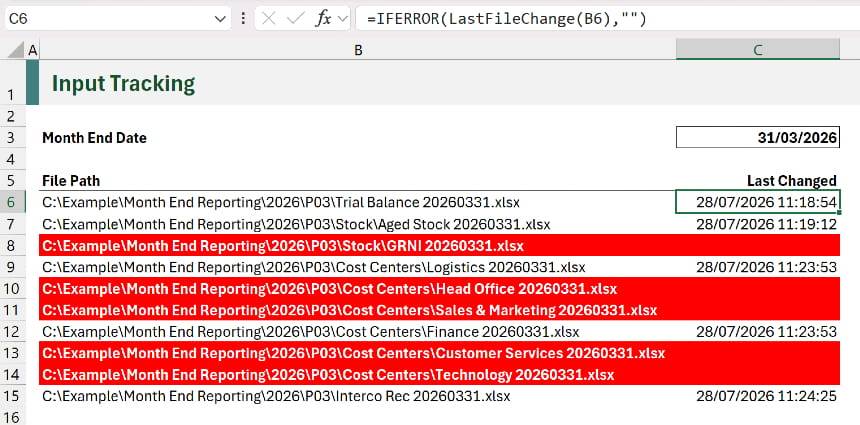
The formula in cell C6 is:
=IFERROR(LastFileChange(B6),"")
Let's break this down:
- LastFileChange(B6) – This is the function we created. It returns the date if the file exists, or #VALUE! if the file does not exist.
- IFERROR(…,"") – Displays an empty text string if the LastFileChange returns an error.
We have formatted the cell to display as a Date/Time, and added conditional formatting to highlight missing files.
We can now easily track which files have been received and saved to our local network. Plus, we can see the last time the files were modified, so we know how old they are.
When we receive a new file, we save it in the correct location with the correct file name. Then we can press F9 to force the workbook to recalculate.
It displays the date and time for that file.
NOTE: This is now a Macro Enabled Workbook. Therefore, you will need to save the file with a .xlsm extension, and there will now be the standard additional security measures when opening the workbook.
Next reporting cycle
When it comes to the following reporting cycle, we can easily update our template.
We just need to change cell C3 for the new date. All the file paths will update, the formula will recalculate, and we can start tracking files for the next cycle.
What about OneDrive & SharePoint?
This method works for files available locally. These could be on your servers, your PC, or OneDrive and SharePoint folders synced to your PC. But it will not work with files only available on OneDrive or SharePoint. The VBA code used was created before these storage methods existed.
It is possible to take a similar approach using Power Query to achieve a similar result, but that is significantly more complex and outside the scope of this post.
Conclusion
By standardising file names and locations, we reduce the risk and manual effort required to manage inputs. Once those standards are in place, automation becomes much easier to apply.
The result is a simple file-tracking report that immediately shows which files have been received, which are still outstanding, and when each file was last updated.
While the example in this post is relatively small, the same approach can be scaled across larger processes to improve visibility, reduce risk, and eliminate much of the manual effort involved in managing reporting inputs.
Archive and Knowledge Base
This archive of Excel Community content from the ION platform will allow you to read the content of the articles but the functionality on the pages is limited. The ION search box, tags and navigation buttons on the archived pages will not work. Pages will load more slowly than a live website. You may be able to follow links to other articles but if this does not work, please return to the archive search. You can also search our Knowledge Base for access to all articles, new and archived, organised by topic.
