
Receiving or downloading reports with dates in US formats is a common issue many of us run into. In this tips and tricks article, we run through three different ways, including formulae, using text to columns and Power Query, to deal with dates in the US format when you want the UK format.
1. Using Formulae
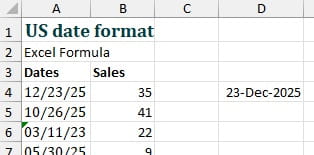
=DATE(100+RIGHT(A4,2),LEFT(A4,2),MID(A4,4,2))
While this sakes a while to type in, you can build it with array formulae to deal with refreshing data. The clearest way to do this is put the data in a table then reference the table column instead of A4:
=DATE(100+RIGHT(DateTable[Dates],2),LEFT
(DateTable[Dates],2),MID(DateTable[Dates],4,2))
In these examples we need to add 100 to year as Excel assumes 1925 not 2025 when extracting the year from only two figures. Excel in general can’t deal with dates before 1 January 1900.
2. Text to columns
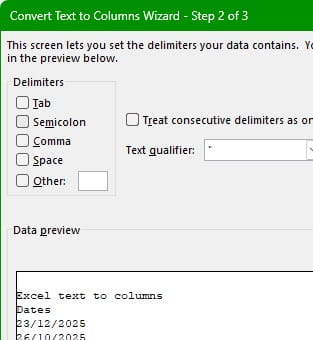
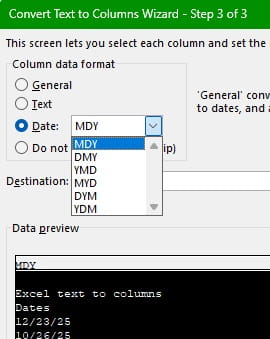
Another option includes using the ‘Text to Columns’ functionality under the ‘Data’ tab. Once you select your data and click on this button, it opens up with a wizard that guides you through selecting the date format from a dropdown. It works with no typing at all and it’s very fast!
However, it’s not as intuitive to remember that it’s ‘hidden’ within text to columns, you need to run it manually very time your data updates, and there isn’t any audit trail as there are no formulas driving the conversion.
3. Power Query
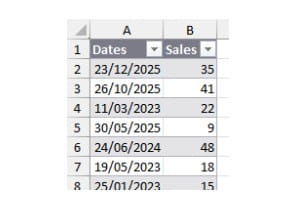
To get started with using Power Query to solve this issue, start by selecting the data and click Data>From Table/Range.
This will prompt you to convert the data to a Table then it’ll load the table into Power Query:
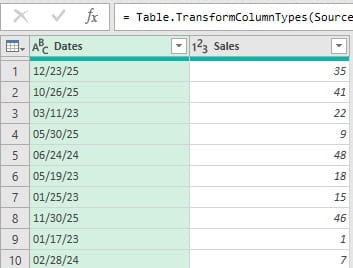
You can see from the symbols next to the headers, Power Query thinks the dates are text and the sales are numbers. This assessment of data type is automatic but only evaluates the first 1000 rows (this can be changed in settings) – this is important to remember for larger datasets where the first rows may appear to be in the correct date format due to ambiguous day and month values (e.g. 10/12/25).
If you click on the symbol at the top left of the column, you can change the data type. Select Using Locale at the bottom then on the next screen select date and English (United States).
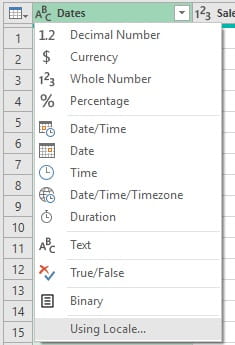
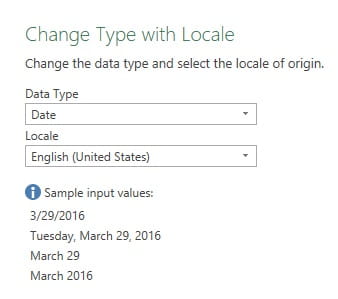
This should correctly convert the US dates into your system dates.
Clicking on Home> Close & Load will push your processed data back into Excel in a new tab.
Any additional data which comes later will be processed if it’s added to the original table and the query is refreshed (Data>Refresh all).
While there is a lot more detail in the explanation of this route, the speed with which you can perform these steps in practice is extremely quick and again it doesn’t require any formulae to be typed or remembered. Plus, as with all data transformations in Power Query, there is a clear audit trail of the applied steps.
While it may be tempting to set the data type to ‘Date’, this will lead to errors where it cannot process the dates according to the default locale (which for me, and the majority of readers, will be a non-US date format).
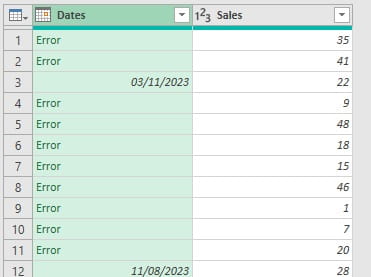
If you encounter this issue, it’s generally best to delete the ‘Change Type’ step in the applied steps pane on the right of the screen. Or, if you update the data type via ‘Using Locale’ with this step highlighted, Power Query will give you the option to replace the existing step.
- A refreshed look at defining spreadsheet competency
- Excel Tips and Tricks #507 - Using Excel internationally part 1: why some functions are not good travellers
- Excel Tips and Tricks #506: Creating a single master list after merging data
- Excel Tips and Tricks #505 – 3 ways of converting US Dates into UK formats
- Excel Tips and Tricks #504 - Accessing accessibility checkers for good spreadsheet practice
Archive and Knowledge Base
This archive of Excel Community content from the ION platform will allow you to read the content of the articles but the functionality on the pages is limited. The ION search box, tags and navigation buttons on the archived pages will not work. Pages will load more slowly than a live website. You may be able to follow links to other articles but if this does not work, please return to the archive search. You can also search our Knowledge Base for access to all articles, new and archived, organised by topic.
