
What is query folding?
Power Query is a tool built into Excel (and other Microsoft applications) which takes data from various sources and transforms it into an optimal structure suitable for reporting and analysis.
It is one of the most powerful features within modern Excel.
It can import data directly from Excel files, CSV files, SharePoint, SQL databases and much more.
Query folding is a feature which is available when Power Query connects to certain data sources, most commonly databases.
However, even if you don't use databases or other folding-enabled sources, there may still be opportunities to improve refresh performance. So, keep reading.
To understand what query folding is, let’s look at an example.
Example
Imagine we are connecting to a database using Power Query. The database has 1 billion rows, but we are only interested in the records for a single month (which is 100,000 rows).
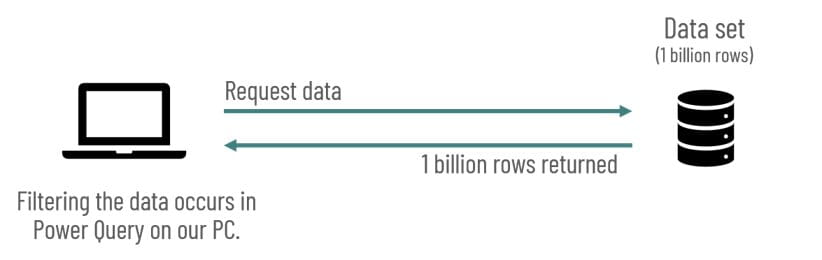
Without query folding:
Without query folding, Power Query on your PC requests all 1 billion rows from the server. The server returns all 1 billion rows back to your PC. Then, your PC filters the data down to the single month.
With query folding:
With query folding, Power Query sends the request to the server, along with the filtering criteria. The database performs the filtering and returns only the 100,000 rows relating to the specific month.
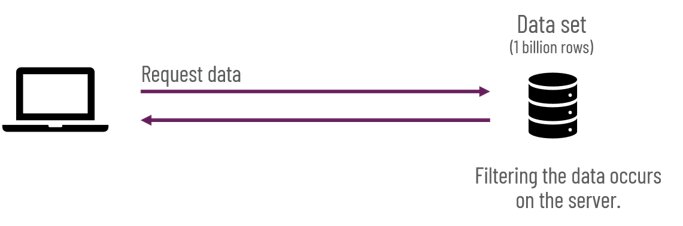
The result is the same, but query folding can substantially reduce the amount of data transferred and processed by your PC.
Your local PC is not optimised to handle large volumes of data, while a database server is.
The speed difference can be significant. Without query folding, a refresh could take several minutes. But with query folding, it could take seconds.
The larger the dataset, the greater the potential benefit of query folding.
In essence, query folding means asking the source system to perform some of the data preparation before returning the result to Power Query.
Does query folding work with all data sources?
In the previous section, we saw the benefits of query folding: faster refreshes. But it doesn’t work with every data source.
Query folding requires an engine suitable for executing the transformations. Therefore, most databases support query folding.
If we’re using files and folders either locally or on SharePoint/OneDrive, there isn’t a query engine, so there is no query folding occurring.
As a result, the refresh benefits are not available in all sources.
Step order matters
Power Query transformations are made up of a collection of steps. The order of those steps determines how much of the query can be folded.
For query folding to occur, Power Query must be able to translate the steps (which are recorded in a language known as M) into the language the source system understands.
Once Power Query encounters a step that cannot be translated, it sends the request to the source system. When the data is returned, the remaining steps are executed on your PC.
Therefore, step order matters.
As an illustration, let’s assume we have a 10-step process, where nine of them can be converted into the source system’s language and one cannot.
If the second step is the transformation that cannot be converted, then only one step is folded, and the remaining steps are executed on our PC.
However, if that non-converting step is the last step, then the first 9 are folded and only one is executed on our PC.
Refresh times could differ significantly, even if the result is exactly the same.
But there is a quirk that makes this a little trickier. In the background, Power Query doesn’t execute the steps in order. It often rearranges the steps to optimise the refresh.
As a result, sometimes a later step may still fold even if an earlier step does not.
Rather than second-guessing what Power Query will do, it’s better to create the steps in the right order if we can.
How do we know if query folding is occurring?
If some steps fold and others don’t, how do we know which ones are folding?
Power Query currently has two interface experiences, old and new.
Excel Desktop
Excel desktop currently has the old Power Query experience.
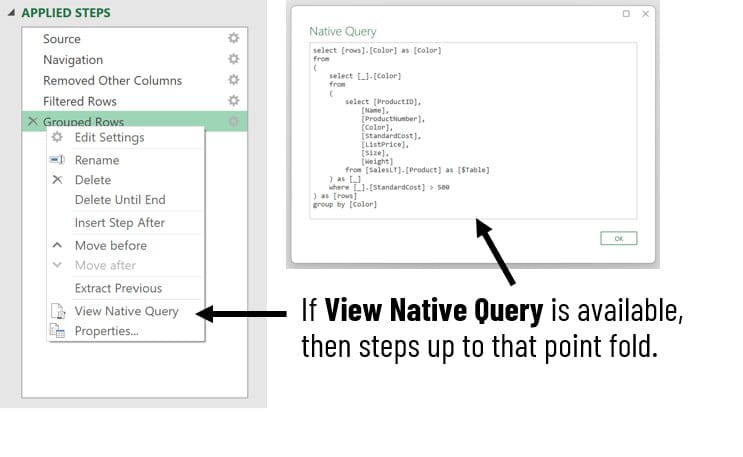
Right-click on a step in the Applied Steps pane and look for the View Native Query option. Clicking that option reveals the SQL statement that will be sent.
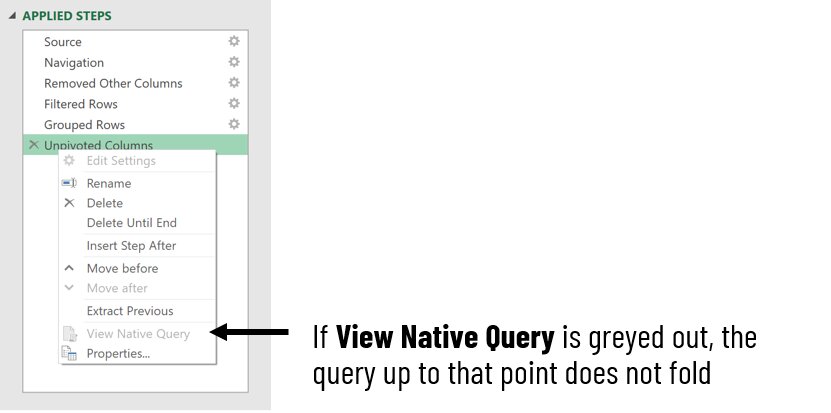
If the option is greyed out, query folding has stopped (although there are some scenarios where folding still occurs, but Power Query cannot confirm it through the user interface).
Excel Online
Excel Online has the new Power Query experience. This version displays an icon next to each step to indicate whether query folding is occurring.
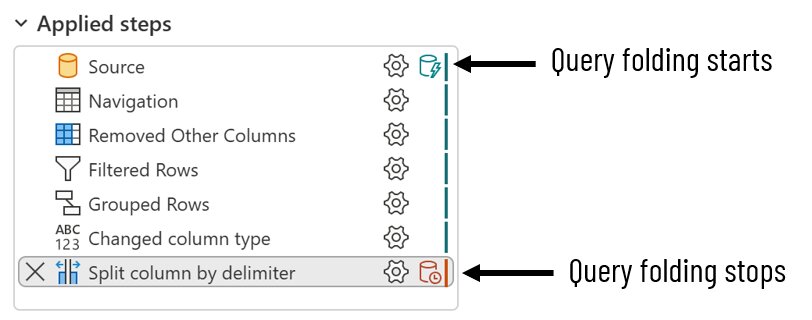
Impact on non-folding sources
Based on what we’ve seen so far, it seems that query folding only impacts users with relevant source systems.
However, Power Query has some default settings, which assume we are using query folding or working with external systems. The Privacy Levels are intended to protect us in these scenarios.
However, if your solution only uses non-folding data sources (such as locally stored Excel workbooks or CSV files) and there is no risk of sensitive data being passed between sources, many consider Privacy Levels to provide limited practical benefit.
In these situations, many users choose to ignore privacy levels to improve refresh performance.
There is a setting within Query Options for this.
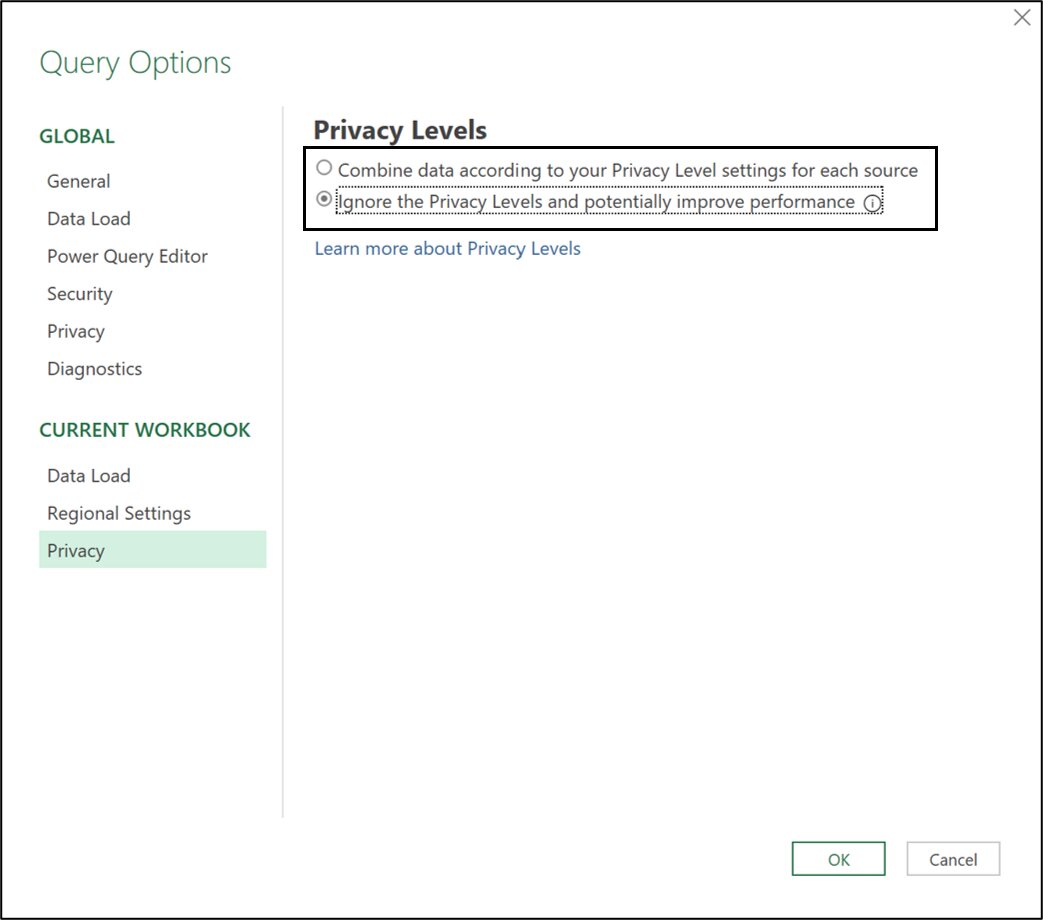
Ignoring privacy levels for sources without query folding can improve refresh performance because Power Query no longer performs privacy-level validation when combining data from multiple sources.
Conclusion
If you work with large datasets inside relevant systems, query folding can have a dramatic impact on refresh performance. Understanding which transformations fold and arranging your steps appropriately can significantly reduce refresh times.
Even if your data sources do not support query folding, reviewing your privacy-level settings may still help improve refresh performance.
Archive and Knowledge Base
This archive of Excel Community content from the ION platform will allow you to read the content of the articles but the functionality on the pages is limited. The ION search box, tags and navigation buttons on the archived pages will not work. Pages will load more slowly than a live website. You may be able to follow links to other articles but if this does not work, please return to the archive search. You can also search our Knowledge Base for access to all articles, new and archived, organised by topic.
