
We cover the subject of Excel number formats with some regularity in the community, but with thousands of new members joining each year, it’s a subject worth returning to. In this first part of a short series, we will look at why number formatting is so important and how to master its intricacies.
Introduction
Perhaps unsurprisingly, we have covered Excel number formats several times in the past. However, the community attracts thousands of new members each year, so hopefully the topics covered here will be new to a significant proportion of the community’s membership. If you are already a number format expert, then at least you can read the article and feel smug.
The importance of number formats
Amidst the excitement of Sparklines, PivotTables, charts and Dynamic Arrays, the formatting of text and numbers can seem to be trivial. However, using the right number format can make an enormous difference to the clarity of an Excel report.
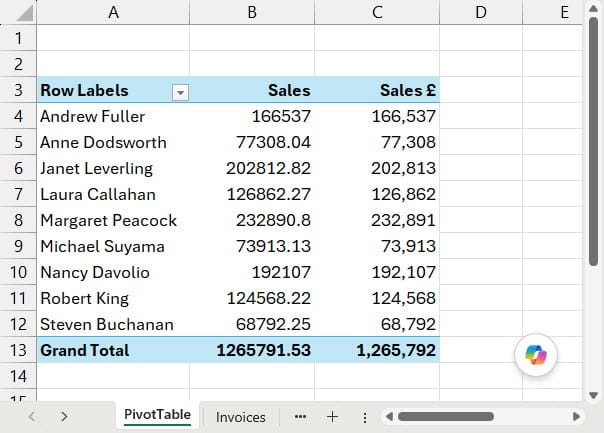
As an example, here is a simple PivotTable using the default number format in the Sales column and choosing a more suitable number format for the Sales £ column. Hopefully, the improvement in clarity is readily apparent:
What makes accountants special?
Number formats can be a particular issue for accountants because, where the rest of the world just sticks a minus sign in front of negative numbers, accountants carefully wrap their negative numbers in brackets. This can be significant because the default number formats for numbers, currency or accounting all use a minus sign rather than brackets. There is a way of changing this. In the Windows Region settings, The Regional Format dropdown gives access to the general Windows settings for number formatting, including using brackets rather than a minus. However, for maximum flexibility, we will look at setting up a custom number format within Excel that will allow us to format numbers in exactly the way that we want to.
Custom codes
Custom number formats can be edited or created in the Number tab of the Format Cells dialog. This dialog can be displayed by right-clicking on a cell, or group of selected cells, and choosing Format Cells. Alternatively, from the Number group of the Home Ribbon tab, the More Number Formats… option in the Number Format dropdown, or the dialog icon at the bottom left of the Number group, will both display the dialog:
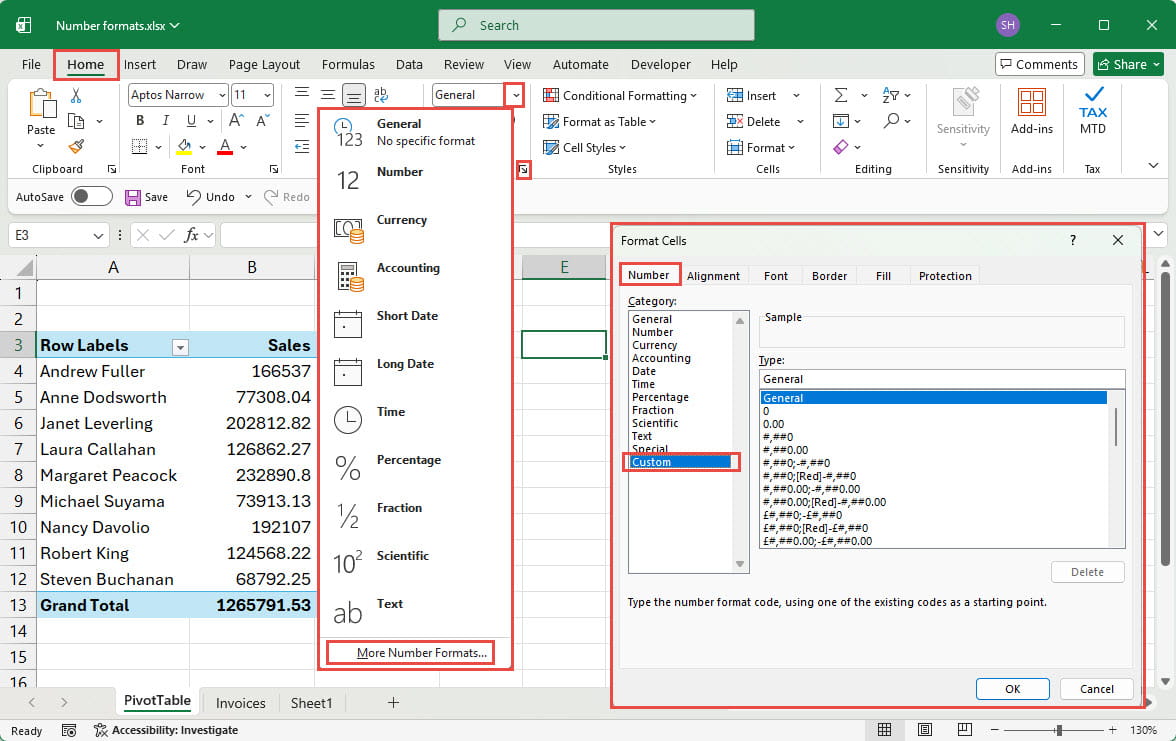
Choosing the Custom item in the Category list displays the existing formats available. Custom formats can include up to four sections, separated by semi-colons. The sections control the following aspects of a number format:
Section 1 – controls how positive numbers are displayed
Section 2 – controls how negative numbers are displayed
Section 3 – controls how zero values are displayed
Section 4 – controls how text is displayed
Section 1
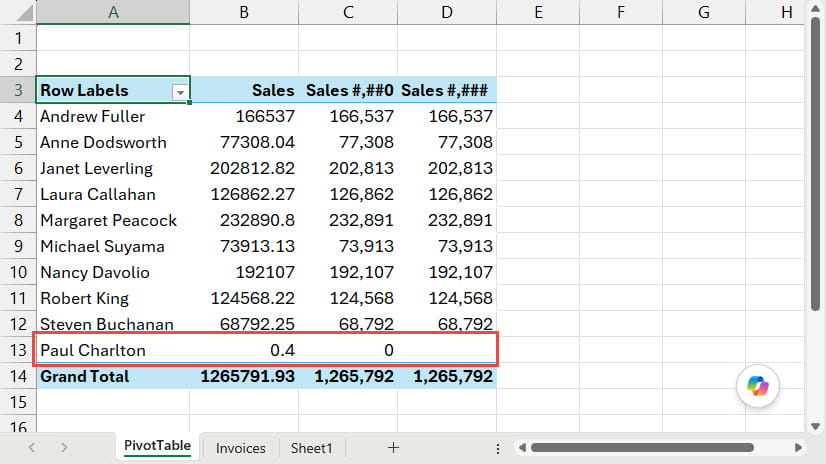
The formats are set using characters that define aspects of the number format. The # character is used as a placeholder so that the position of a comma in a number can be specified. As an example, this format will set a comma to separate every group of three digits and will not display the part of a value to the right of a decimal point:
#,##0
The # character just allows us to enter 4 characters and set the comma after the first group of three (from the left). The leftmost character is set as a 0 rather than a hash so that .4 will be displayed as 0.4 (or just 0 if the format is not displaying numbers to the right of the decimal point):
Section 2
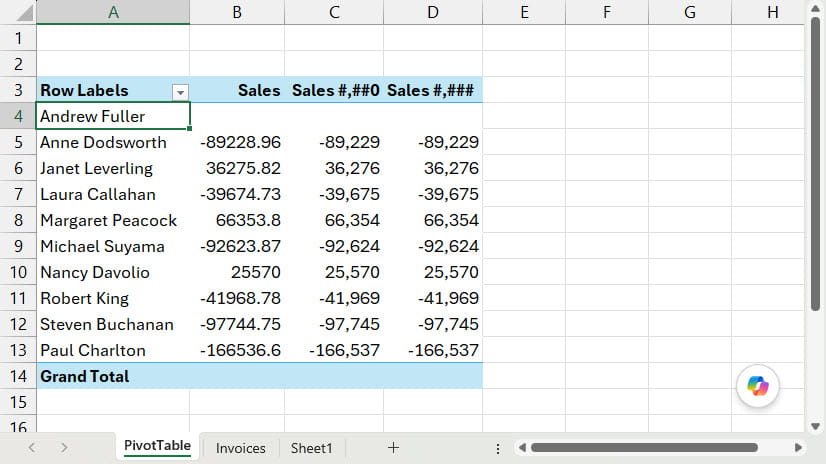
Next, we’ll look at section 2 which controls the display of negative values. We have changed our PivotTable to show our Salesperson results as the difference from the first Salesperson’s results in order to include both negative and positive numbers. Without using the second section, our negative numbers will just be displayed in the same way as our positive numbers, but with a leading minus sign:
Let’s show clearly why accountants stand out from the rest of humanity by displaying our negative numbers with brackets and in red. We can do this by adding our second section after a semi-colon, incorporating the brackets and starting the section with the word Red (other standard colours are available) contained in square brackets:
#,##0;[Red](#,##0)
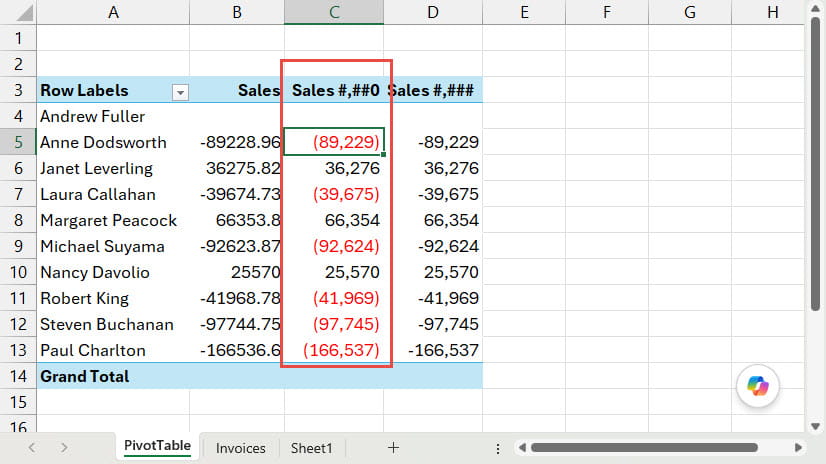
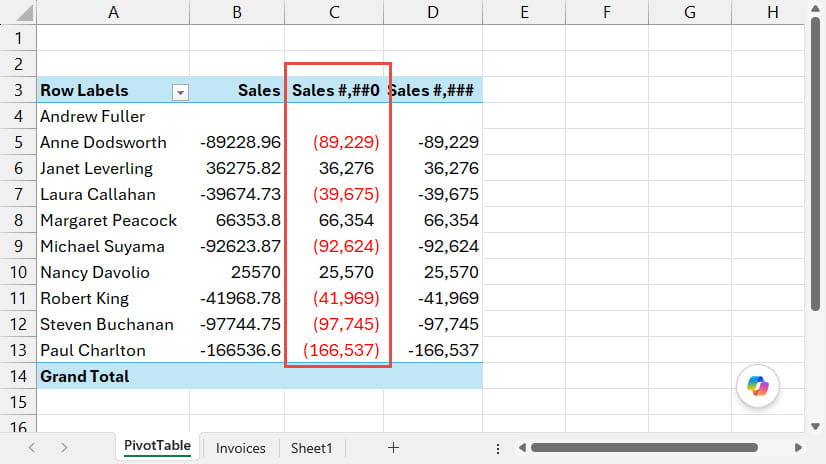
If you look carefully, you will see that this format doesn’t quite align correctly, our positive numbers are right aligned to the bracket of our negative numbers, rather than to the number itself. To correct this, we can add further custom code characters at the end of the positive number section. The underscore character tells Excel to leave an amount of space equal in width to the character that it precedes, so we use _) to ‘balance’ the negative number bracket:
#,##0_);[Red](#,##0)
Section 3
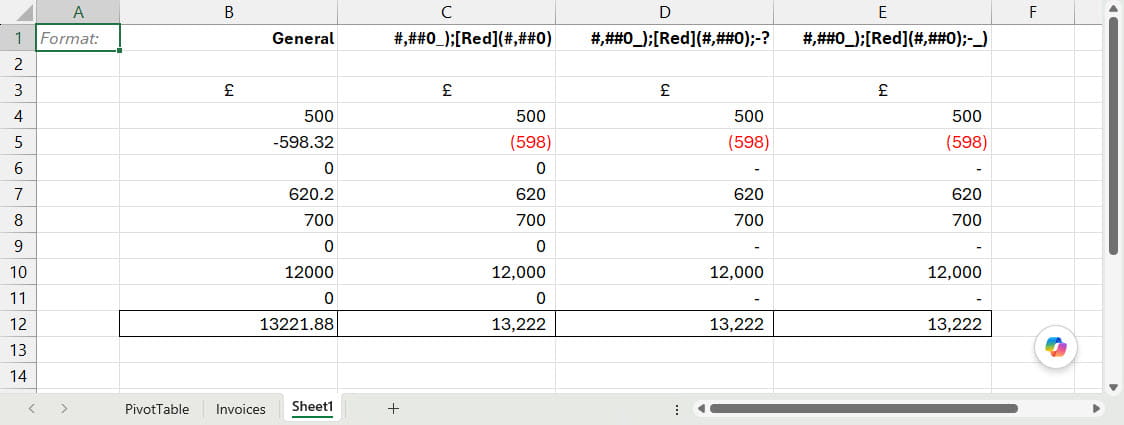
It might seem that having sorted out positive and negative numbers our formatting job is done, but one value remains to be addressed: zero. We could just leave zeros to be displayed as a 0, but it’s often clearer to use a dash instead. To achieve this, we can just add a third section to our custom format after another semi-colon separator. We have added the dash that we want to use and then entered a ? which adds a standard amount of space in order to bring the dash in slightly from the right-hand side. If we wanted to align our dash exactly, we could use the same technique that we used for our positive number and use -_)
#,##0_);[Red](#,##0);-?
Conclusion
Having dealt with the basics of creating a nearly perfect custom number format this time, next time we will consider various ways of making the format easy and quick to apply.
Archive and Knowledge Base
This archive of Excel Community content from the ION platform will allow you to read the content of the articles but the functionality on the pages is limited. The ION search box, tags and navigation buttons on the archived pages will not work. Pages will load more slowly than a live website. You may be able to follow links to other articles but if this does not work, please return to the archive search. You can also search our Knowledge Base for access to all articles, new and archived, organised by topic.
