
This series looks at some of the things that can go wrong in an Excel spreadsheet and at what we can do to avoid or resolve the issue. The first six parts dealt with issues that cause numbers to appear not to add up correctly. This time, we start looking at the Excel options that can ruin your day.
Introduction
The series so far:
- Excel, what’s occurrin’ – it doesn’t add up
- Excel, what’s occurrin’ 2 – Precision as displayed
- Excel, what’s occurrin’ 3 – incomplete ranges
- Excel, what’s occurrin’ 4 – number or text?
- Excel, what’s occurrin’ 8 – Data Validation
- Excel, what’s occurrin’ 9 – The wrong trousers
- Excel, what’s occurrin’ 10 – a date with PivotTable destiny
Knowing your options
If Excel suddenly starts behaving oddly for no apparent reason, it could be the result of an Excel option having been changed. We’ll look at some of the more common examples.
You’ve turned my whole world upside down
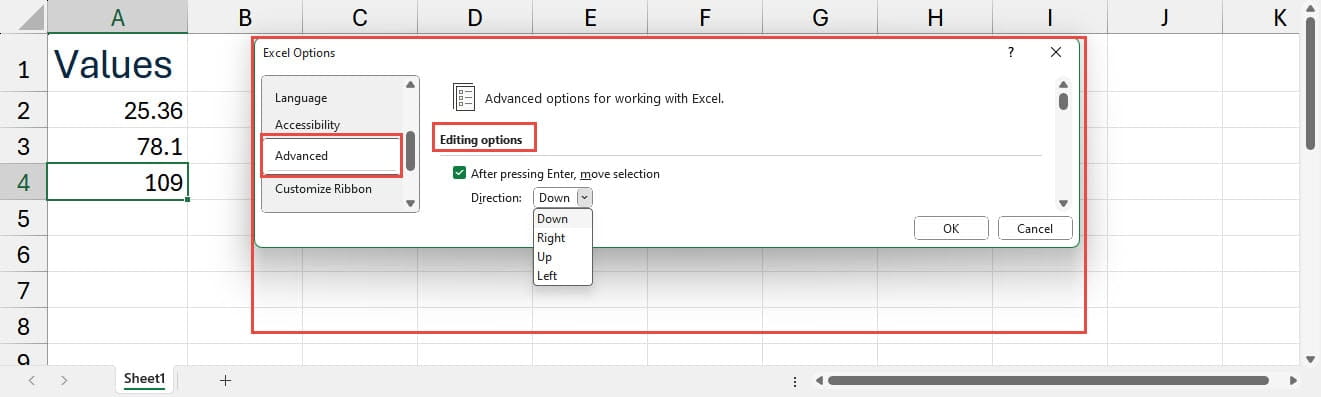
You are entering a column of numbers. As you press the Enter key after each number, the active cell doesn’t go down to the next cell in the column, where you want it to go, but instead moves up to the cell above. Alternatively, it stays as the cell that you have just entered.
The direction in which the selection moves is set by an option within the File, Options, Advanced, Editing section. If the ‘After pressing Enter, move selection’ option is turned off, the cell that is selected will not change after each entry. When turned on, you can choose where the selection will move to from the obvious four possibilities: Down, Right, Up and Left:
Getting the point
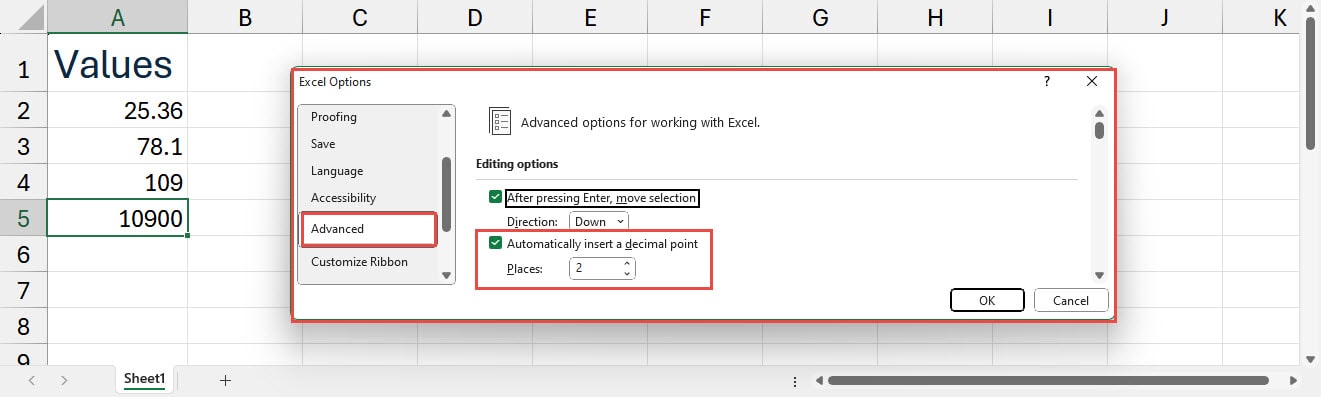
While we’re looking at data entry, several years ago, I received an urgent plea for help from a former colleague. They were being driven to distraction by Excel automatically treating every value they typed in as having two decimal places. So, typing in 10900 would give the value 109. To enter 10900 it was necessary to type in 1090000 or 10900 followed by a decimal point.
Once again, the answer is simple enough if you know where to look. Just like choosing the direction in which the selection moves, the required option can be found in the File, Options, Advanced, Editing section. The option to ‘Automatically insert a decimal point’ will assume that every number you enter includes pence as well as pounds for example. As well as being able to turn the option on or off, you can specify the number of decimal places before which to insert the point, with 2 being the default:
Help! I can’t edit any of my cells
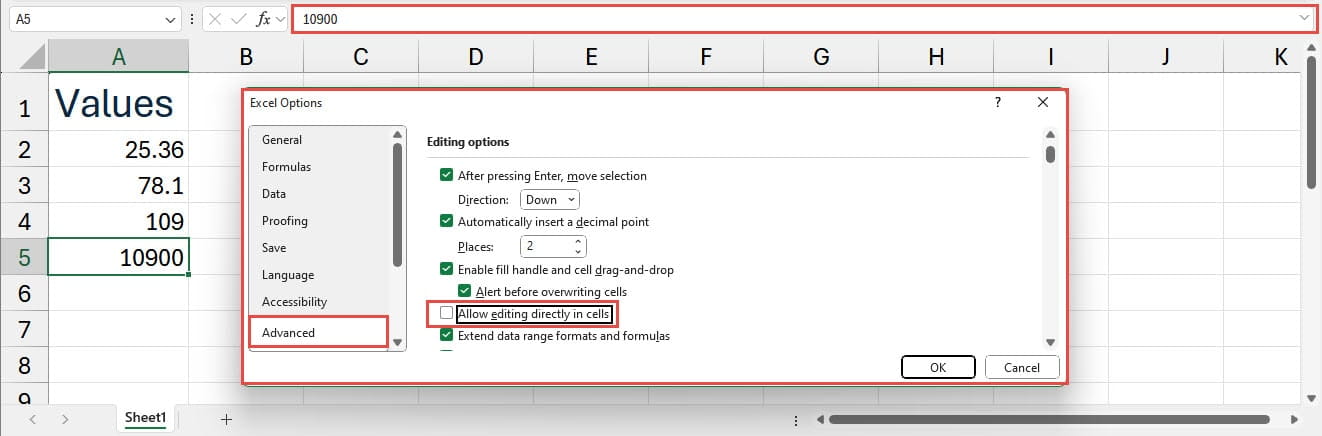
There are several ways in which you can edit existing content in a cell. You can select the cell and edit the contents in the formula bar, or you can press F2 to edit directly in the cell. However, the most natural way to edit a cell directly is probably to double-click on the cell. If you find that Excel starts ignoring you when you double-click on a cell, but you can still edit it in the formula bar, then it’s likely to be the result of another of the File, Options, Advanced, Editing settings. This time it’s the option to ‘Allow editing directly in cells’:
And the rest…
We’ve just picked out three examples of options that can make Excel seemingly misbehave but there are many more. There are also lots of really useful options that can help you customise the way Excel works to fit your own requirements. It’s worth spending a few minutes just looking through the different Excel Options categories to see just what is available.
The Last Time
For the next, and final, episode in our Excel oddities series, we will revisit one of the issues that featured in the most frequently viewed post in the history of the Excel Community and see why it should no longer be a problem:
Additional resources
You can explore all aspects of Excel, including the rest of this series, using the ICAEW Excel archive portal:
The 'Open in full-screen mode' icon in the bottom right-hand corner of the embedded report should show the contents at a more readable size with the Escape key returning you to the post.
Archive and Knowledge Base
This archive of Excel Community content from the ION platform will allow you to read the content of the articles but the functionality on the pages is limited. The ION search box, tags and navigation buttons on the archived pages will not work. Pages will load more slowly than a live website. You may be able to follow links to other articles but if this does not work, please return to the archive search. You can also search our Knowledge Base for access to all articles, new and archived, organised by topic.
