
Our digest of new features across Microsoft 365 and other business tech products in written, images and video format covering the last three months.
See the previous update here. Some items are described with a comedic tone, inspired by the author’s upcoming Excel comedy show at the Edinburgh Fringe.
My top 5
- Full dark mode in Excel
- Excel Copilot’s Clean Data can replace “Jacky Brown” and “JACK BROWN” with “Jackie Brown”
- Group By views now have subtotals in Google Sheets
- Create multiple document types & sizes in one Canva design
- A new library tab in Chat GPT which contains all your images
Note that items listed with a * throughout the article are for Microsoft 365 Copilot subscribers only.
Excel
Excel publishes a digest every month which the author contributes to, here are articles for March, April and May 2025 and the image shows which features are in which channel (see below for how to check your channel).
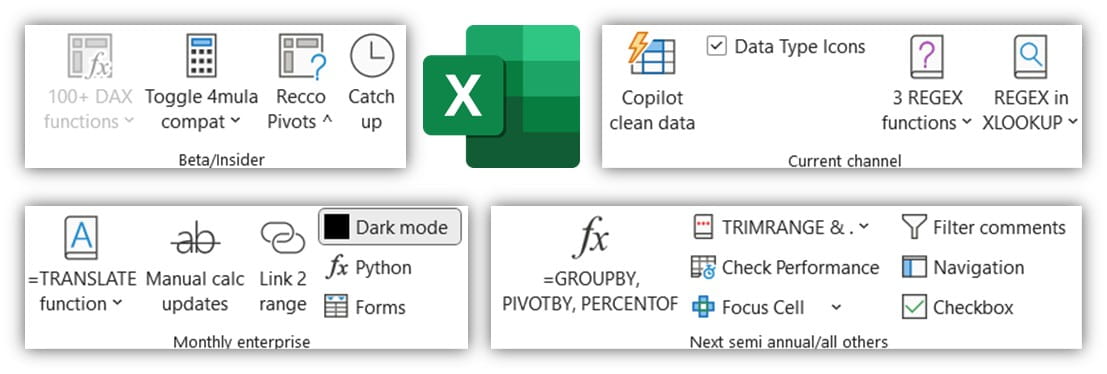
New in Excel Desktop Current & Monthly Enterprise Channels
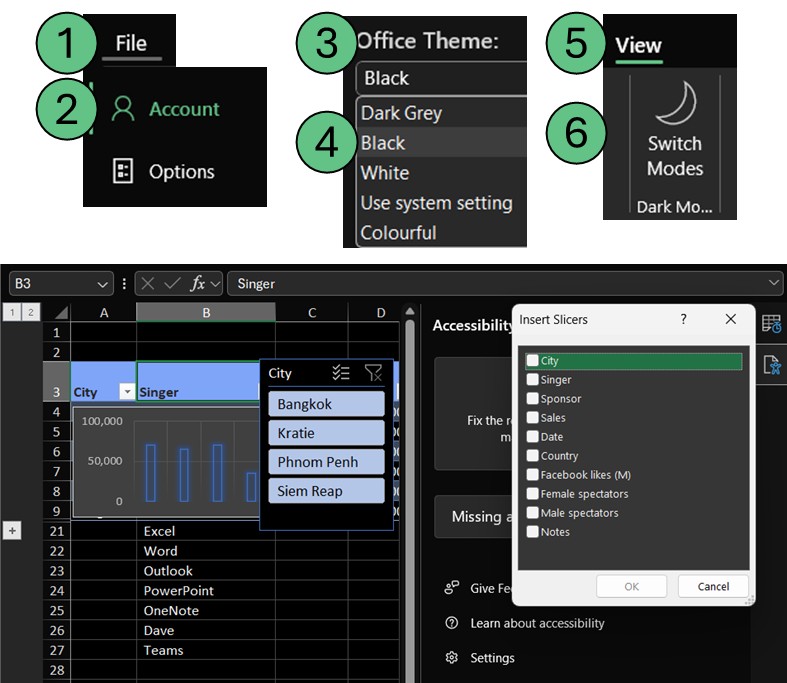
- Full Dark Mode in Excel: Click File > Account > Office Theme > Black, then click View Tab > Switch Background to cross over into the dark side. The Excel grid will turn dark along with most panes and some dialog boxes. Other elements such as charts and slicers need extra steps to become dark; I showcase how in my video below.
Excel new in Monthly Enterprise (previously Current Channel only)
- =TRANSLATE function. Inputs are cell to translate, [source language - leave blank for autodetect], [target language – leave blank for your default system’s language]). More here:
- =DETECTLANGUAGE uses AI to return the language that a cell is in.
- Convert numbers into words: =TRANSLATE(BAHTTEXT(cell)) can convert 5,162 to “Five thousand, one hundred and sixty two baht”. Use TEXTBEFORE to exclude BAHT.
- Insert tab > Forms shows is a new entry point into Microsoft Forms
Excel Current channel
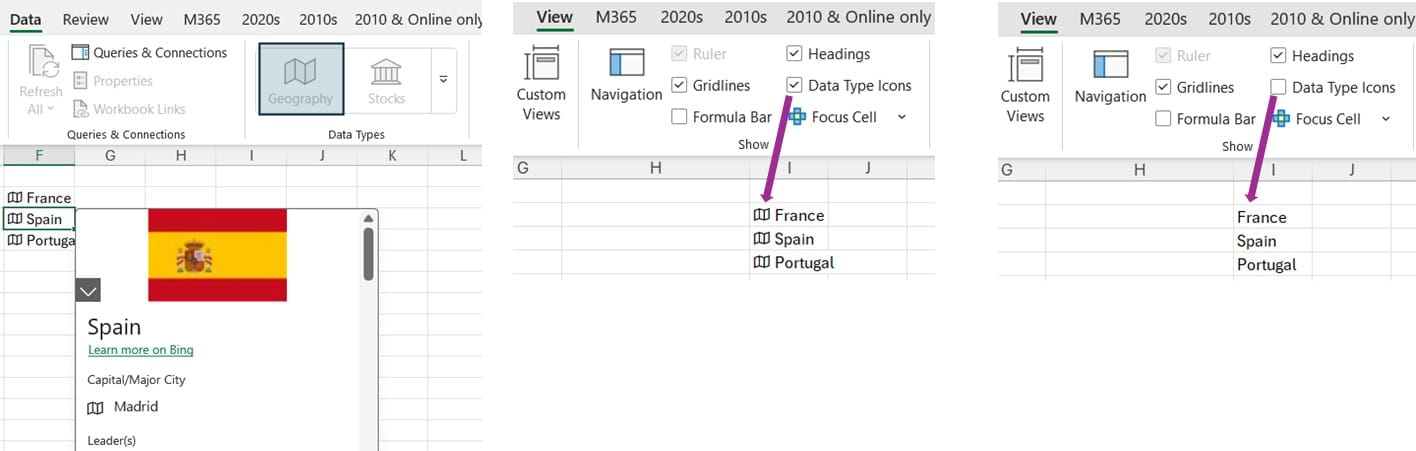
- Toggle Data Type icons on/off: First convert Excel values to Data Types (currencies, stocks and locations), then go to Excel’s View tab with a new checkbox to toggle this on/off.
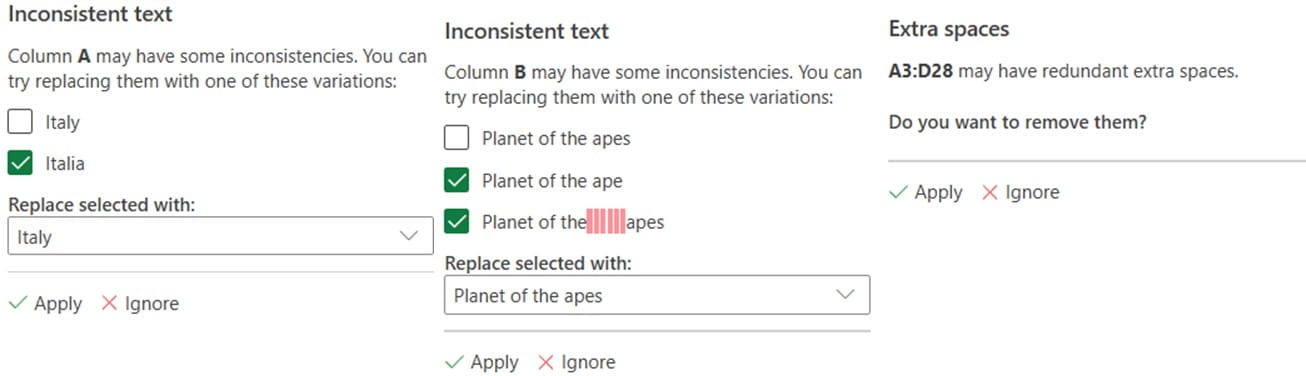
- *Clean similar text with AI: The data tab now has a new “Clean Data” tool which can fix similar spelled text e.g. Dave Benaim > David Benaim, if the column has other instances of “David Benaim”. The feature checks for three other types of things: cASiNG inconsistencies, redundant spaces, and supposedly numbers stored as text (although it’s never worked for me) according to the documentation. Given its part of Copilot, the document must be on SharePoint or OneDrive, and it isn’t consistent in being able to identify errors from my experience at the time of writing.
This video below shows how to use the feature:
- Stellar Repair for Excel fixes corrupt files: This recently updated tool can repair various types of problematic Excel files.
PowerPoint Current channel
- Comments now move with cut/paste: No comment.
- Placeholder icons on slides now have a refreshed look.
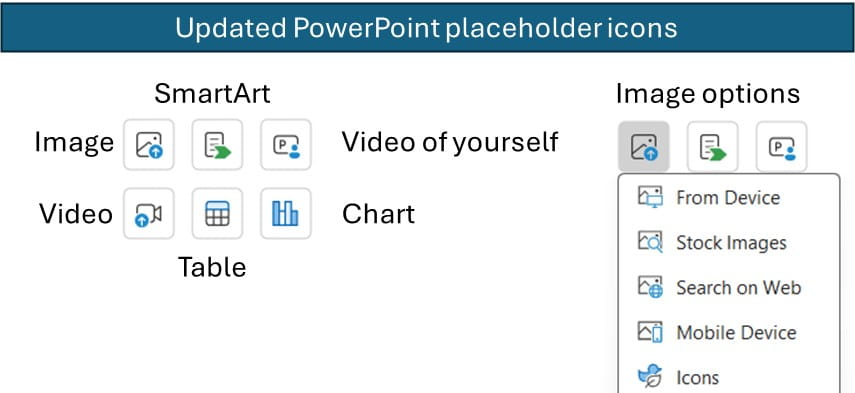
- *Add a slide with Copilot: The Home and Insert tab now have “New Slide with Copilot” a new entry point to convert a prompt into a slide.
- *Designer has now been rebranded to Design Suggestions for Copilot users, non-Copilot users still see the same as before.
a. The icon on the home tab looks different (see below)
b. New suggestions such as tabular, agenda and timeline slides now pop up on a blank slide. More here
OneNote new for Current and Monthly Enterprise channel
- Meeting details now incorporates notes taken with Loop and AI notes: Click Home tab > Meeting details for a refreshed experience, most useful for Copilot subscribers.
- Sticky Notes integration: Launch the Sticky Notes app from the top right. A note within a note.
Microsoft 365 Core Office Apps channels and Copilot versions explained
Excel, PowerPoint, OneNote, Outlook and Word release regular updates to Microsoft 365. To see or update your version, click File> Account. The Current Channel should now be on version 2504, which is the year 2025 and month 5 (May) with 2506 (June) coming later this month, the Monthly Enterprise channel releases updates a couple of months after the Current Channel and is currently on version 2412. The Semi-Annual Channel had no update in this period. The Insider or Beta features are only available for a small selection of people who sign up to help test features, so they haven’t been reported explicitly, but they give a good idea of what is coming next.
Microsoft 365 has three licenses for Copilot:
- Copilot Free is accessible via a web browser but not inside the apps.
- Copilot Pro ($20/month) is for M365 home users, and is in apps for Excel, PowerPoint and Word.
- Copilot for Microsoft 365 ($30/month) is the same as above but also within Outlook and OneNote and integrates with SharePoint and other Office Apps from Forms to Loop and more.
Microsoft Teams: Read more here
*These features are only available to AI enabled Teams, i.e. Teams Premium or Microsoft 365 with Copilot.
- Allow presenters to return to the green room after an event: If you enable a Green Room from settings, then presenters can go back to it.
- Edit your display name in a meeting: Click the people menu then … by your name
- Search for files in the “Shared” tab under any chat.
- Filter for “@mentions” under activity. You’re welcome – don’t mention it.
- Town Hall events participant limit is now 50k people up from 20k people -no longer frustrating for you superstars.
- *Ask Copilot questions on meeting recordings (or ask a human who was there).
- *Use keyboard shortcuts from 3rd party apps in Teams: Manually change the options under Customised saved download location on a Mac.
- Settings and more > Keyboard shortcuts.
- Use keyboard shortcuts from 3rd party apps in Teams: Manually change the options under Settings and more > Keyboard shortcuts.
- Combine teams and chats or keep them separate: Choose via settings > Chats and channels.
- Add name pronunciation voice note: Andrea & Louis rejoice. Navigate to Teams Online > Click on your picture on top right > Click microphone to record.
- Keyword search for an emoji: Or just send the word you searched.
- Microsoft Loop integration with Teams: The process is far more seamless that previously.
Other Microsoft 365 apps
- Get a pre-filled link in Forms: Set up default example answers to speed up data entry
- Disable question numbers showing in Forms
- Enable dark mode in Power Automate for desktop
- Hide columns in Microsoft Planner’s My Tasks and My Day views
- Reorder columns in Microsoft Planner
- Drag & drop to reorder items in Microsoft Lists
Power BI
Power BI releases monthly update blogs, here they are for March, April and May. The features below marked with a ^ must be turned on as preview options via File > Options and settings > Options > Preview settings and items with a * are for Copilot users only.
- *Prep data for AI: A new home tab icon walks you through how to maximise copilot
- *Copilot section in the Power BI Service. A new icon on the left side bar.
- ^Selecting a field parameter no longer resets sorting.
- ^LOOKUP and LOOKUPWITHTOTALS are two new functions in Visual Calculations
- ^Improvements to List Slicer visual allows you to add data labels or images to the items plus you can format individual hierarchy elements differently.
- ^Paste into List & Button slicers: Copy item names from a spreadsheet or text doc and paste into the slicer to select them.
- Colour a line or area chart segment one by one: Select the relevant data point under “Apply settings to” drop down.
- New Base Map options for Azure Maps Visual: Toggle on off country/state borders, buildings and roads.
- Option to discourage implicit measures by having a pop up warning.
- ^Report buttons can now run Fabric User data functions for writeback and other automated actions, via Translytical task flows.
- Annotate any single bar/data point in a Power BI chart that appears in PowerPoint.
- Option to copy object name: A new right click option appears after its turn on via File > Options and settings > Report settings > Report objects.
- With Reference line improvements, recolour any, set position to behind. They really crossed the line.
- Create Y axis reference lines for combination line & column charts.
- The new card visual allows toggling between card & table style, recolour elements conditionally, and align text for small multiple titles.
- Create style presets for charts by importing a custom JSON theme file. More here
- Copy an individual cell in Table View on Desktop. Right click or Ctrl C does the job.
Google Workspace
* Only items available only to subscribers who have Gemini enabled Google Workspace
- Google Forms respondents can contact the Form owner.
- Google Docs code block feature now supports these additional languages: C#, Go, Kotlin, PHP, Rust, TypeScript, HTML, CSS, XML, JSON, Protobuf, Textproto, SQL, Bash/Shell.
- *Google Vids updates include default fonts and colours and AI voiceovers.
- *New languages supported by Gemini’s sidebar.
- *Google Gemini is constantly adding support for new languages. Latest details are here.
- Make Google Keep text bold, italics etc. This one’s a keeper.
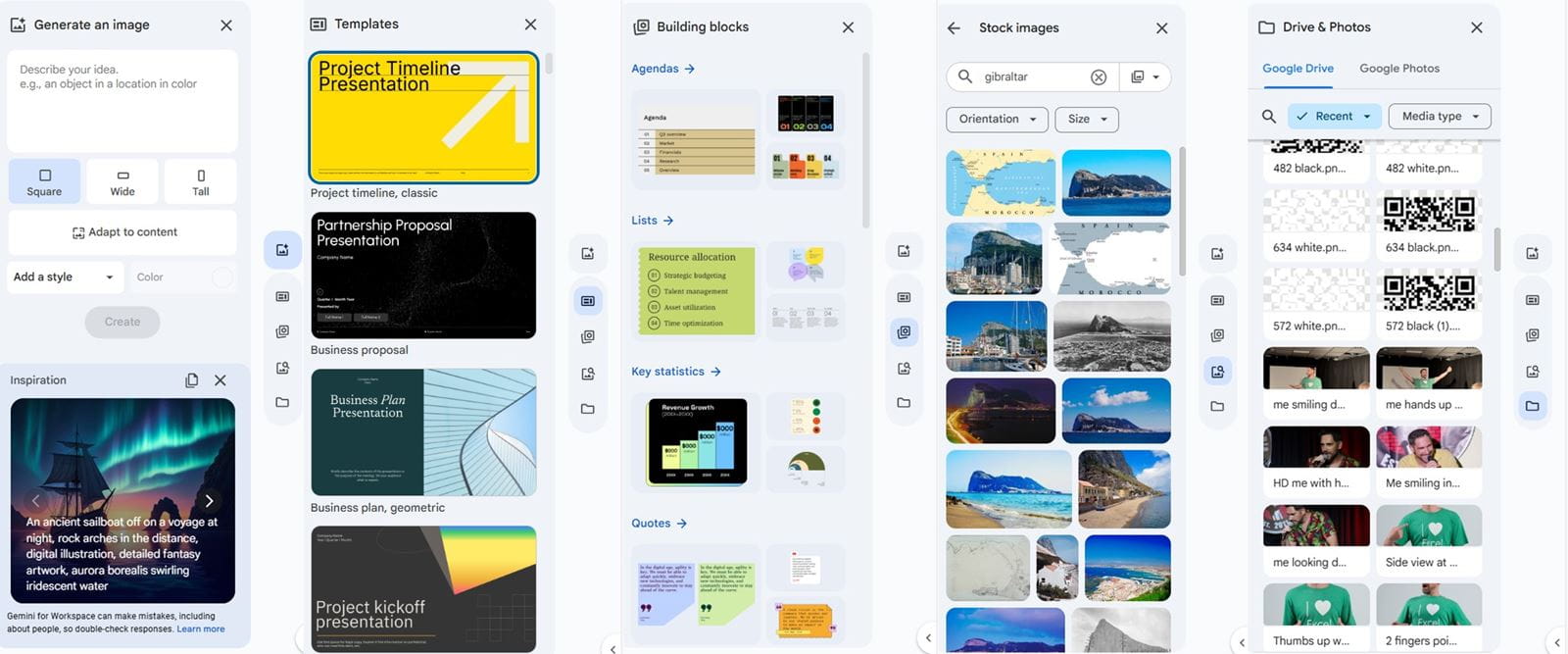
- Right hand sidebar in Google Slides for quick access to millions of stock photos, building blocks, templates, AI image generation, your own Google Drive photos and more.
Google Sheets
- Subtotals now can be added in the Group By view: Lots of spreadsheets break because users set up their data grouped. Grouped data cannot be used well with PivotTables, filters, plus they cause issues with subtotals being double counted. Even Excel’s built in Subtotal tool (in the data tab) discourages tabularises data. Google’s take is to create a Group By view whilst keeping the underlying data in a tabular dataset. Click on the Data tab > Group By to access the feature which uses Google Sheet’s Tables. More can be shown on this video:
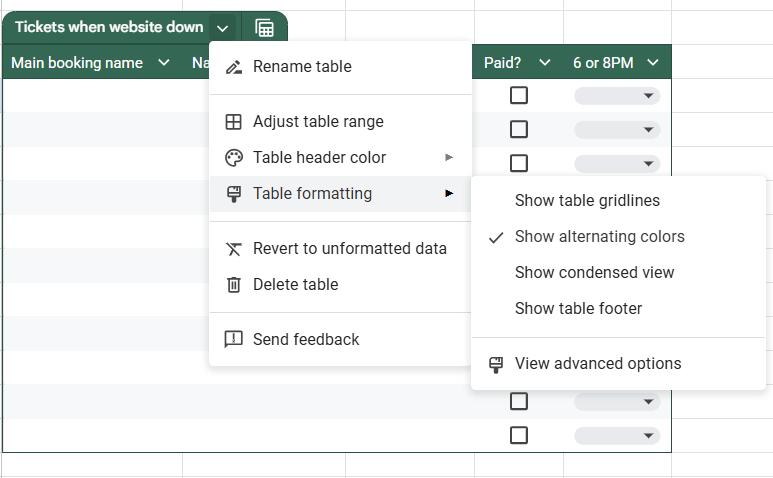
- New format options for Tables include options to turn gridlines on or off, set alternating colours, show a condensed view, and include a table footer/total row. To access, click the drop down by table name > Table formatting.
- One cell can have multiple people chips: Type a sentence with multiple names, click Data > Smart Chips > Default to pick them all up.
- *Additional actions from prompts using the Gemini side bar include add dropdown lists, conditional formats, sort, filter and create PivotTables.
Zoom meeting enhancements
- Select a PowerPoint slide deck to be presented in the background.
- Customise waiting room default screen via Settings > Meeting tab > Security section > Waiting Room Options > Customize Waiting Room.
Users of Zoom Workspace can read about more updates here
Chat GPT (Newly included)
- New models: GPT 4.1 is great at coding tasks available for pro users and GPT 4.1 mini for quick solutions available for all.
- Connectors with SharePoint, OneDrive, GitHub and Dropbox for Deep Research for paid Chat GPT tiers.
- Enhanced Memory is available for paid users. Enable it via Settings > Reference chat history
- New library tab has all the images you’ve created with Chat GPT.
Canva
Canva Create in April released lots of new features.
- The new Canva Sheets has a grid which can include data, formulas and images. It is not competing with Excel, but great for multiple edits in one go e.g. remove background for multiple pictures or bulk create multiple versions of one design where some elements change such as images or title or logo. More here or on the video below.
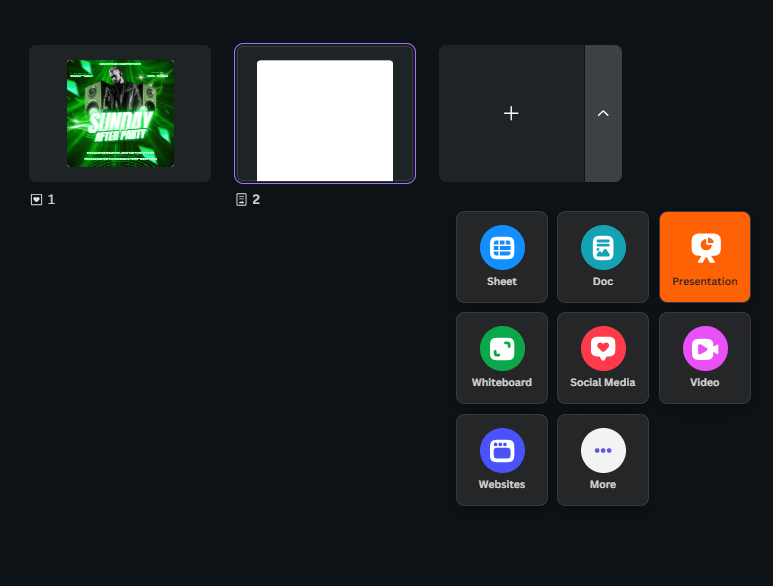
- One Canva document can now contain multiple sizes or document types: Have a doc, presentation, video, 4x3 graphic and squaregraphic all in the same design. Click the arrow next to the + when adding a new page.
- Create simple applications with the new Canva Code: More here
- Canva has a built in chat AI from the home page similar to Copilot & Gemini.
- Generate background: Type a text prompt to generate a new background to an image.
- Create a website with multiple web pages: Finally, the webpage is actually useable.
- Highlight text & scrollable designs in Canva Docs.
- New text options include superscript, subscript, kerning and ligatures.
- Adjust light, colours and more adjustments now available in Canva videos.
- Create animated “Karaoke style” captions in videos (as often seen in social media videos).
- Add moving effects to images e.g., water flowing, wind blowing through trees etc.
- Text to voice with AI voice generation.
- Record voiceovers in Canva video: Add an app called “Audio” and start recording.
- Adjust volumes when editing videos.
- Enhance voice with AI: Click volume icon then Enhance voice.
That wraps up the updates until May 2025, come back for more new features in September.
- New tech features for Mar-May 2026: Excel, Teams, Google Sheets, Chat GPT, M365, Power BI, Canva, Claude, Zoom ++
- New tech features for Dec-Feb 2026: Excel, Teams, Google Sheets, Chat GPT, M365, Power BI, Canva, Zoom ++
- New tech features for Sep-Nov 2025: Excel, Teams, Google Sheets, Chat GPT, M365, Power BI, Canva, Zoom ++
- Excel, Teams, Google Sheets, Chat GPT, M365, Power BI, Canva, Zoom ++: New tech features for June-Sept 2025
- Excel, Teams, Google Sheets, Chat GPT, M365, Power BI, Canva, Zoom ++: New tech features for Mar-May 2025
Archive and Knowledge Base
This archive of Excel Community content from the ION platform will allow you to read the content of the articles but the functionality on the pages is limited. The ION search box, tags and navigation buttons on the archived pages will not work. Pages will load more slowly than a live website. You may be able to follow links to other articles but if this does not work, please return to the archive search. You can also search our Knowledge Base for access to all articles, new and archived, organised by topic.
