
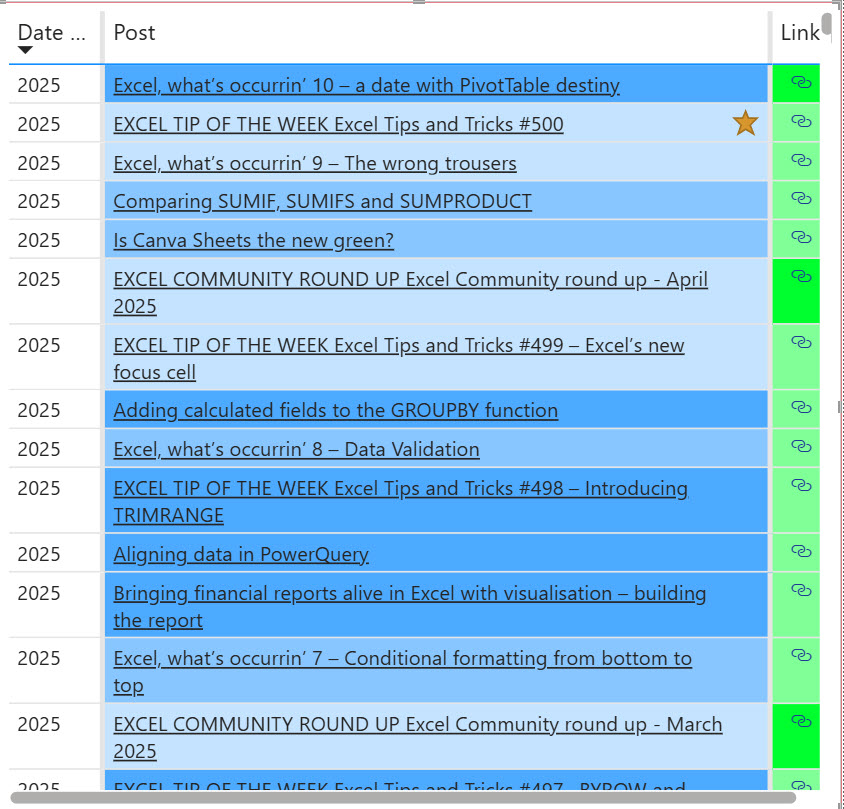
The 500th article in the Excel Tips and Tricks series has just been published. As one way of celebrating the milestone, we have added a gold star to the article in the list of articles displayed in the community archive portal using conditional formatting in Power BI.
Introduction
The Excel Community has just achieved a significant milestone: the posting of number 500 in our Excel Tips and Tricks series. Fittingly, the article by Ben Ducker looked at how to make the most of every relevant Excel learning ‘nugget’ that you come across.
It seemed a shame to allow such a major milestone to go uncelebrated in the community archive portal, so here we are going to look at how to add a star to an item in a Power BI table using conditional formatting.
Power BI and the archive portal
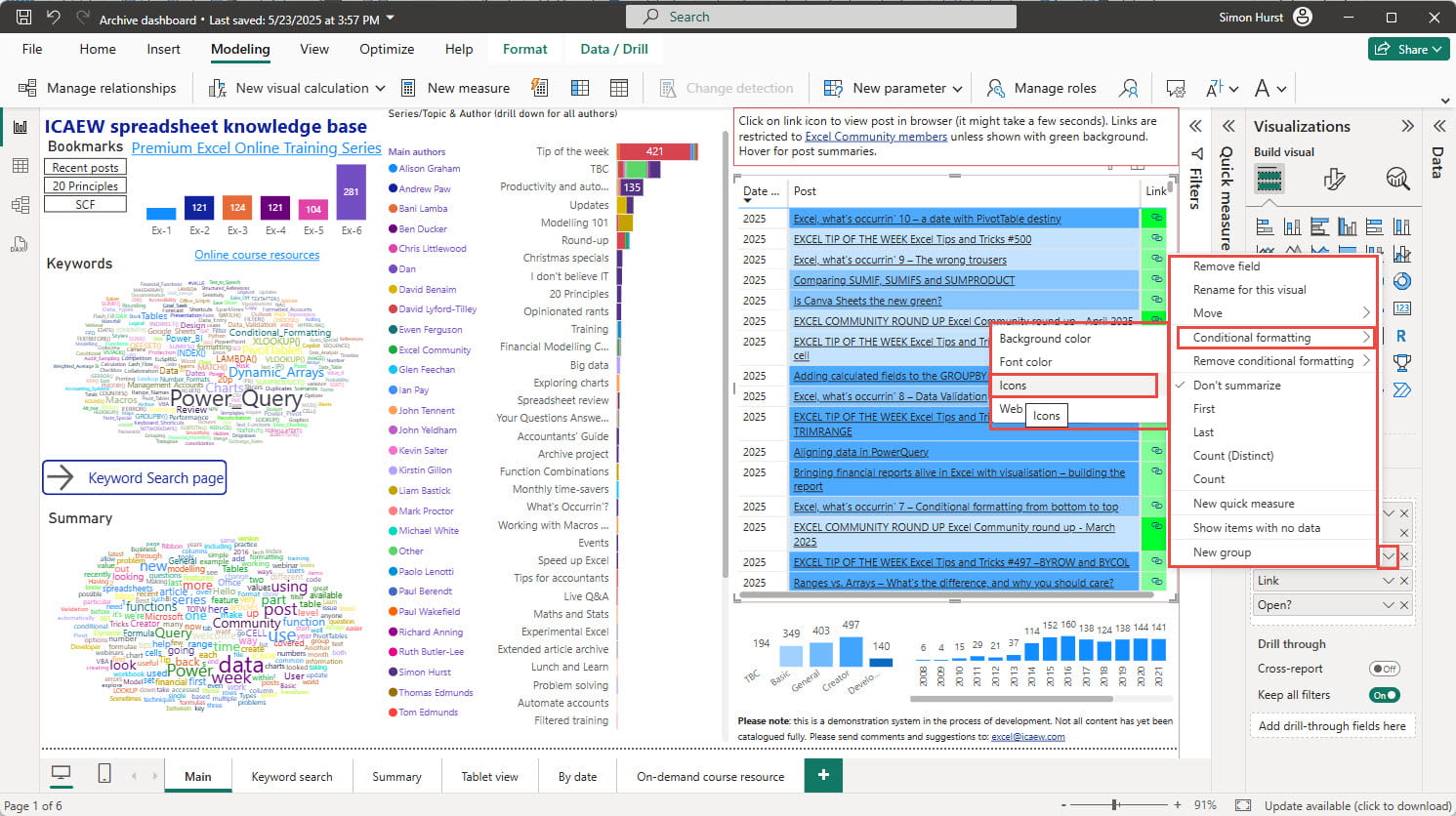
As evidenced by the 500 milestone, the Excel Community has built up a formidable library of different articles and other resources over the years. The archive portal was created to make it easy to find relevant articles in a range of different ways: from keyword searches to using the Spreadsheet Competency Framework levels and other categories and attributes. Given that Power BI is one of the applications that the Excel Community covers, it seemed like a good idea to use it to create an interactive visual representation of the list of articles stored in an Excel spreadsheet:
Conditional formatting in a Power BI table
Within the portal, the actual list of articles is held in a table that can be filtered to show articles in a particular series; written by a particular author; categorised using a keyword and several other criteria. The table itself shows the year in which the article was published, the title and a link icon to open the article in a separate browser window. Conditional formatting is already in use to apply a background colour to each article title based on our assessment of level and to distinguish open URL links from those that are exclusive to members. We want to add a further conditional format to the post title column to display a star for our 500th Tips and Tricks article.
With the article table selected in Power BI, we can click on the Post dropdown in the Visualizations pane, Columns section and choose Conditional formatting, Icons:
The Conditional formatting, Icons dialog will be displayed with a default format suggested:
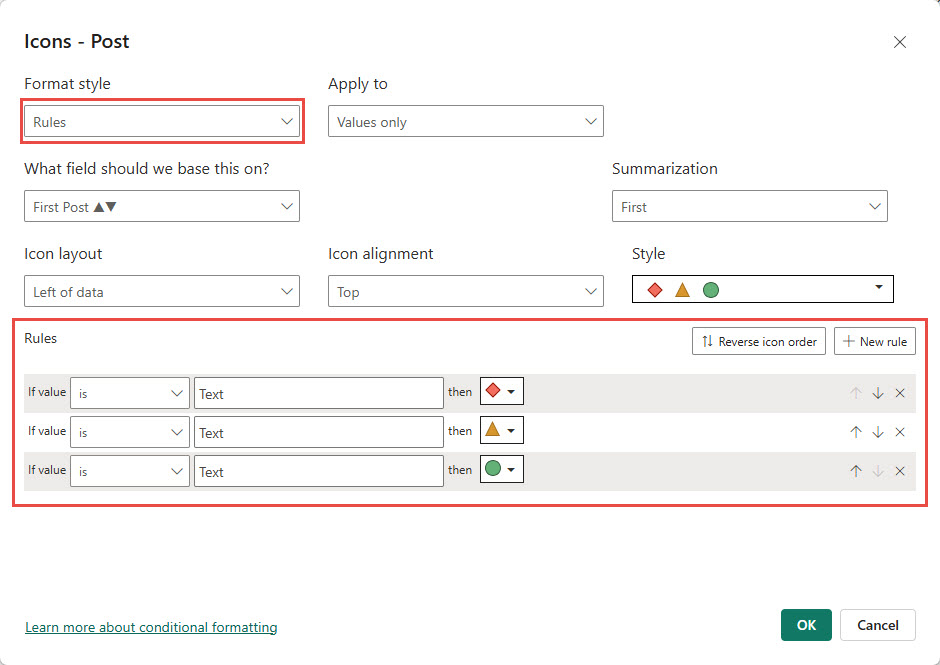
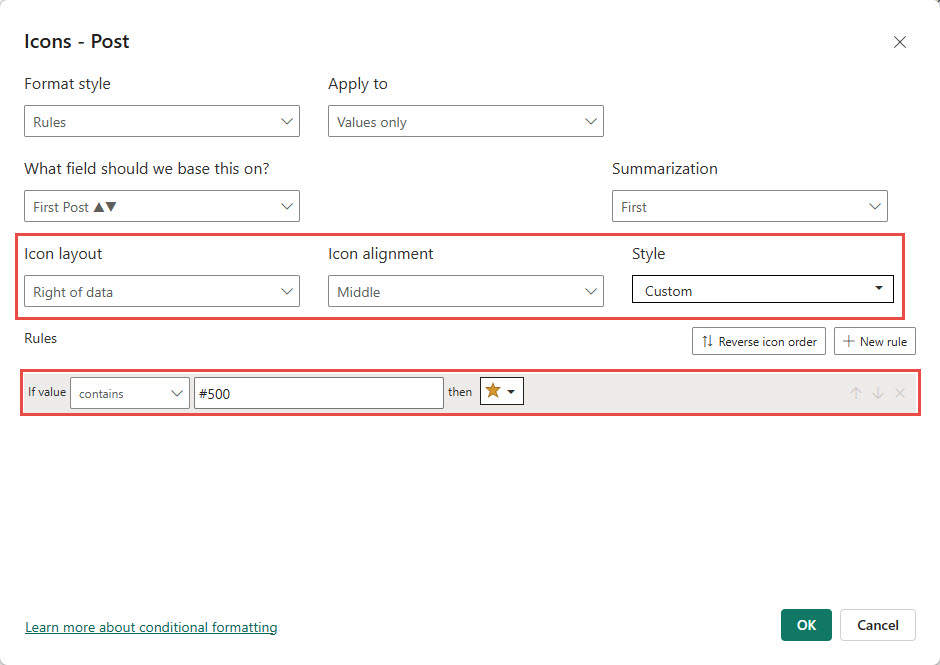
As we can see, the Format style is set to Rules which allows us to enter specific rules that need to be satisfied for a particular icon to be displayed. In our case, because the Post field contains text, our rule conditions are text-based, such as ‘is’ for an exact match or ‘contains’ or ‘does not contain’. We will assume that only our 500th Tips and Tricks article is likely to contain the text #500 and delete all but one of our Rules using the delete x at the right-hand side of rules 2 and 3 to delete them. We then choose our Star icon and set our Icon layout as required:
Our 500th article (and any other post that includes the text #500 somewhere in the post title) will now display a gold star at the right of the table Post column:
URL conditional format
Whilst we are adding conditional formats to the Post column, it’s worth mentioning the URL format. In order to be able to distinguish open and exclusive articles, we included a separate Link column containing our URL icon link, with a conditional format applied to the background colour. However, given that our underlying table data already includes each article hyperlink, we could also use the Conditional format, Web URL option to format our post title text as a usable hyperlink. All we need to do is to select our Hyperlink field:
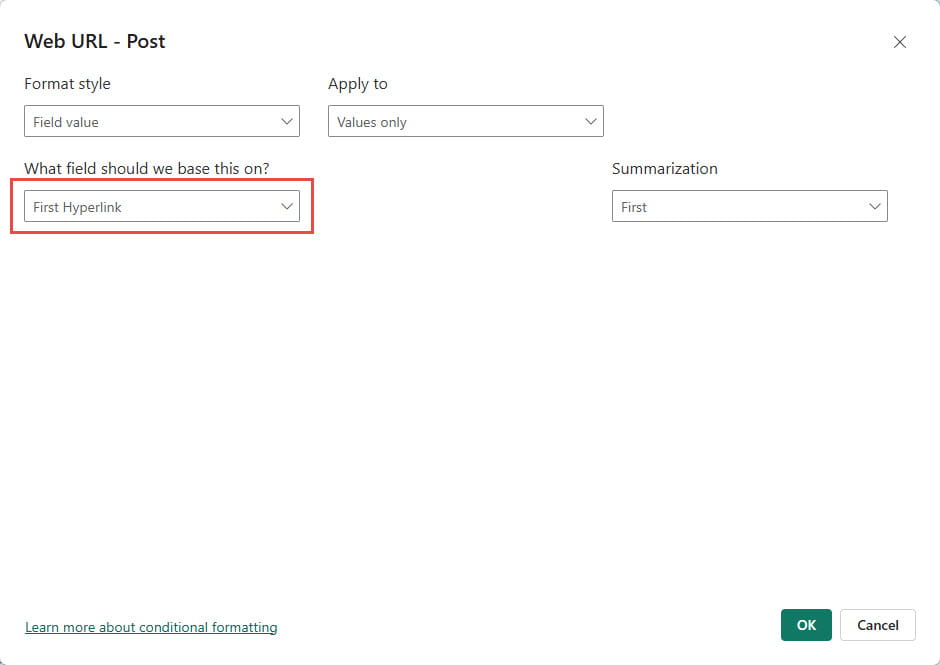
Our titles are now underlined to show that they are active hyperlinks that can be clicked to open each article in our browser window.
Additional resources
You can explore all aspects of Excel, including many articles on Power BI, in the ICAEW archive. Click on ‘Archive project’ in the ‘Series/Topic & Author’ graphic to see the list of articles that detail the creation of the archive portal and its subsequent development:
https://www.icaew.com/technical/technology/excel-community/archive
Archive and Knowledge Base
This archive of Excel Community content from the ION platform will allow you to read the content of the articles but the functionality on the pages is limited. The ION search box, tags and navigation buttons on the archived pages will not work. Pages will load more slowly than a live website. You may be able to follow links to other articles but if this does not work, please return to the archive search. You can also search our Knowledge Base for access to all articles, new and archived, organised by topic.
