
Our digest of new features across Microsoft 365 & other business tech products in written, image & video format covering the last three months.
See the previous update here.
Here are my top 5:
- Copilot Personalisation in Excel: Have Copilot always return outputs the way you prefer.
- Copilot Skills in Excel and PowerPoint: Reuse frequent prompts or series of prompts.
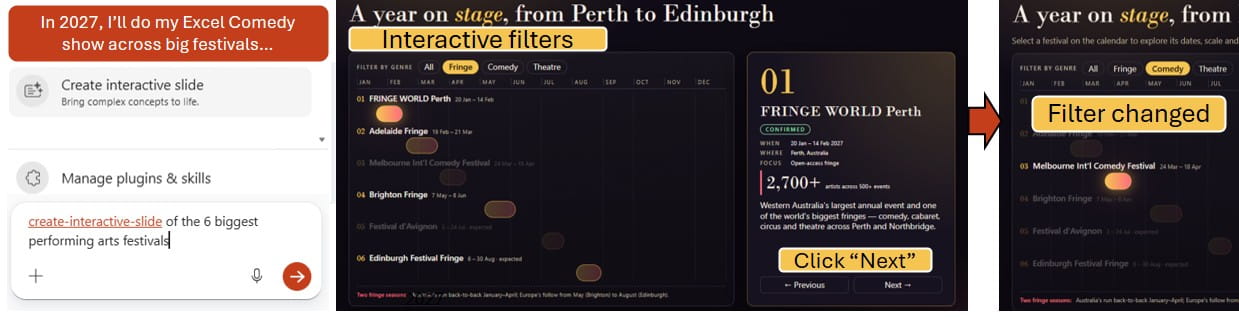
- Create an interactive PowerPoint slide: Presenters can click filters or buttons live.
- Copilot Cowork and Chat GPT Work: Delegate tasks to AI like Claude Cowork.
- Reusable Canva components: Objects in one design can be reused across others.
Excel
Microsoft publishes a digest every month which the author contributes to, here are articles for June, July, August & September 2026.
- State your preferences in Copilot personalisation: e.g. prefer XLOOKUP to VLOOKUP, add dropdown lists for categorical fields, show dates in 3-Oct-26 format etc. Open Copilot, click the 3 dots on the top right > Personalisation, and type your preferences.
- State file preferences as Copilot’s Workbook Rules: Rather than having preferences for Copilot across all Excel files, be file-specific by clicking + icon > Workbook Rules.
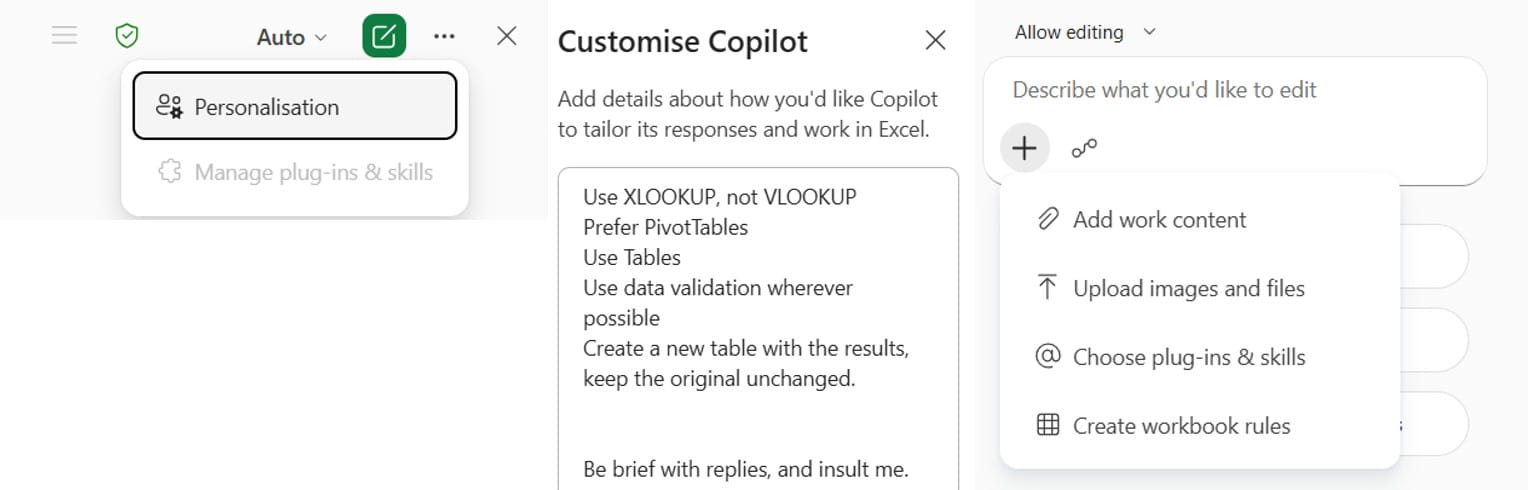
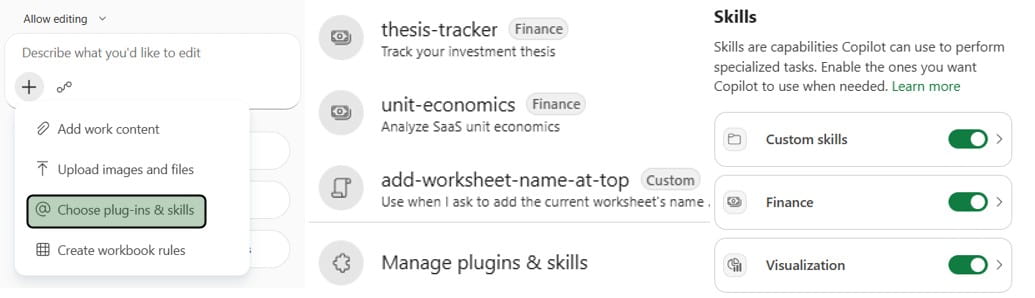
- Use premade Excel Copilot Skills: A skill is a prewritten prompt or series of prompts to action, the full list of available ones with descriptions is here, examples include:
a. 3-statements: Convert data into a Balance Sheet, P&L and Cash Flow.
b. Check-model: Audit & debug financial models. Broken formulas, hardcoding etc.
c. Chart-design: Create new charts or amend design on existing charts. - Add custom Copilot Skills: Package and reuse prompts in a way that could replace macros, e.g. “Add the worksheet name to cell A1, make every formula cell in red and input in orange”. At the time of writing, Excel has not built in a way to create a Skill (PowerPoint’s method is explained below), so you’d need to create one outside Excel (perhaps via Copilot Online), then store the output file in a specific Skills folder on OneDrive, more here.
- Copilot can reply about recent changes: Ask Copilot things like “who changed the overview recently” or “changes in the last week”. More here.
- See recent Copilot Excel chat history: Click the 3-line icon on the top left of Copilot’s window to access.
- Improved citations in Copilot chat: With links to places in your file or online.
- Copilot works when Autosave is off: Previously if saved on the cloud, autosave must be on.
- Attach up to 50MB files to Copilot chat, and additional file types can be attached.
- Overlapping PivotTable #SPILL! error: The one non-copilot update. When PivotTables need to grow into an area with existing data, you now get the #SPILL! error instead of the earlier confusing pop up.
PowerPoint
- Generate branded Copilot slides: When typing a prompt, click the + button, and choose “Select Brand”, manage brand kits from here: https://m365.cloud.microsoft/create/brandkit
- Copilot Skills in PowerPoint Desktop: Reusable AI prompts or sequences of prompts. PowerPoint Desktop currently has 3 built-in skills:
a. Prepare for questions: Warn you about gaps where people might find questions.
b. Review the presentation: Give you suggestions to improve flow and structure.
c. Visualise this slide: Clean slides with excessive text.
PowerPoint Online
- Create interactive slides skill: Timelines which are clickable in slideshow mode, broken up sections, interactive quizzes etc. Open the Copilot pane > Click + Choose Skills > Create Interactive Slide > Describe what you need.
New in Excel Semi Annual channel (paying an additional $20-30 per month)
New features are summarised in this video and in text below:
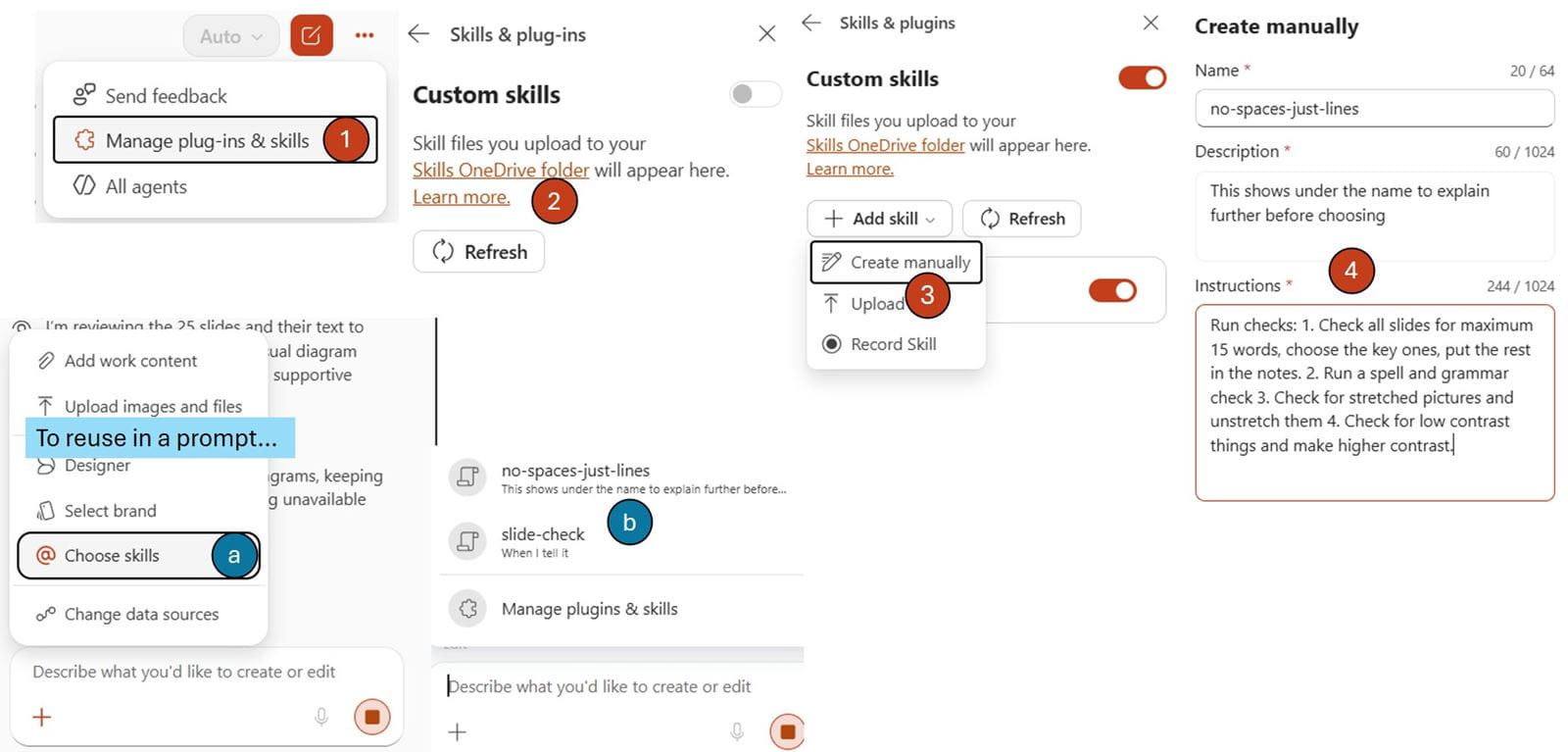
- Custom skills in PowerPoint: Make it easy to reuse a common prompt e.g. “check all slides for maximum 15 words, low contrast and run spell and grammar check”. To add a skill:
a. Create a custom skills library. Click 3 dots > Manage plug-ins and skills > Custom Skills > Create a library (only do this once). 1-2 in images.
b. Choose “Create manually” and type in the prompt/name, then toggle it on. 3-4 in images. You can alternatively upload or record.
c. Reuse it by clicking + in Copilot > Choose skills > select.
Word & Outlook
- Paste onto Word text for hyperlink: Copy a link, then paste it on top of existing text to convert to a hyperlink.
- Grouped notifications in Outlook: Email alerts that arrive within a few seconds will be combined.
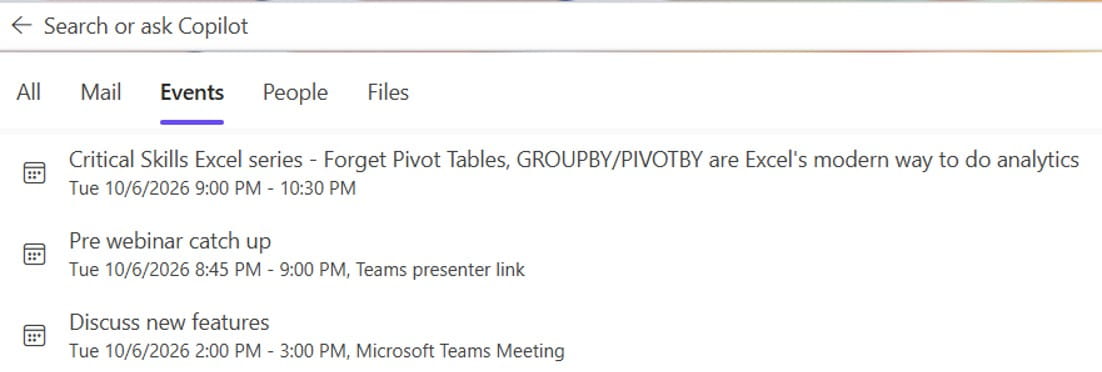
- Filter search by events in Outlook online or the new Outlook Desktop.
Microsoft 365 Core Office Apps channels and Copilot versions explained
Excel, PowerPoint, OneNote, Outlook and Word release regular updates to Microsoft 365. To see or update your version, click File> Account. The Current Channel should now be on version 2609, which is the year 2026 and month 9 (September). 2610 (Oct) should be released later this month, as the Monthly Enterprise channel releases updates a couple of months after the Current Channel. The Semi-Annual Channel has been scrapped recently and all users were moved to the Monthly Enterprise Channel. The Insider or Beta features are only available for a small selection of people who sign up to help test features, so they haven’t been reported explicitly, but they give a good idea of what is coming next. Frontier is a new tier that gets Copilot/AI features ahead of others.
Microsoft 365 has different license tiers for Copilot:
- Users have Copilot Basic if they don’t pay for an additional license. If they are in a small organisation (with under 2000 employees), they get access certain Copilot functions including Edit with Copilot, but not all.
- Copilot Premium (£25/user/month) has additional functionality, including Clean Data and Formulas by Example in Excel and higher usage limits. There may be offers for cheaper licenses online.
Microsoft Teams
- Continue typing whilst files upload in chats.
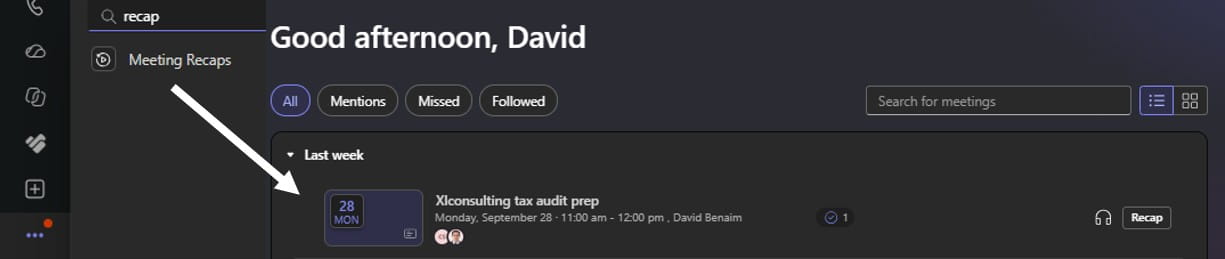
- New Meeting Recaps app lists recent meetings with AI recaps: To add, click the dots on left sidebar and search.

- Search bar now allows natural language AI search.
- Find in chat/Ctrl F now allows filters (e.g. file type, message).
- Branded meeting reactions: create custom org-specific reactions.
- Teams can now identify automated bot participants and suspicious calls can be flagged and blocked.
Microsoft Planner
- Planner task chat: Every Microsoft Planner task now has a chat sidebar.
- Planner custom templates: Save a plan as a template, then reuse later.
- Get Copilot to perform tasks in Microsoft Planner via prompts.
Other M365
- Exclude a folder from OneDrive sync: E.g. if there is a folder with a large video etc.
- Organisational Copilot prompts: Reusable by employees across the org.
- Copilot Notebooks are now available for Basic users.
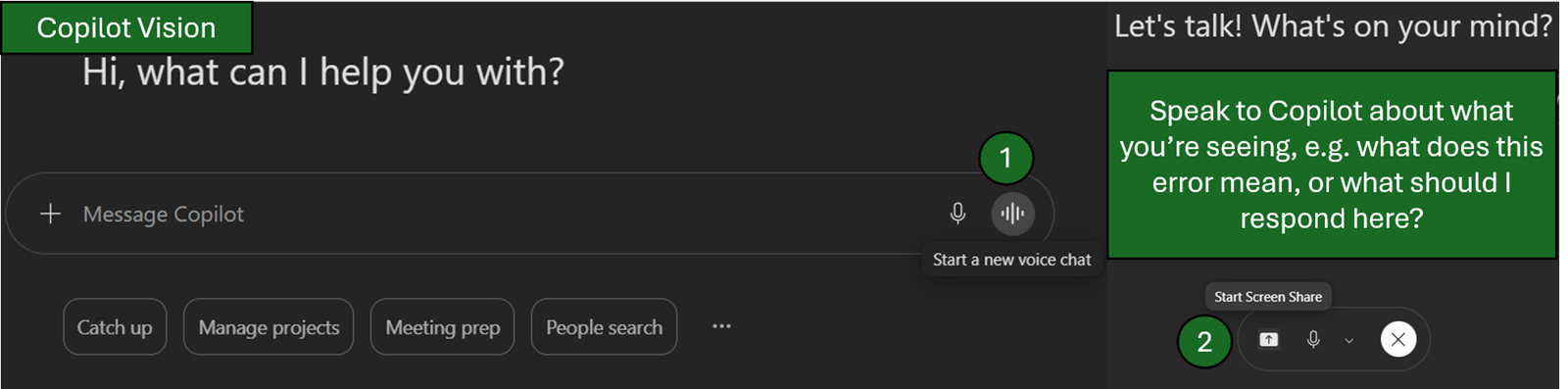
- Screensharing via Copilot Vision: Ask Copilot questions using your voice about what you’re seeing on the screen. Click voice mode in Copilot on the web or desktop > Share Screen.
Copilot Cowork
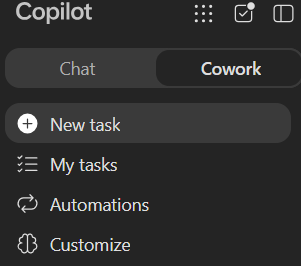
- Piggy backing off Claude Cowork, this enhancement allows Copilot to run tasks without being open and action things inside your emails, Teams chat and OneDrive. Example tasks include:
a. Send emails or calendar invites.
b. Reorganise folders.
c. Schedule prompts to rerun daily.
Example prompts include:
d. “Schedule a morning news briefing about the stock portfolio.”
e. “I want to rerun the annual board meeting, send an email to all those from last year, create similar planning meetings and a budget file in Excel.”
Note that Cowork needs to be turned on by your administrator and you pay on a per-use basis. Keep in mind it costs $0.01 per credit, in addition to the Copilot Premium subscription fee.
ChatGPT (*Paid subscriptions only)
- Free users can now use scheduled prompts.
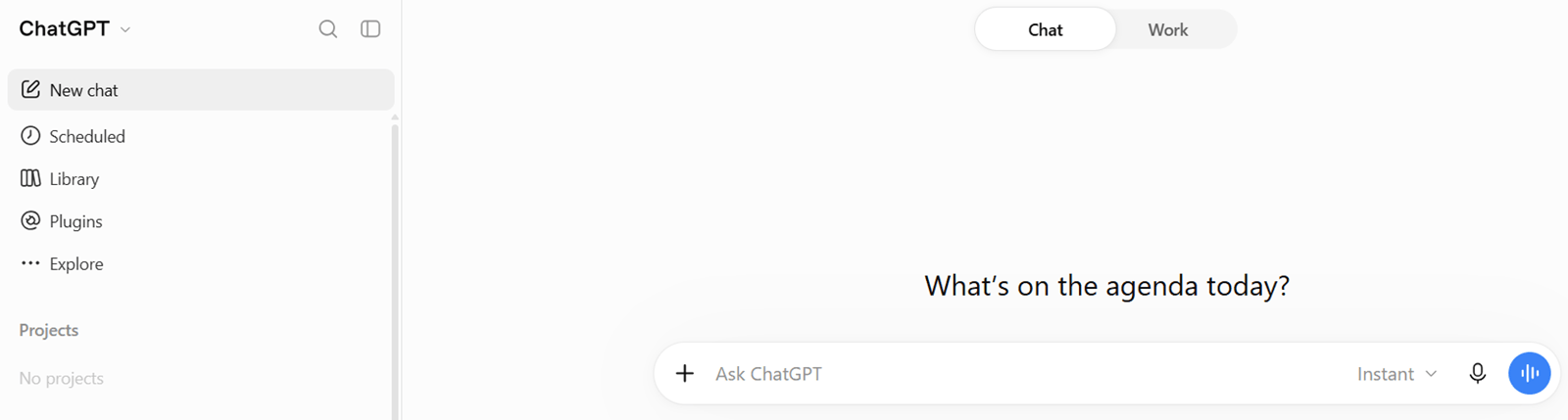
- *ChatGPT Scheduled page can be used to set recurring tasks and reminders.
- *Also jumping on the Cowork band wagon, ChatGPT Work is now available for longer/more detailed tasks, including scheduled tasks.
- A new ChatGPT desktop app combines Chat, Work and Codex.
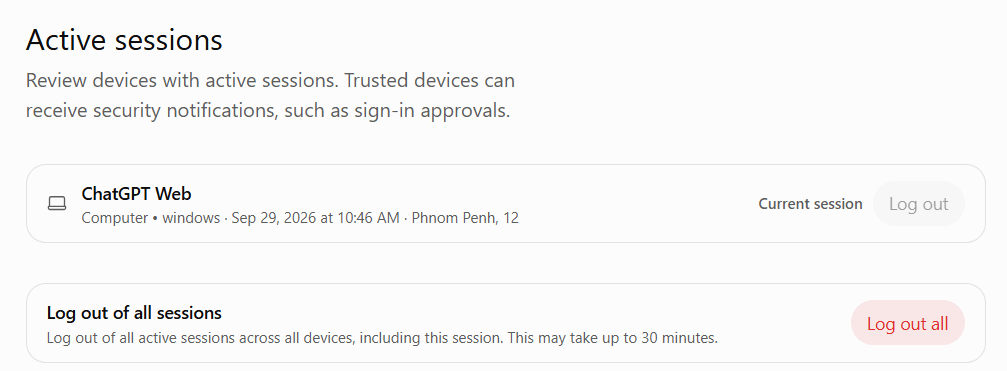
- “Active account sessions” controls allow users to review and sign out of active sessions via the Settings > Security > Active sessions.
- *A ChatGPT add-in is now available for Microsoft PowerPoint and Word.
- ChatGPT can now search for live job and freelancer roles and create tailored resumes.
Claude (*paid packages only)
- Edit drafts directly in the response window: No need to re-prompt.
- *Claude Cowork absorbed into a single experience: No need to choose the mode first.
- *Claude Cowork on web and mobile: Make changes to your computer files outside the Desktop app.
- *Admin permissions in Enterprise plans allow members to be assigned access to custom roles (e.g. billing or privacy) without giving full Owner control.
Zoom
- Prevent screen capture: Admins can disable screenshots, block downloading and stop participants copying images and files from meeting chat.
- New virtual AI background generation in Zoom is supported, if allowed by admins.
- Live AI translations for unlicensed listeners: Licensed meeting organisers can assign translations into English, Chinese, French, Japanese, Spanish, Arabic, German, Italian and Portuguese.
Canva (*paid Copilot features)
- *Add videos and templates to a brand kit.
- Add videos or photos to comments on Canva.
- *Create components: Pro users can create one item to reuse across designs. An “item” can be a combination of anything including graphics, text, shapes etc. Pro subscribers can select a series of objects, right click then “Create Component”. You can either store it in the one file or in your brand kit for use across designs.
Power BI (*paid Copilot Power BI package)
- *Create & edit Power BI Desktop files using AI agentic view.
- *Ask questions in Microsoft 365 Copilot, which looks in Power BI reports for answers.
- Try the new ribbon on the web: Get an almost identical Power BI edit experience on the web to Desktop by toggling on the preview.

- Customise Home Screen on Power BI Service: more information here.
- New tab in ribbon for “Design”.

- Format pane headers stay visible as you scroll.
- The Tabular Model Definition Language (TMDL) view is now available in Power BI Service
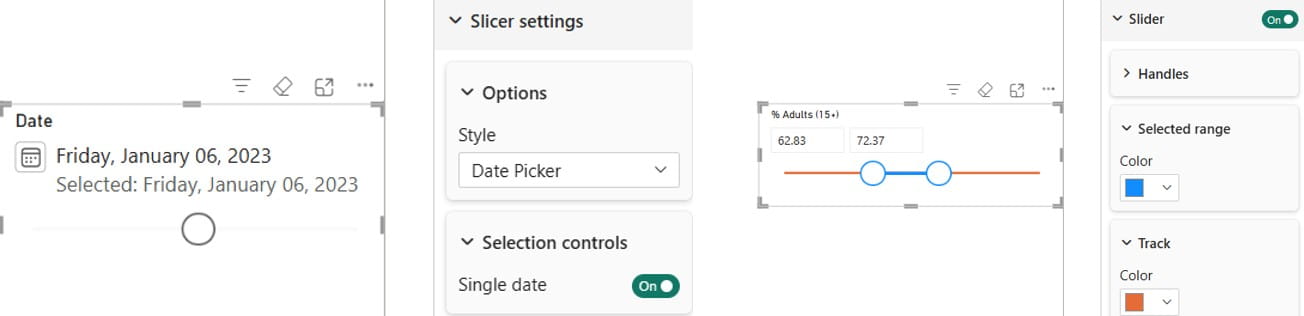
- Numerical/date slicer slider options: Use different colours for selected range. Also change colours or selection icons.
- Conditional formatting is now available for line charts and legends including column/bar charts, pie/donut charts, line/area charts.
- Type measure descriptions inside DAX code using triple slash ///.
- Autofit markers on scatter plots ensure the dot is fully visible and not cut off.
- New Date Picker slicer style.
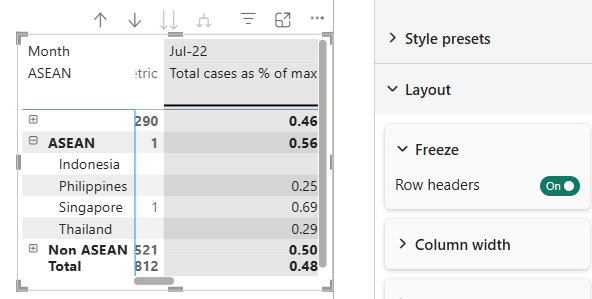
- Freeze row headers in matrix so you can scroll horizontally and keep visible. Toggle it on/off under Matrix > Layout > Freeze.
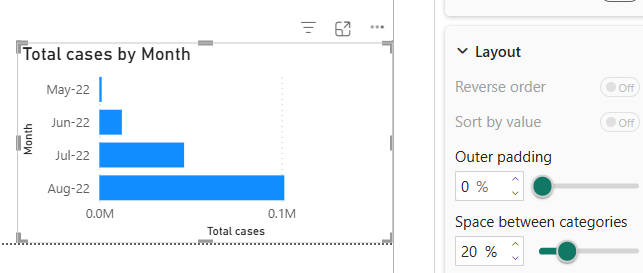
- Turn Outer padding to zero in graphs to use space more efficiently inside the charts or turn it up to increase spacing.
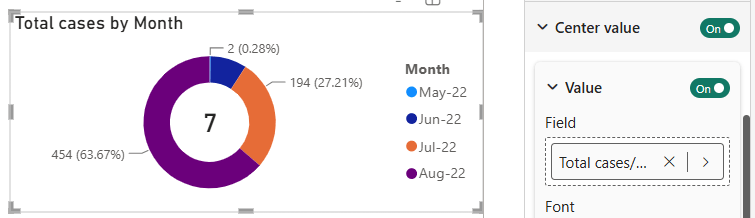
- Add donut charts centre value of your choice or even an image.
- New DAX function =TEXTCONTAINS() can search for text within a value.
- New DAX function = TEXTSIMILARITY() can give a similarity score using fuzzy matching e.g. “Brzil” [OR4.1]is close to “Brazil”, so it would be scored at around 90%.
- New Power Query editor: A few months after its release in Excel online and multiple years after being on Power BI online, the updated editor is now available on Power BI Desktop, with these extra features:
a. Add Column tab > Fuzzy Cluster Column: group together similar looking text.
b. Transform > Mark as Key: To mark key columns.
c. View tab > Schema View: Quick edit column types and position.
d. View tab > Diagram view: A more playful view with icons to expand/collapse.
This video which I made covers the new features:
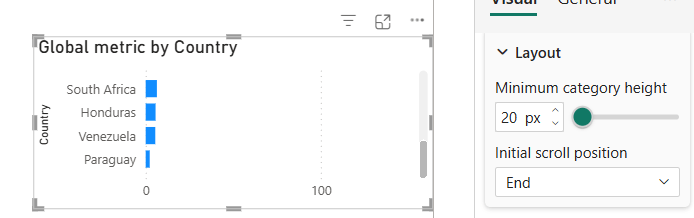
- Change initial scroll position under “Layout” from Start to End.
- Importing Excel files with 3D Bar charts, Tables and PivotTables from Tables will now maintain the objects, previously it would convert them.
- Choose fonts in chart axes, tiles, data labels and legend in Sheets.
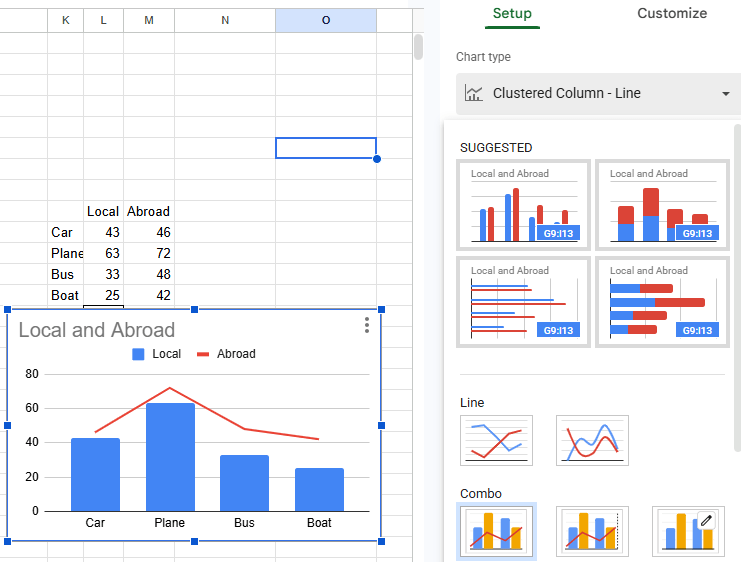
- Combo charts now available on Sheets. Select the data, click Insert > Chart, then in the “Chart type” choose “Combo” and select the option you like.
- Connected Sheets now allows users to rename columns and use lists as parameters. More here.
- Google Sheets cell limit is doubled to 20 million (but it will slow down at that level).
- Google Sheets manual calculation mode: Click File > Settings > Calculation mode to amend.
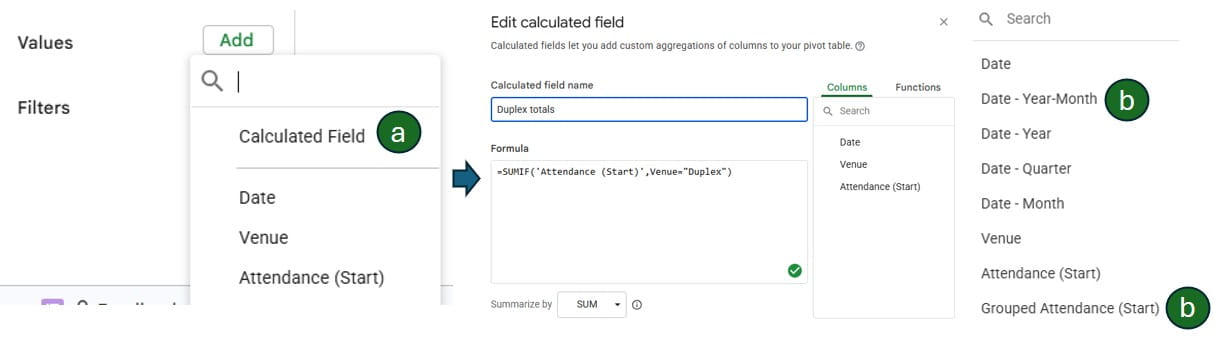
- Google Sheets PivotTable improvements:
a. Calculated Fields are now easier to create with a menu.
b. Grouped fields show up in the field list after grouping. (e.g. Date – Year – Month) or numerical fields. To group date or numerical fields, add them to the “Rows” section, right click one of the dates/numbers > “Create Pivot Table Group”.
c. Manually reorder items in rows / columns with drag & drop for custom sort.
- *Google Gemini now offers a new quick way to fix formulas as shown in the image.

- *Fill with Gemini and the =AI function are now available in more languages. The complete list is now English, Spanish, Portuguese, Japanese, Korean, French, Italian, German, Mandarin, Dutch, Malay, Hebrew, Polish, Turkish, Czech, Swedish, Danish, Norwegian, and Indonesian.
Google suite (*paid workspace features)
- Comments for videos in Google Drive now can have timestamps.
- Up to 200 colours available to customise Google Calendar events.
- Record slideshow on Google Slides by hitting the “Record” button: Record the screen and/or yourself with a camera. It saves the video with Google Vids.

- *“Suggest File Moves” within My Drive and parent folders: AI suggestions to reorganise your files.
- *Adding Gmail threads as sources in Ask Gemini for Drive.
- *Gemini in Sheets now supported in 28 additional languages: Spanish, Portuguese, Japanese, Korean, Italian, French, German, Chinese Simplified, Dutch, Hebrew, Polish, Turkish, Czech, Indonesian, Malay, Swedish, Danish, Norwegian, Arabic, Finnish, Vietnamese, Ukrainian, Greek, Thai, Romanian, Russian, Hungarian and Catalan.
- *“Take notes for me” is available in Google Voice for your phone calls.
- *NotebookLM was renamed to Gemini Notebook: A tool for doing research with AI.
- *Create and edit images, diagrams, and infographics directly alongside your text using Gemini in Google Docs.
- *Gemini-powered comment workflows. When reviewing a doc with many comments, ask Gemini to go through comments with you or draft replies.
- *Use Gemini in Forms to create a quiz from a pdf, slides or other documents.
- *‘Take notes for me’ feature in Google Meet now has screenshots of shared content.
- *Customise the style of captions in Google Vids.
That wraps up the updates until September 2026, come back for more new features in December.
- New tech features for June-Sep 2026: Excel, Teams, Google Sheets, Chat GPT, M365, Power BI, Canva, Zoom ++
- New tech features for Mar-May 2026: Excel, Teams, Google Sheets, Chat GPT, M365, Power BI, Canva, Claude, Zoom ++
- New tech features for Dec-Feb 2026: Excel, Teams, Google Sheets, Chat GPT, M365, Power BI, Canva, Zoom ++
- New tech features for Sep-Nov 2025: Excel, Teams, Google Sheets, Chat GPT, M365, Power BI, Canva, Zoom ++
- Excel, Teams, Google Sheets, Chat GPT, M365, Power BI, Canva, Zoom ++: New tech features for June-Sept 2025
Archive and Knowledge Base
This archive of Excel Community content from the ION platform will allow you to read the content of the articles but the functionality on the pages is limited. The ION search box, tags and navigation buttons on the archived pages will not work. Pages will load more slowly than a live website. You may be able to follow links to other articles but if this does not work, please return to the archive search. You can also search our Knowledge Base for access to all articles, new and archived, organised by topic.
