
Our digest of new features across Microsoft 365 & other business tech products in written, images & video format covering the last three months.
See the previous update here which includes some September features. Starred items throughout are only available with premium copilot/AI subscriptions.
My top 5
- Clean data & make financial models with Copilot Agent mode in Excel.
- Power Query new in Excel Online has features desktop doesn’t.
- The TRANSLATE function in Excel can help understand any spreadsheet.
- Edit notes in presenter view in PowerPoint.
- The Input Slicer for Power BI to filter by “text containing”.
Excel
Microsoft publishes a digest every month which the author contributes to, here are articles for January & February 2026 and the image shows which features are in which channel (see below for how to check your channel).

New in Excel Desktop for all M365 channels (even those not paying for Copilot licenses)
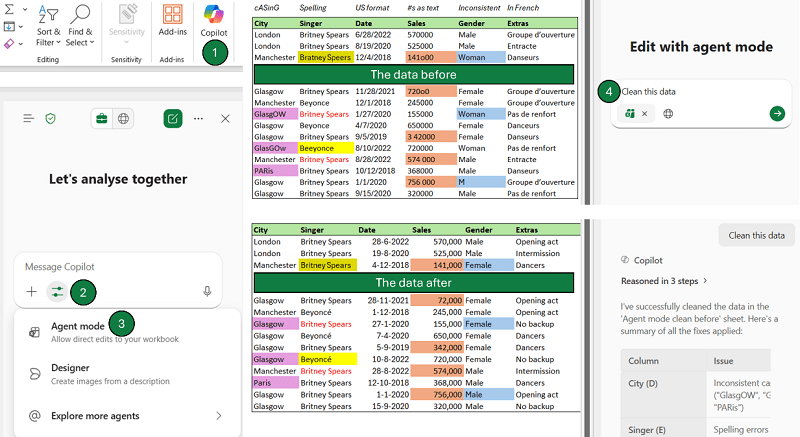
- Agent mode for Copilot: Agents bring many new capabilities to AI. To launch Excel’s AI Agent, click Home tab > Copilot, then on the settings below the text, click “Agent mode” and type our prompt. UK/EU subscribers may not see the feature quite yet but should very soon. Agent mode can:
- Clean data in various ways including:
- US style date formats.
- Inconsistent text values, such as Frnce in a column that has France, or Man in a column which otherwise has Male and Female.
- Translate a column to another language.
- Fix inconsistent colours of cells and more.
- Clean data in various ways including:
- Scan an Excel file and check & fix formulas in it.
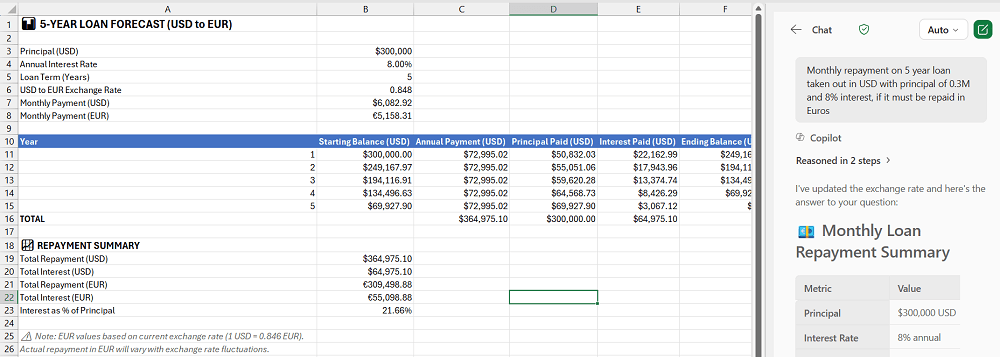
- Create a data model/financial model using a combination of your own data and data from the internet, e.g. “Monthly repayment on 5 year loan taken out in USD with principal of 0.3M and 8% interest, if it must be held in Euros”.
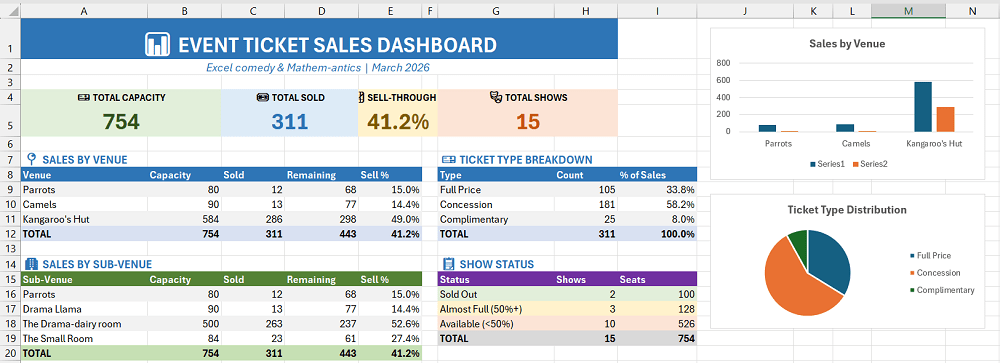
- Create a dashboard from a dataset: From any table, even a messy one, you can say “create a dashboard” and Agent mode will create tables, charts and cards in a one pager, it’s through formulas rather than PivotTables with slicers at the time of writing and sometimes gives incorrect data or less useful data (eg, Series 1 & 2 below), but is still very useful as a start point. The example here is a snapshot of ticket sales for my Adelaide Fringe comedy shows, the ticket type breakdown on the raw data had abbreviations comp, conc and full, but Copilot Agent mode was smart enough to demystify these by looking them up in relation to the entertainment industry.
New in Excel Semi Annual channel (paying an additional $20-30 per month)
New features are summarised in this video and in text below:
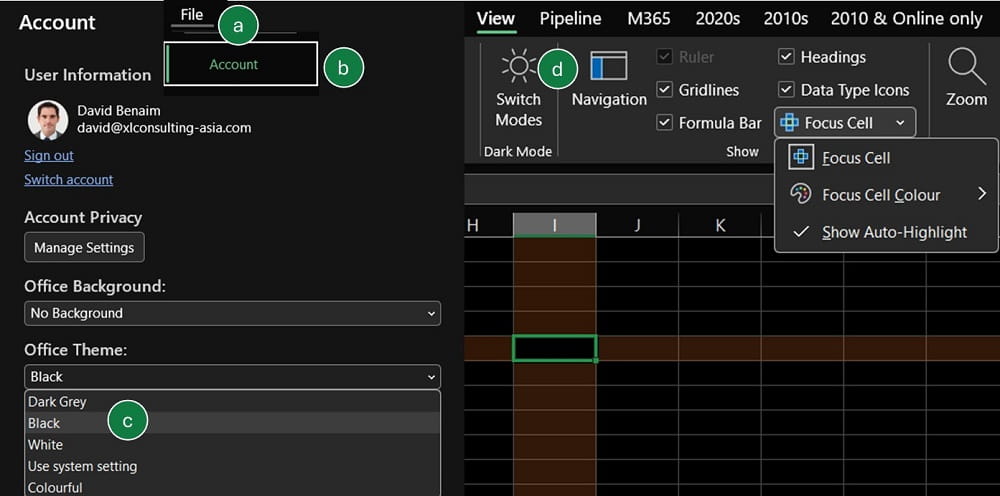
- Focus cell: Click View tab > Focus cell and Excel will highlight the cross section of the row and column of the selected cell for visibility. Extra options let you choose a specified colour plus an option called “Show auto-highlight” which activates this view when find & replace is used.
- Dark mode: Cells turn black with white text, enable via the View tab but you need to have a black theme to see the option in the first place. File tab > Account > Switch theme to use the black theme.
- Microsoft Forms entry via Excel: Click Insert tab > Forms to create a form from the current Excel file.
- Custom pen styles: Excel’s draw tab now lets you add custom pens for inking on the screen.
- Toggle formula compatibility: Formulas tab > Calculation options > Compatibility Version allows you to toggle between using “Latest” or “Recommended”. A few functions have been slightly modified, and users can use the Recommended feature if sharing formulas with people who have older Excel versions. The FIND function for instance has been updated slightly to include certain Unicode aspects only in the “Latest” mode. Over time, other Excel functions will be modified too.
- *Formula by example: In a Table, you can start typing out example results and when you get to the third row, Excel will use AI to suggest a formula output.
- *Clean Data with Copilot: Data tab > Clean data is new for copilot subscribers which can use AI to suggest data clean up such as extra spaces, slightly misspelled text, cAPItalisation inconsistencies etc. It’s good but Agent mode both far superior, and available to all customers, not just copilot subscribers.
Excel online
- Power Query is now online and has more functionality than on Desktop: The full Power Query editor launched in Excel Online via the Data tab; it has new features not in Desktop:
- Add Column > Cluster values: This will use fuzzy matching to get similar looking text to be the same e.g. fRAnce, Frnce would become “France”, and you can add a similarity score as well.
- Add column > Rank column: Rank by value with options for managing ties.
- Transform > Mark column as key as you would in a database.
- Transform > Group rows > Fuzzy grouping: Similar to cluster values but in grouping
- New view options on View tab:
- Diagram view: See the queries in a sequential flow chart with steps as icons (plus options to expand and edit from this view).
- Schema view: Easily rename or rearrange columns or choose their data types.
- See entire query script in the formula bar.
- Query Settings pane on right shows icons on the right related to query folding, and step icons on the left.
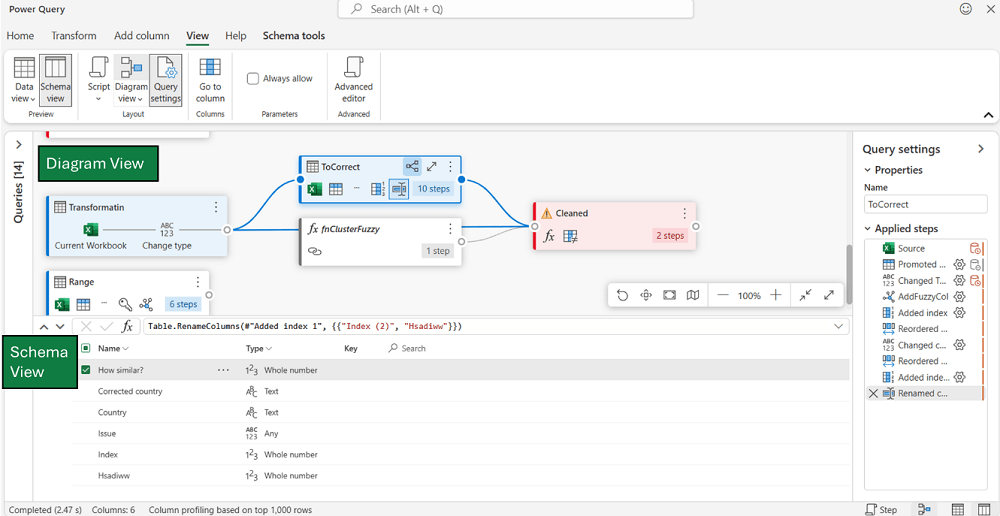
This video showcases it and other differences:
Word Current channel
- Agent mode: As well as Excel, Word also has agent mode in copilot available for all Microsoft 365 licenses (even those without a premium copilot license). It’s useful to make changes to your document en masse, like “Make every header bold and centred”.
- Ink to Shape: Turn this on from the Draw tab, and drawing approximate shapes will convert to actual shapes.
PowerPoint Semi-annual channel
- Edit notes in presenter view: When you’re presenting you can type and edit notes in the notes pane.
- Find and replace sidebar: Previously a pop up window, this feature now shows up on the right hand side.
PowerPoint Current channel Copilot Subscribers only
- *Brand images: Insert organisationally authorised brand images or logos from Insert tab > Pictures > Brand images. Set up is a little complex via SharePoint, more details here.
- *Generate an image: Insert tab > Pictures > Generate will create an image from an AI prompt.
Note: its reported that PowerPoint agent mode was released to PowerPoint Online, but I personally haven’t found it in my system, it will likely roll out shortly and will be mentioned in the next blog.
Microsoft 365 Core Office Apps channels and Copilot versions explained
Excel, PowerPoint, OneNote, Outlook and Word release regular updates to Microsoft 365. To see or update your version, click File> Account. The Current Channel should now be on version 2602, which is the year 2026 and month 2 (February) 2603 (March) should be released later this month, the Monthly Enterprise channel releases updates a couple of months after the Current Channel. The Semi-Annual Channel released an update in January 2026 up to version 2512. The Insider or Beta features are only available for a small selection of people who sign up to help test features, so they haven’t been reported explicitly, but they give a good idea of what is coming next. Frontier is a new tier that gets Copilot/AI features ahead of others.
Microsoft 365 has different license tiers for Copilot:
- Without an additional license, users can access certain Copilot functions including Agent Mode but not all, items with a * above cannot be accessed.
- Copilot for Microsoft 365 (£25/user/month) has additional functionality including Clean Data and Formulas by Example in Excel, there may be offers for cheaper licenses online.
Microsoft Teams
*These features are only available to AI enabled Teams, ie, Teams Premium or Microsoft 365 with Copilot.
- Pop out any pane as a window: Right click on any item on the sidebar on the left.
- Find channel files in the Shared tab.
- Autocorrect when composing messages
- Drafts view for chat: Edit & send your unsent messages like on email.

- Meet App in Teams can now have org-wide events such as group trainings, conferences etc.
- Resizable Gallery in Teams Meetings: See more people when content is shared.
- Task chat in Planner: Users can chat directly using text, formatting, mentions when in a task.
- *Customise meeting summary: Copilot users can use a prompt to be specific about how their AI summary should be generated.
- *Interpreter for different languages in meeting: Copilot/Teams premium users can hear the meeting in your preferred language regardless of what language the attendees are using.
*Microsoft Copilot enhancements
- *Voice chats can now reference memory.
- *Voice catch up on Outlook mobile allows replying, forwarding, flagging hands free.
- *Common triage actions in Outlook: "Flag all unread messages from my manager or mark all messages about HBU project as read.
- *Ask copilot to set your out of office.
- *Copilot notebooks in OneNote.
Power BI
Power BI releases monthly update blogs, here they are for January and February (none for December). The features below marked with a ^ must be turned on as preview options via File > Options and settings > Options > Preview settings and items with a * are for Copilot users only.
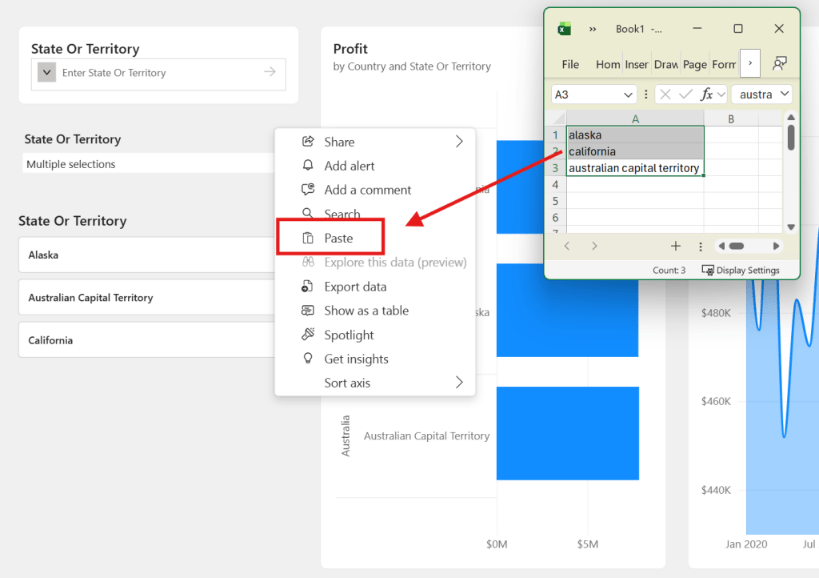
- The new Input slicer (previously text slicer): Add a field and type some text, and specify the operator such as: Contains any, contains all, does not contain any etc.
- Paste multiple text values into an input slicer.
- A card visual can be used as a filter, if it’s segmented by a dimension, by clicking on one element of it.
- New DAX function TABLEOF: Similar to NAMEOF but rather than returning text, it returns a reference to the associated table.
- Improved Colour picker on the format pane.
- Ability to reset to default for all settings or just the settings of a group (eg, bars).
- The Azure Map visual which replaced the previous map visuals now supports custom icons as markers and format options around them.
- *The character limit for Copilot prompts increased from 500 characters to 10,000.
Google Workspace
- Editing password-protected Excel, PowerPoint & Word files directly in Google Sheets, Slides & Docs: Previously opening password protected files in Google Drive didn’t respect the passwords, but now you will need to type the password to edit, just like editing in Office.
- Two new Google Sheets functions launched which have been in Excel for a while:
- =SHEET([value]): Returns the sheet number reference, if left blank it will return the current sheet number.
- =SHEETS(): Returns the total number of worksheets in the spreadsheet.
- Listen to an AI audio summary in Google Docs or listen to the whole doc: Access via the Tools menu.
- Set Google Forms to automatically stop accepting responses based on a time or a response count
- Forward messages in Google Chat, similar to email.
- Google Vids are making three features available to all users:
- Teleprompter: Read whilst maintaining eye contact.
- Transcript trim: Edit the transcript as you would a written document and it will edit that part of the video, great for removing urms and so on.
- Karaoke mode styled captions: Choose a consistent style on captions as we see them frequently in social media reels/shorts.
- React to emails in Gmail with emojis.
- Share your device’s audio when presenting in Google Meet.
- Move shared content in Google Meet to a separate window with the “Open in new window” option.
- *Google speech translation in Google Meet is now available for more Google Workspace customers.
- *Gemini helps you identify the best times to meet by analysing your colleagues’ availability—including time zones, working hours, and existing conflicts.
Zoom meeting enhancements
- Type zoom.new to launch a new meeting.
- New Dynamic gallery view auto crops video to best focus on faces in available screen space.
- Hosts can pin messages in meeting chats.
- Enhanced media add on: Better video meeting screen sharing up to 1080p and 60 frames per second via a new add-on license.
- A post meeting recording (or other videos) can have creators insert polls and quizzes at certain timestamps for e-learning experiences.
- Hosts can disable screen capture, so web & Linux users get audio only in times with low signal.
- *AI companion creates tasks from meeting summaries.
- *My notes replaces previous notes feature; users can take notes accompanied by AI notes.
Chat GPT
- A new health dedicated space on the sidebar being released progressively. Connect medical records separate to the rest of Chat GPT for confidentiality and data is not used to train its models.
- Attach up to 20 attachments in a prompt (previously 10).
- Pin chats on mobile apps.
- GPT 5.2 models are now up to date to August 2025.
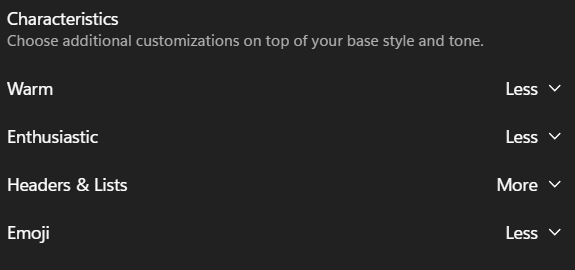
- Write in lists warmly: Click your name > Personalisation and see the section under characteristics.
Canva
- Group rows in Canva Sheets: Right click on one or multiple rows and Group to see an arrow allowing to expand them
- Hide columns in Canva Sheets: Right click columns to hide them. It’s an interesting choice that you cannot hide rows or group columns, but I can see the logic, many users misuse Hide in Excel and lots of data gets lost as it’s hard to see.
- Canva docs pagination: Go to File > Page setup and choose to see it in A4, A3 etc. By default, Canva creates endlessly scrolling page less design, now you can choose a more traditional doc as well.
- Generate 3D objects with Magic Media: As well as generating images and videos you can also now generate a 3D object.
- Image to 3 second video: Select a picture > Edit and choose “Image to Video”, Canva AI can generate something automatically or you can type to specify what the video should do.
- Starred fonts: Set fonts as favourites for quick access later.
- Make design available offline: From the home tab click 3 dots and then “Make available offline” to be able to edit without an internet connection.

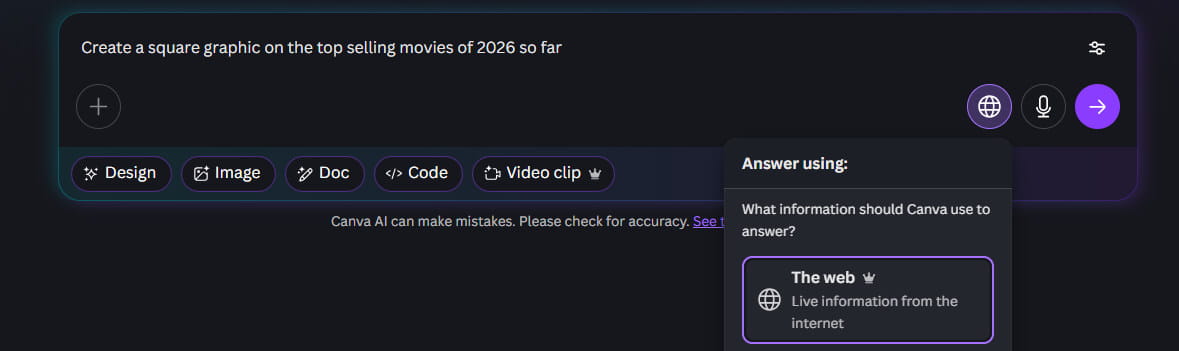
- Canva AI can now look through the web for latest results by specifying in the settings.
- Modify grouped elements without ungrouping: You can move and resize elements in a group without ungrouping them first.
- Upload folder of photos: Drag a folder into your upload to speed up.
- Download page: Click 3 dots on the thumbnail of a specific page to download just that page in fewer clicks.
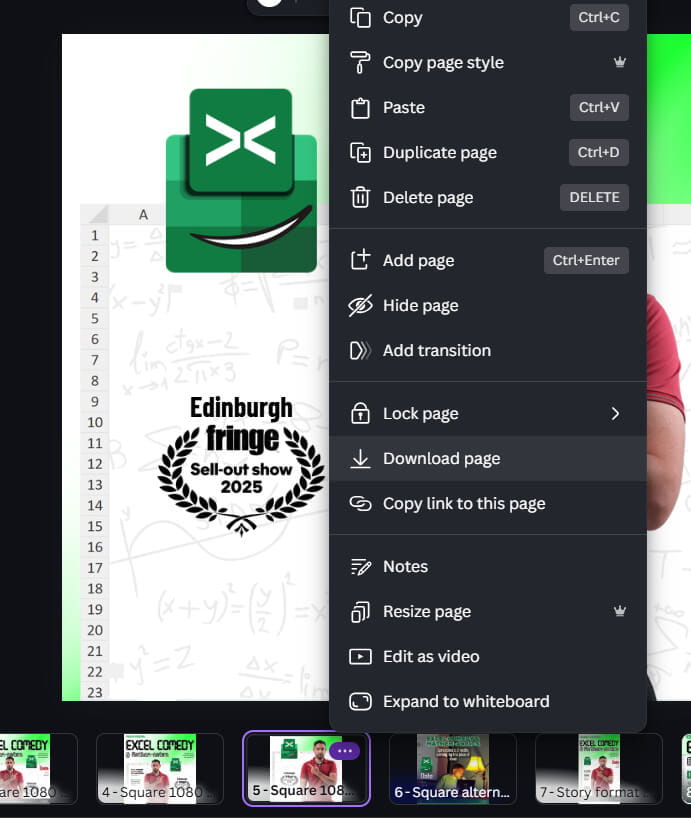
- Download from the homepage: Right click the thumbnail of a design and choose Download.
That wraps up the updates until February 2026, come back for more new features in June.
- New tech features for Mar-May 2026: Excel, Teams, Google Sheets, Chat GPT, M365, Power BI, Canva, Claude, Zoom ++
- New tech features for Dec-Feb 2026: Excel, Teams, Google Sheets, Chat GPT, M365, Power BI, Canva, Zoom ++
- New tech features for Sep-Nov 2025: Excel, Teams, Google Sheets, Chat GPT, M365, Power BI, Canva, Zoom ++
- Excel, Teams, Google Sheets, Chat GPT, M365, Power BI, Canva, Zoom ++: New tech features for June-Sept 2025
- Excel, Teams, Google Sheets, Chat GPT, M365, Power BI, Canva, Zoom ++: New tech features for Mar-May 2025
Archive and Knowledge Base
This archive of Excel Community content from the ION platform will allow you to read the content of the articles but the functionality on the pages is limited. The ION search box, tags and navigation buttons on the archived pages will not work. Pages will load more slowly than a live website. You may be able to follow links to other articles but if this does not work, please return to the archive search. You can also search our Knowledge Base for access to all articles, new and archived, organised by topic.
